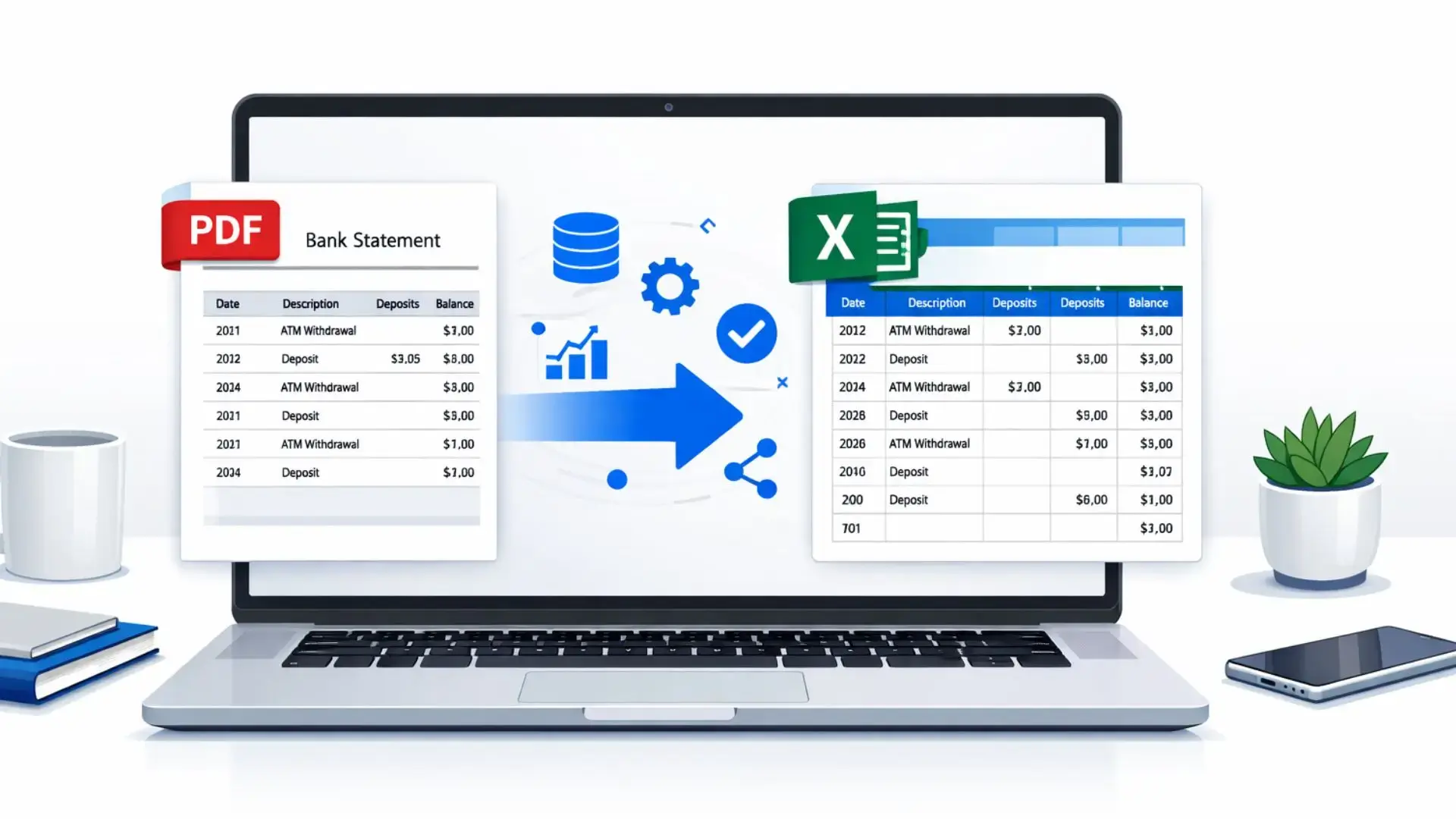
Learn 5 easy steps for PDF to Excel conversion for bank statements. Automate data entry, improve accuracy, and streamline your financial analysis today.
Unlock the hidden potential of your financial data with PDF to Excel Conversion, without wasting hours on manual entry. Whether it’s personal budgeting or small business accounts, converting PDF bank statements into Excel makes your data easier to sort, track, and analyze.
Quick Summary
PDF to Excel Conversion automates data entry, reduces errors, and saves time. You can use online tools, Excel’s built-in "Get Data" feature, or dedicated OCR technology for scanned files. This process is essential for accurate bank reconciliation, tax prep, and financial analysis. Always clean your data after conversion for the best results.
Why Convert PDFs to Excel?
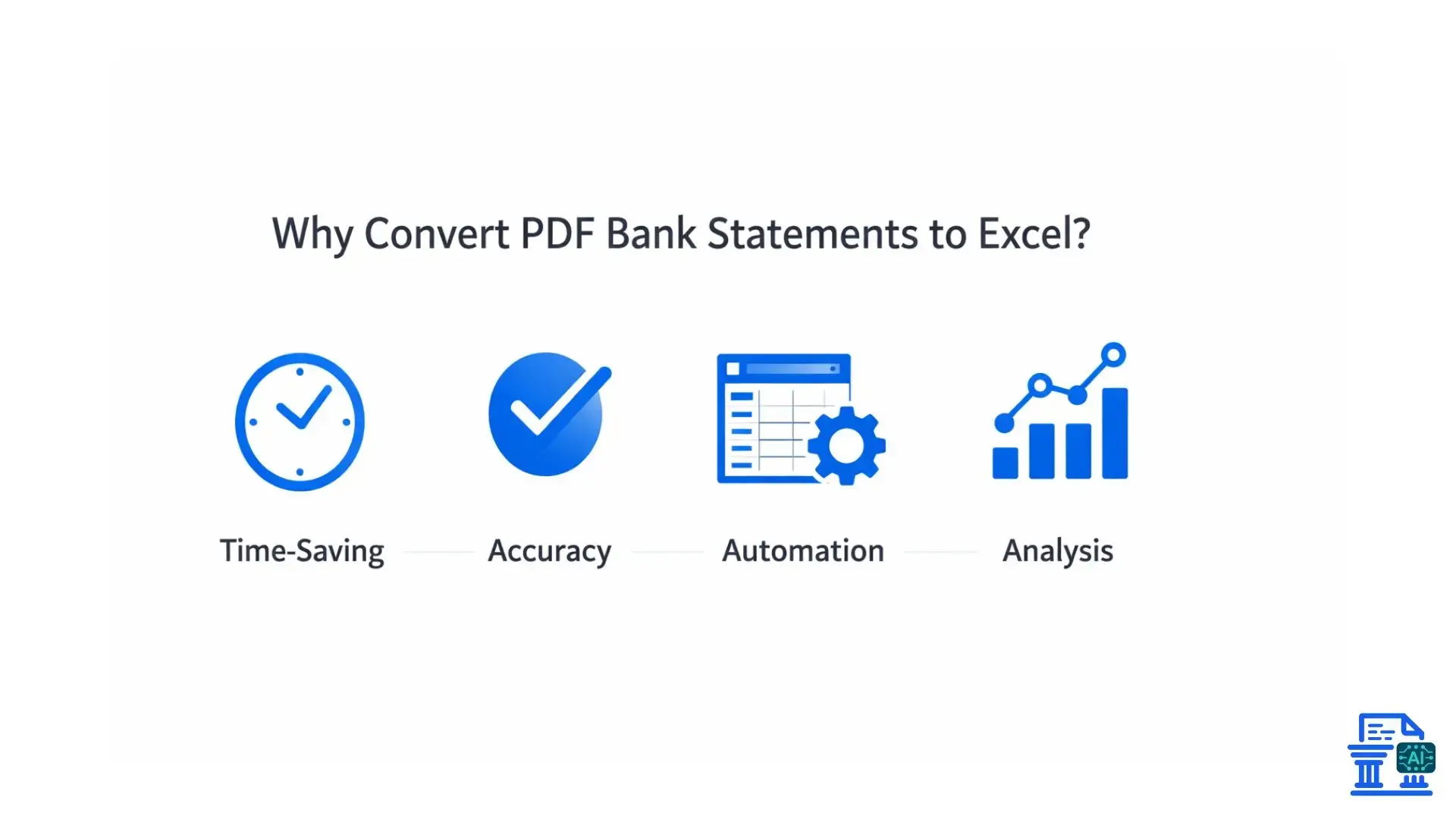
Manual data entry is prone to human error and eats up valuable time. By digitizing your approach, you unlock several benefits:
- Streamlined Data Analysis: Once your transaction data is in an Excel format, you can sort, filter, and calculate instantly.
- Simplified Bank Reconciliation: Easily match your records against bank accounts in software like QuickBooks Online or Xero.
- Reduced Manual Error: Automating the data extraction process removes typos that happen when typing numbers by hand.
- Trend Spotting: Analyze spending habits or business expenses using Pivot Tables to detect trends or potential fraud.
Step 1: Obtain and Prepare Your PDF Bank Statement
Before you start the conversion process, you need to ensure your source documents are ready. A clean input ensures a clean output.
Downloading and Identifying Your PDF Type
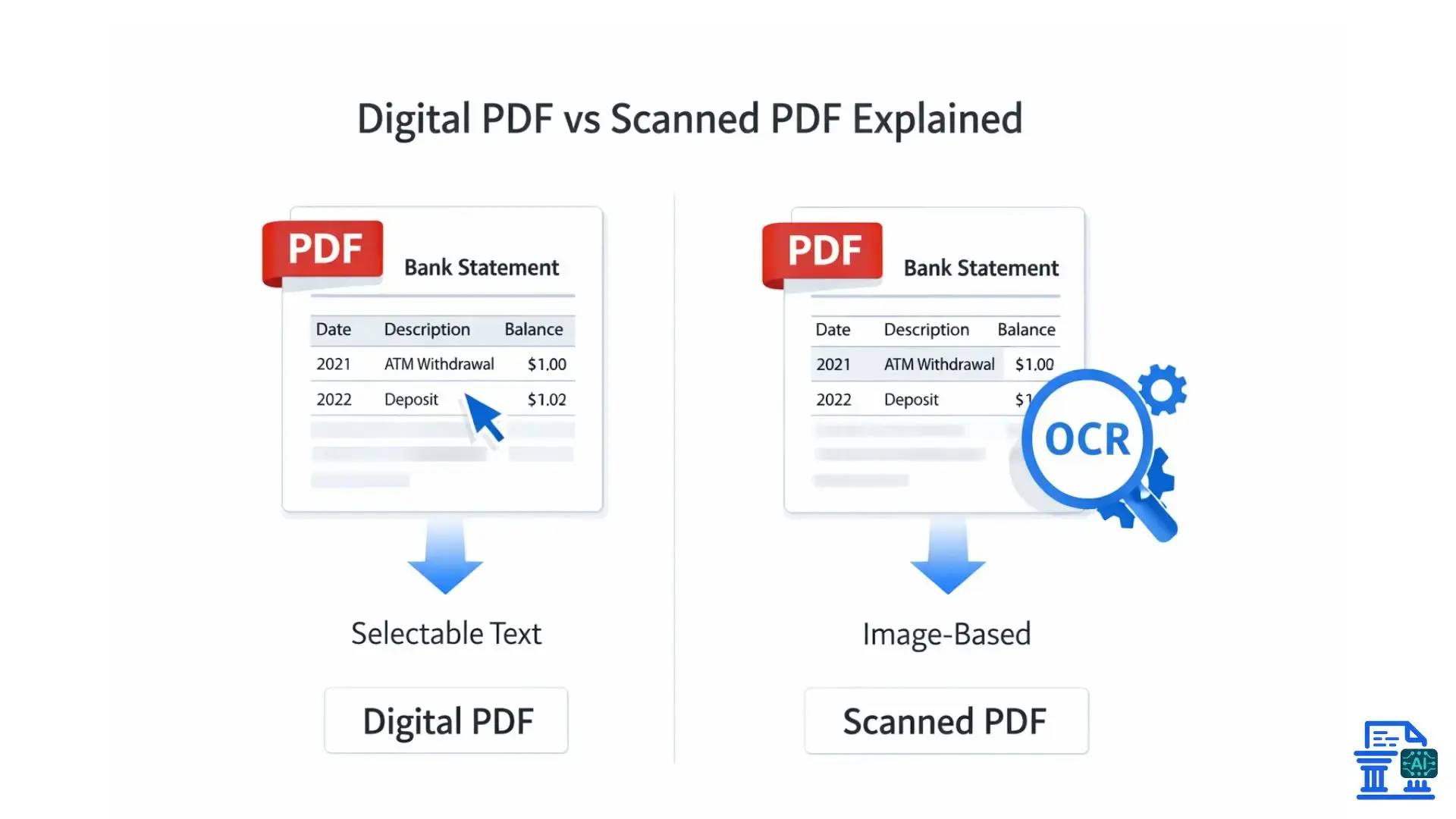
Log into your online banking portal and download your statements. It is important to know if you are dealing with a digital PDF (created electronically by the bank) or a scanned document (an image of a paper statement).
- Digital PDFs: You can highlight the text with your cursor. These convert easily.
- Scanned PDFs: These act like images. You will need Optical Character Recognition (OCR) to extract the data.
- Password Protection: Many banks encrypt files. You must remove the password using a tool like Adobe Acrobat Pro or "Print to PDF" (saving it as a new, unlocked file) before converting.
What Are My Conversion Options?
Choosing the right tool depends on your volume of documents and technical comfort level. Here are the most effective methods:
Option 1: Reputable Online PDF to Excel Converters
For a quick, one-off job, an online tool can work wonders. Many offer free tiers where you simply upload your file and download the resulting Excel sheet. However, be cautious with sensitive data on public servers.
Option 2: Microsoft Excel's "Get Data"
If you have Microsoft 365, this is often the safest route.
- Open Excel.
- Go to the Data tab.
- Select Get Data > From File > From PDF .
This keeps your financial data management local and secure.
Option 3: Dedicated Software and OCR
For scanned documents or high-volume batch processing, tools like ABBYY FineReader or Klippa DocHorizon are powerful. They use Zonal OCR to target specific areas of a document, like transaction descriptions and currency values.
Step 3: Execute the Conversion Process
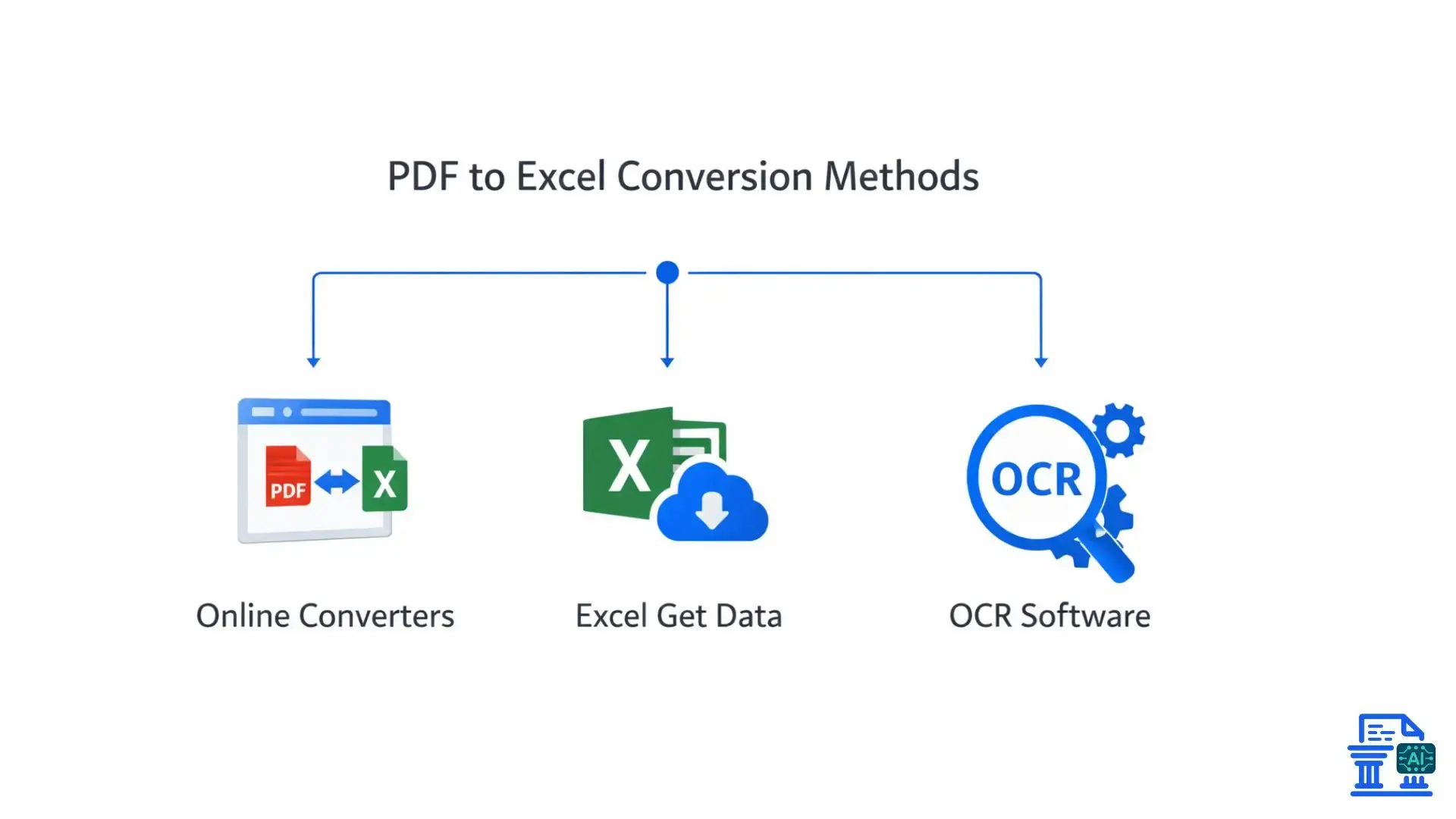
Once you have selected your tool, it is time to move the data. Follow these general workflows to ensure success.
- For Online Converters: Upload your PDF bank statement. Select "Excel" or "CSV format" as the output. Click convert and download the file to your computer.
- For Excel’s "Get Data": After selecting your file, a "Navigator" window will pop up. Select the table that contains your transactions. Click "Load" to import it directly into your worksheet.
- For Scanned Documents: Open your OCR software. Upload the scanned PDFs. Select the "Bank Statement" setting if available (some tools like Rocket Statements have this). Run the extraction and export to Excel.
- Batch Processing: If you have twelve months of statements, look for a tool that supports batch processing. This allows you to convert multiple files at once, merging them into a master bank statement document.
Step 4: Refine and Structure Your Data in Excel
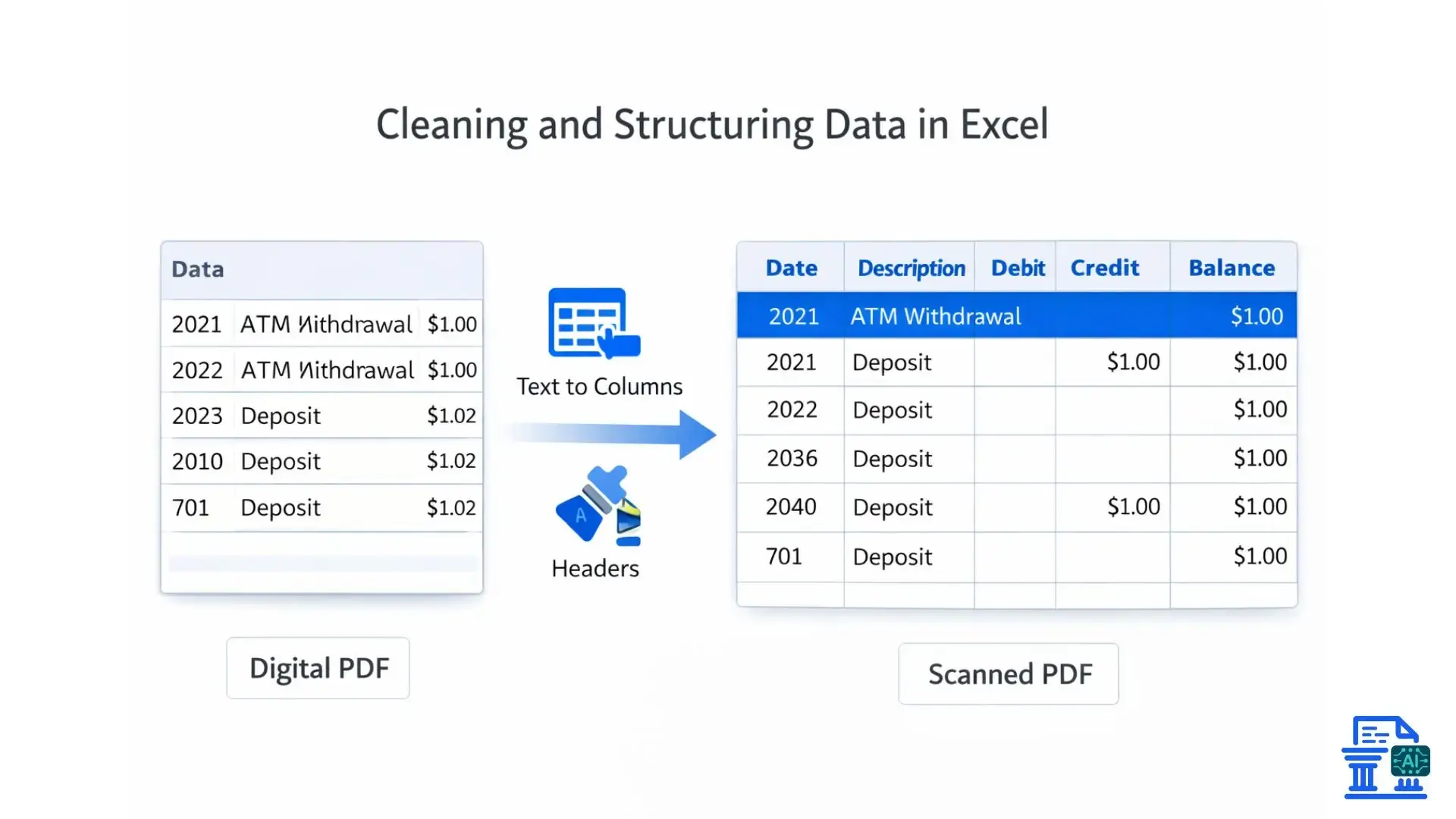
Raw data rarely comes out perfect. You usually need to polish the Excel sheet to make it usable for financial reports or accounting software.
- Initial Review: Open your new file. Check for common issues like merged cells, extra headers, or misaligned columns.
- Cleaning Techniques: Use "Text to Columns" to separate dates from descriptions. Ensure that currency values are formatted as "Currency" and not "Text" so you can sum them up.
- Organize for Clarity: Add clear headers (Date, Description, Debit, Credit, Balance). Delete irrelevant rows like page numbers or legal disclaimers often found at the bottom of PDF pages.
Step 5: Transform Data into Actionable Financial Insights
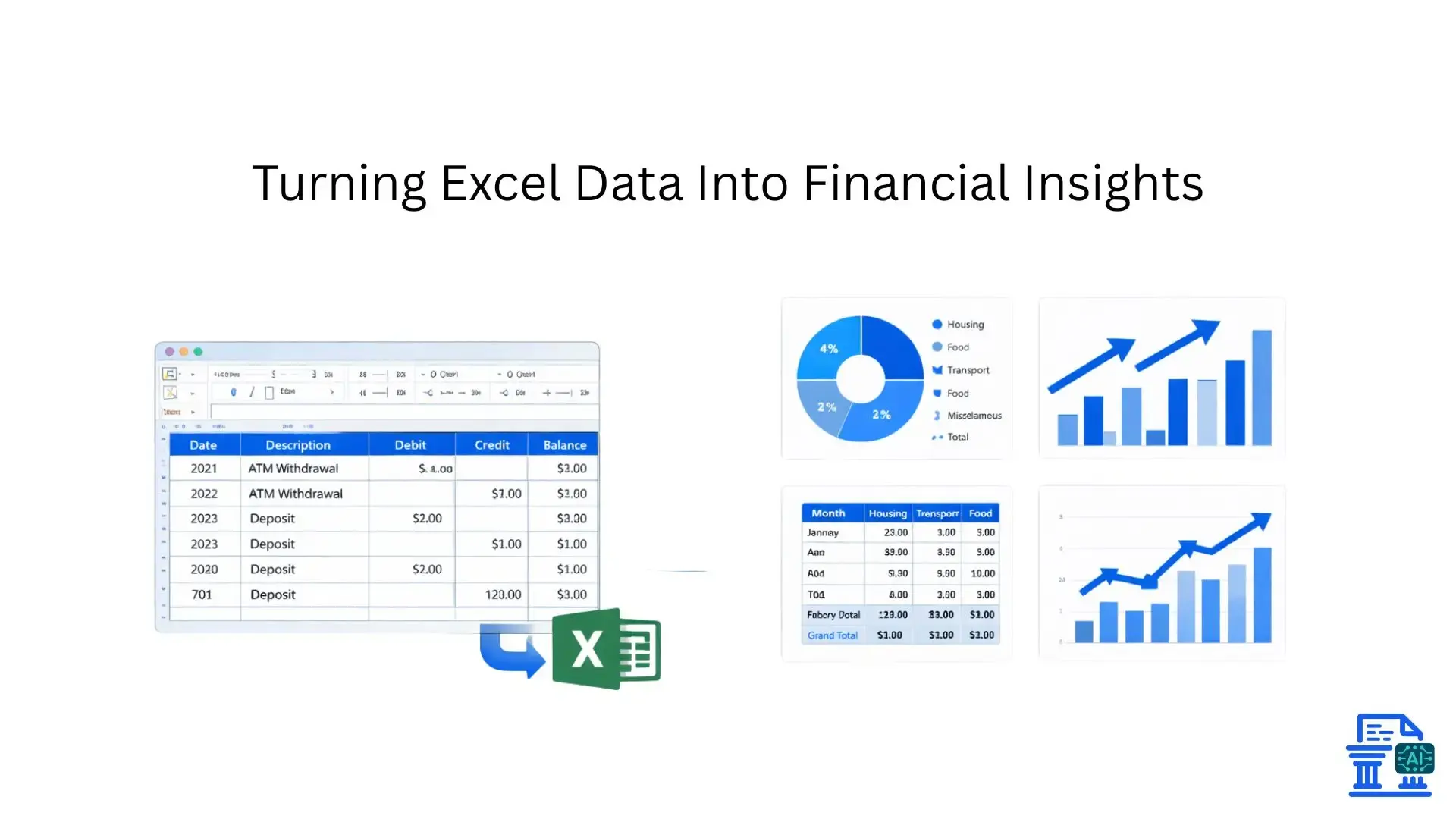
Now that your data is clean, you can use it to make smarter decisions.
Performing Basic and Advanced Analysis
Use your Excel spreadsheets to categorize expenses. For example, filter by "Canadian Organic Maple" to see how much you spent on syrup supplies last year (a specific example of vendor analysis). You can also use conditional formatting to highlight large transactions or duplicate entries.
Streamlining Management
Import this clean CSV file into tools like FreshBooks, Sage, or Xero. This bridges the gap between your bank account and your financial records, making tax season a breeze.
Is My Financial Data Secure?
When dealing with transaction data, security is paramount. You must protect your sensitive information during the conversion.
- Choose Reputable Converters: Avoid unknown, fly-by-night websites. Look for tools that promise data deletion after processing.
- Safeguard Your Data: If using cloud storage or an online API, ensure they use encryption. For maximum security, stick to offline desktop software or Microsoft Excel’s local features.
- Verify Accuracy: Always double-check the final numbers against the original PDF statement. A missing decimal point can ruin a reconciliation.
Troubleshooting Common Conversion Hurdles
Even the best tools struggle sometimes. Here is how to fix common problems.
- OCR Inaccuracies: If a "0" looks like an "O", you will need to manually correct it. Tesseract OCR engines are good, but human review is always required for scanned docs.
- Complex Formats: If your bank uses a weird layout, try using "Power Query" in Excel to shape the data, or look for a Python library if you are tech-savvy.
- Missing Data: If rows are missing, check if the original PDF had a page break that confused the software. You may need to manually copy those specific lines.
Conclusion
PDF to Excel Conversion isn’t just a technical task, it’s a practical step toward clearer, healthier finances. With the right approach and tools, PDF to Excel Conversion helps turn messy bank statements into organized data that saves time and reduces stress. Start by converting your latest statement today and see how PDF to Excel Conversion makes financial tracking simpler and more effective.
FAQs
1. Can I convert a PDF bank statement into an Excel spreadsheet?
Yes, PDF bank statements can be converted into Excel using online tools, Excel’s “Get Data” feature, or OCR-based converters. This makes transactions editable, searchable, and easy to analyze.
2. What is PDF to Excel Conversion and why is it useful for bank statements?
PDF to Excel Conversion transforms static bank statement PDFs into editable spreadsheets. It saves time, reduces manual errors, and simplifies reconciliation, reporting, and financial analysis.
3. What is the best tool to convert PDF bank statements to Excel accurately?
Accuracy depends on handling scanned PDFs, complex layouts, and multi-page files. Tools like mybankstatementconverter.ai/ are designed specifically for bank statements and deliver clean Excel or CSV output.
4. Why does my PDF not convert properly into Excel?
Most issues occur due to scanned PDFs, low-quality images, or unusual layouts. Using OCR-based tools and reviewing the Excel file after conversion helps fix formatting errors.
5. How can I convert large or multiple PDF bank statements into Excel easily?
Batch-processing converters allow you to upload multiple PDFs at once. These tools merge transactions into structured Excel files, making large-scale financial processing much faster.

Leave a comment
Your email address will not be published. Required fields are marked *