Learn how to convert bank statements to Excel for payroll management. Save time, reduce errors, and streamline reconciliation with our step-by-step guide.
Struggling with manual payroll data entry? Doing it by hand is tedious, error-prone, and costly. This guide explains why finance teams Convert B ank Statements to Excel . It helps turn PDFs into dynamic, accurate, and audit-ready payroll data.
Summary
If you don’t have time to read the full guide, here’s the short version: manual payroll entry from PDFs wastes hours and causes errors. When you Convert Bank Statement to excel using automated tools, you achieve up to 99% accuracy, faster reconciliation, and more time for strategic financial planning.
Why Manual Bank Statement Processing Isn't Working
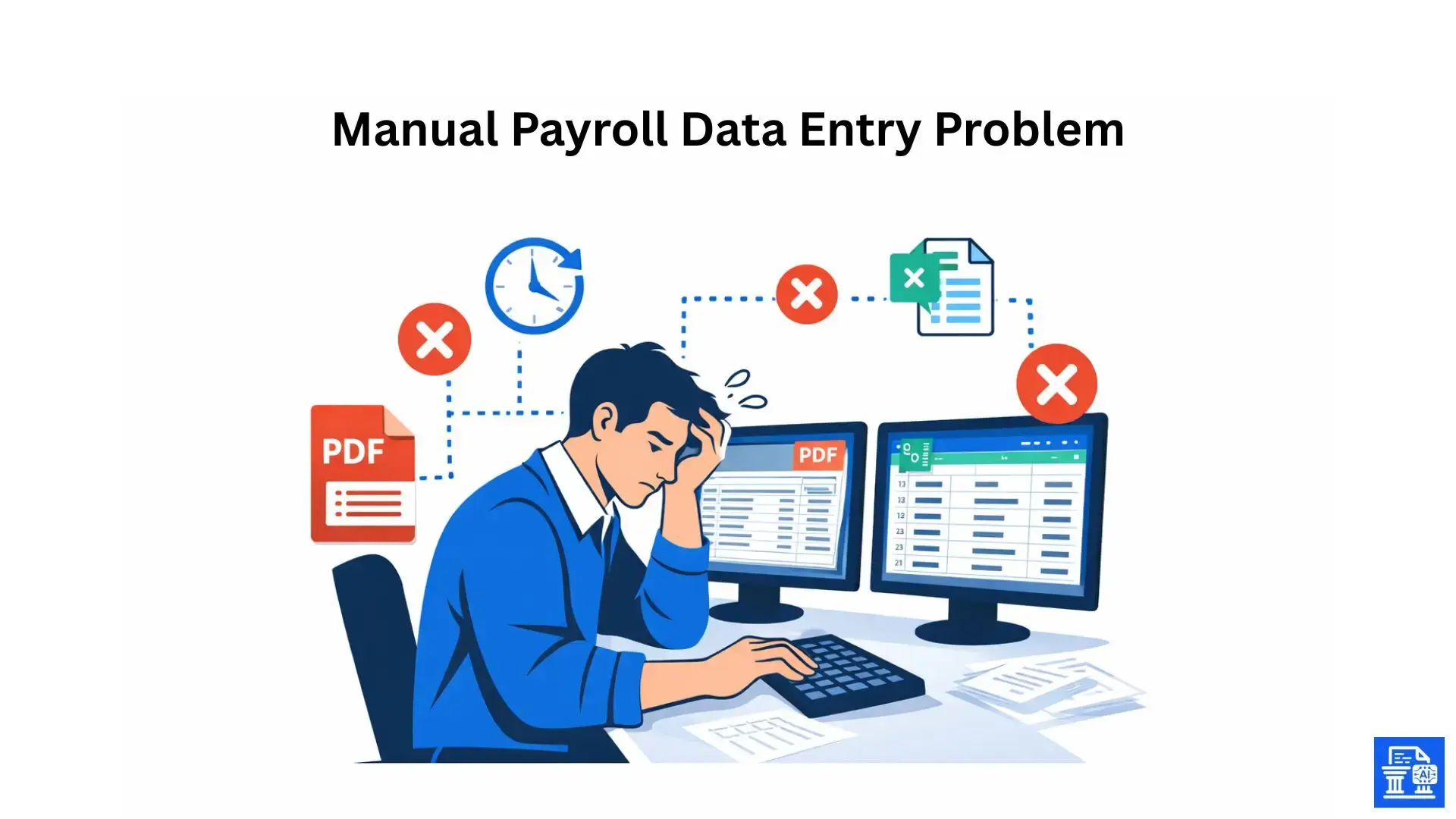
Managing payroll involves high stakes. A single digit out of place can result in an employee being underpaid or a tax liability being miscalculated. For years, I watched finance teams struggle with the "swivel chair" method, looking at a PDF on one screen and typing into Excel on another. It’s a recipe for disaster.
The Pain Points of Manual Payroll Data Entry
Manual data entry is the bottleneck of modern finance. When you rely on typing out transactions from bank statements , you invite several issues:
- Time Drain: What should take minutes takes hours.
- Fatigue: Repetitive tasks lower cognitive function, increasing the risk of mistakes.
- Format Inconsistency: Banks change layouts, throwing off your manual templates.
The Critical Need for Accuracy in Payroll Management
Payroll isn't just about paying people; it's about compliance and trust. Inaccurate records can lead to IRS penalties or unhappy employees. Financial data must be precise. When you manually enter data, you are the single point of failure. Automated solutions take away that variable. This way, the numbers on your statement match your ledger perfectly.
Bank Statement to Excel Conversion
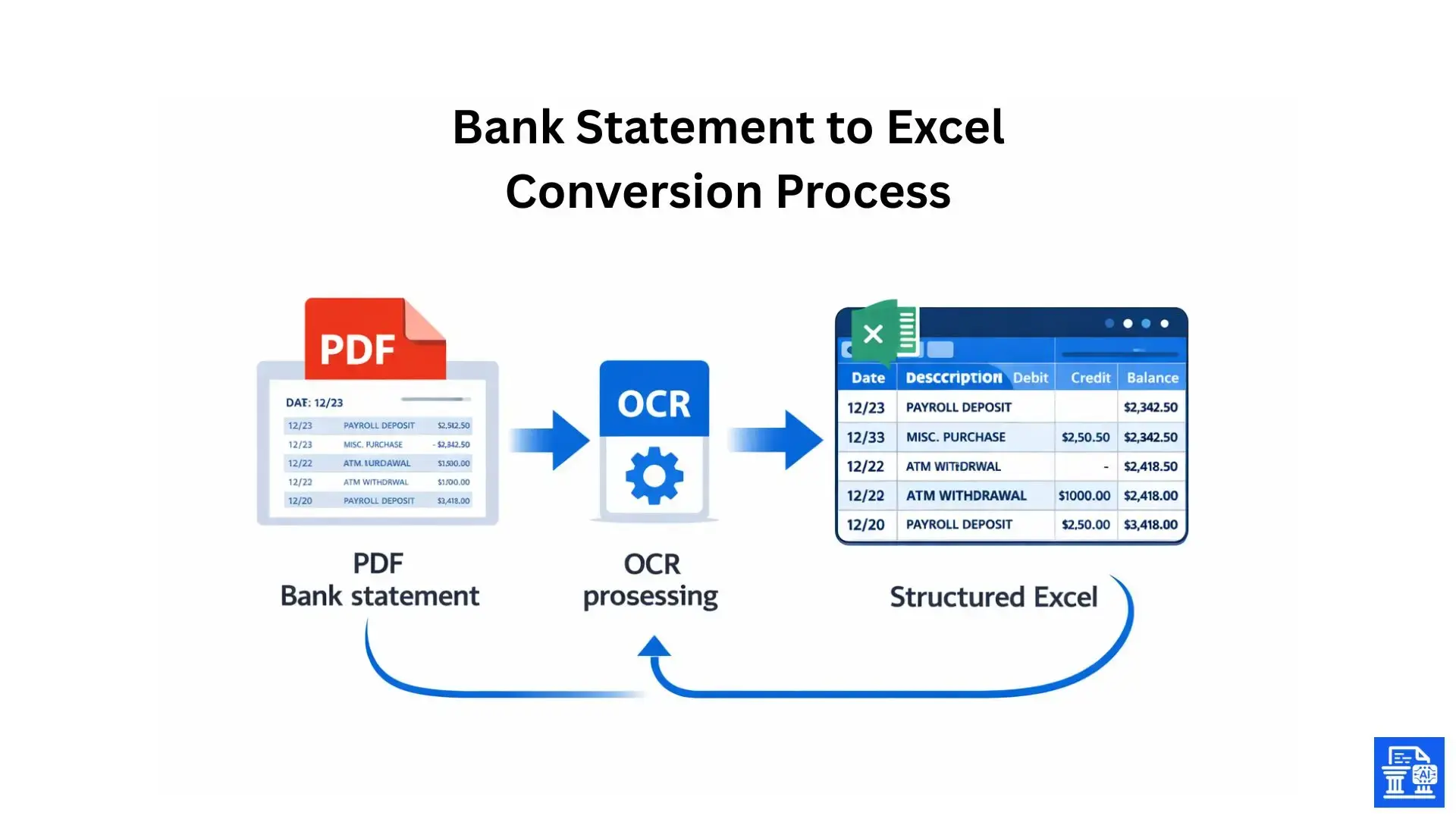
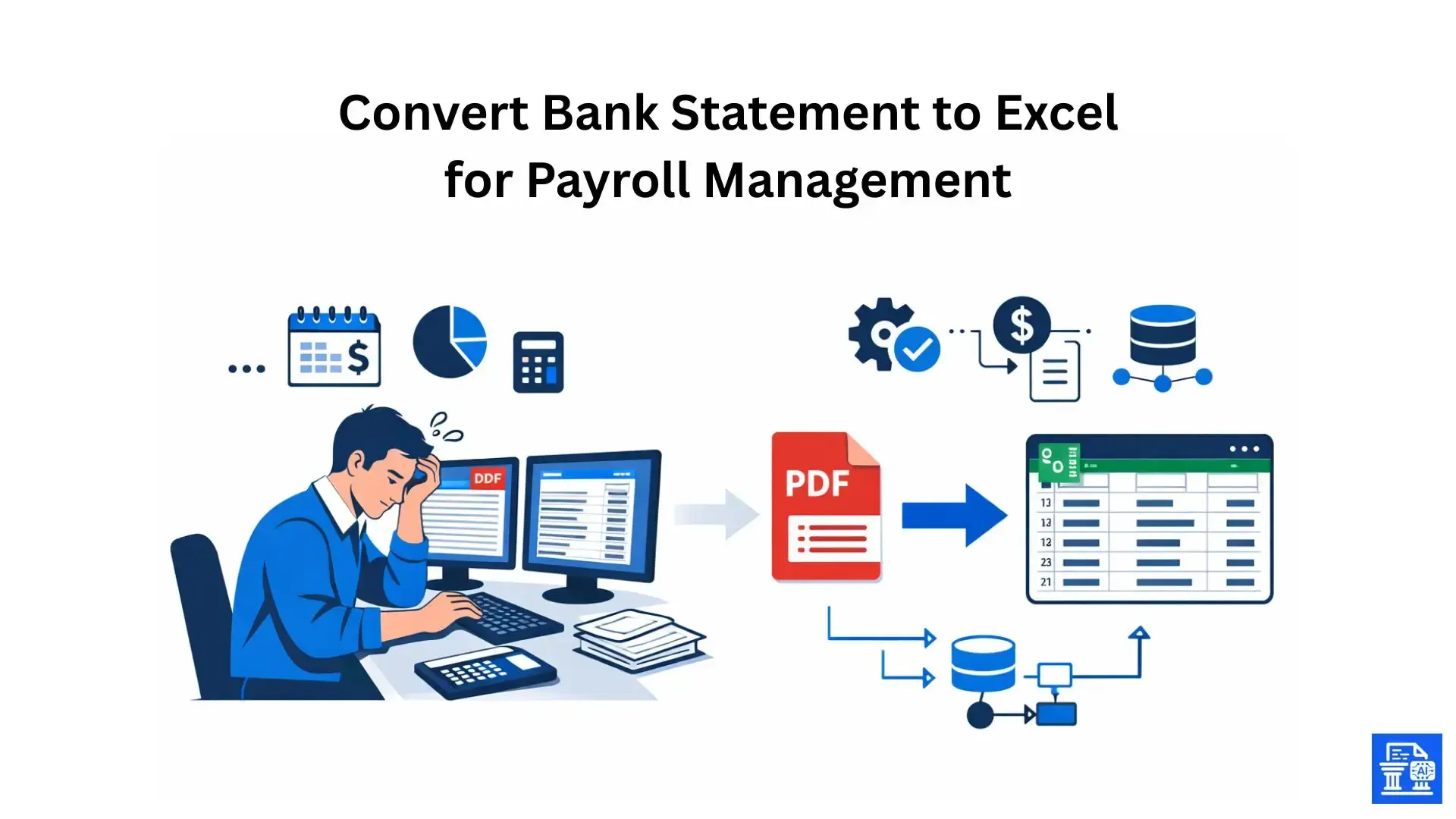
The solution is straightforward: stop typing and start converting. Bank statement conversion technology uses OCR and machine learning. It reads text from your PDF or image statements. It then maps this data into Excel spreadsheets or CSV files. This isn't magic. It's smart data extraction that keeps your financial records safe.
Benefits of Converting Bank Statements to Excel for Payroll
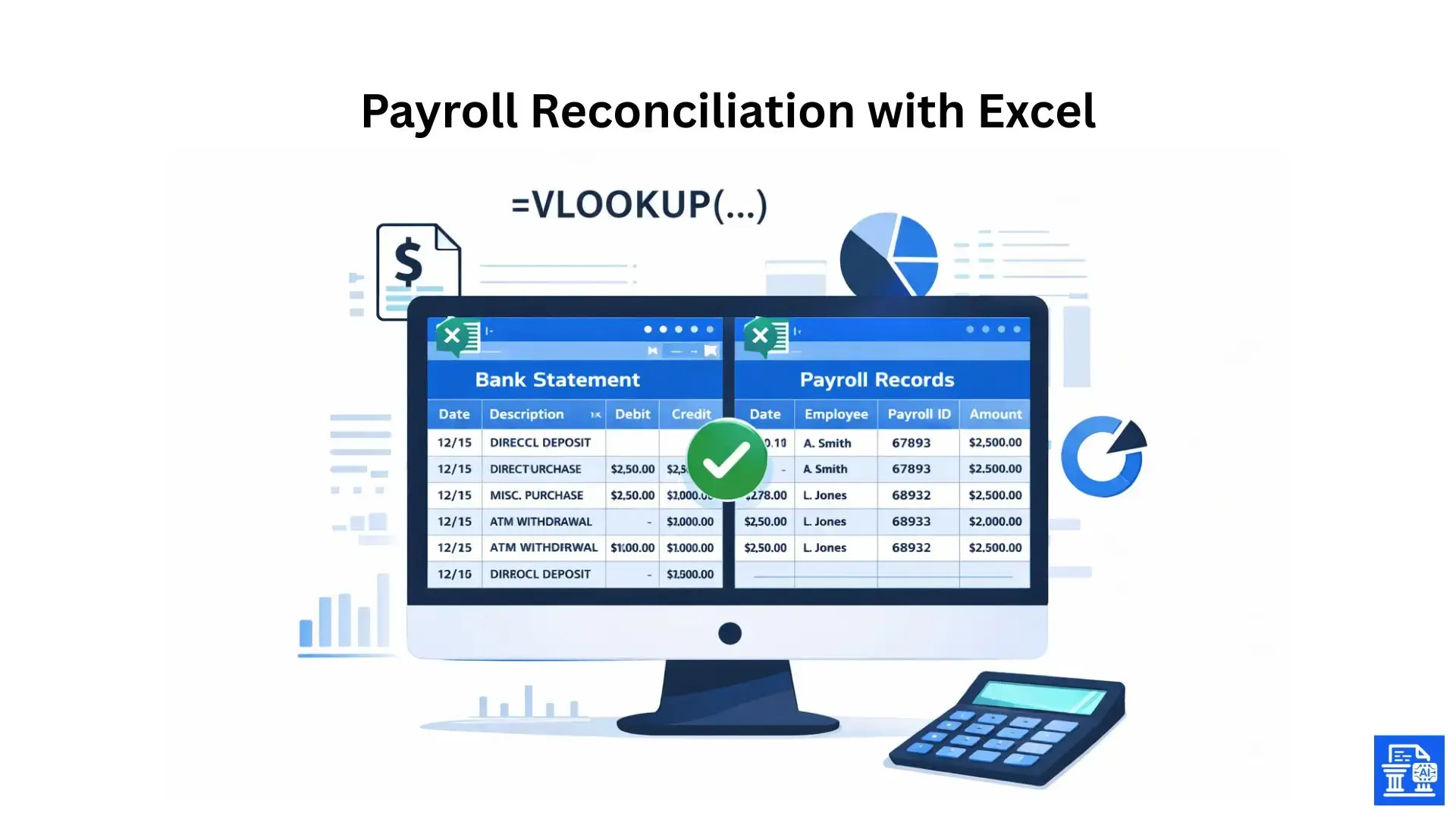
Why make the switch? Converting your statements does more than save time. It boosts your entire payroll operation strategically.
Streamlining Payroll Reconciliation
Reconciliation is often the most dreaded time of the month. You can convert your statements into Excel files. This lets you use formulas like VLOOKUP or XLOOKUP. Then, you can quickly match bank transactions with your payroll software's ledger.
Enhancing Accuracy and Reducing Errors in Payroll Disbursements
Automated data extraction eliminates the "fat finger" error. When a software tool parses the data, it captures the exact figures and descriptions. This ensures that every cent leaving your account for payroll is accounted for correctly.
Improving Efficiency and Saving Time for Finance Teams
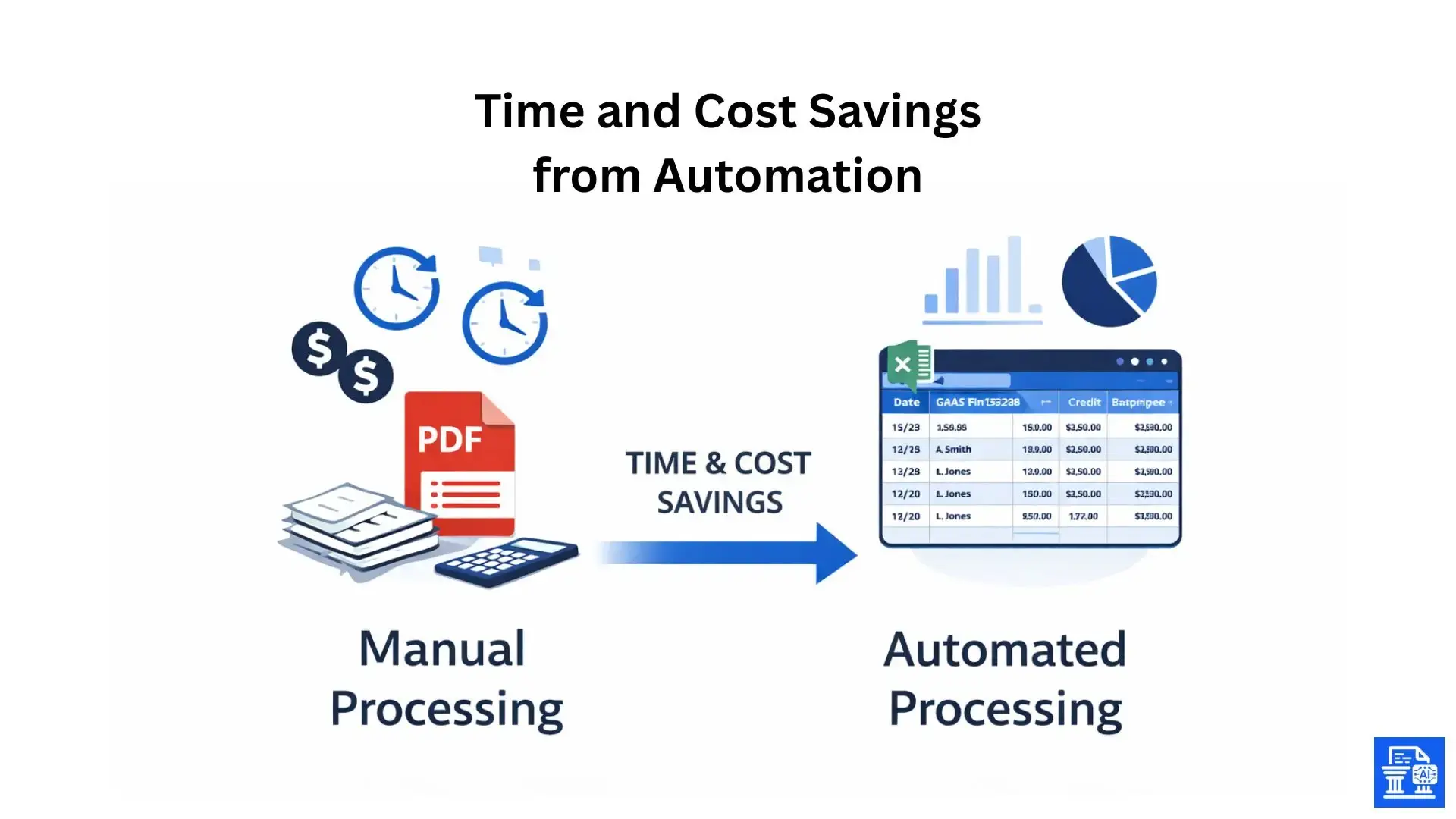
Imagine reclaiming 10 to 20 hours a month. Finance teams using automation can pivot from data entry clerks to financial analysts. You can spend that saved time on forecasting or improving employee benefits structures.
Facilitating Audits and Ensuring Compliance
Auditors love structured data . When your payroll records are clean, organized Excel files rather than a shoebox of PDFs, audits proceed smoother and faster. You have a digital paper trail that is easy to search and verify.
Gaining Deeper Financial Insight for Payroll-Related Expenses
With data in Excel, you can visualize trends. Are overtime costs spiking? Is benefits administration costing more than projected? Financial institutions give the raw data. Excel helps you transform that data into useful business intelligence.
Quantifying Savings for Payroll Operations
- Manual Cost: 10 hours/month x $50/hour rate = $500/month.
- Tool Cost: ~$20 - $50/month for bank statement converter software .
- Net Savings: ~$450/month, plus the intangible value of reduced stress and higher accuracy.
Understanding Your Bank Statement Formats and Data Needs for Payroll
Not all statements are created equal. Before converting, you need to understand what you are working with.
Common Bank Statement Formats
Most banks provide PDF bank statements by default. While secure, they are "flat" documents, essentially digital paper. Some sites let you download CSV files (Comma Separated Values) or QBO format for QuickBooks. These often overlook historical data or the specific format needed for custom payroll analysis.
Identifying Key Transaction Details for Payroll Management
When managing payroll, you specifically need to extract:
- Transaction Dates: To verify pay periods.
- Descriptions: To identify specific employees or vendors (e.g., "Direct Dep - John Doe").
- Amounts: Both debits (payments) and credits (refunds/adjustments).
- Running Balances: To ensure cash flow adequacy.
Personal and Business Bank Accounts for Payroll
For small business owners, commingling funds is a common sin. Converting statements to Excel helps you filter personal expenses from real business payroll costs. This is important for tax time.
Methods for Converting Bank Statements to Excel
How do you actually get the data from Point A (PDF) to Point B (Excel)?
The Manual Method
We’ve all tried highlighting text in a PDF and pasting it into Excel. The result? A formatting nightmare. Columns merge, headers disappear, and data lands in the wrong cells. It requires extensive cleanup, defeating the purpose of digitization.
Leveraging Native Bank Export Options
Always check if your bank offers a native export. Log into your banking page and look for a "Download" or Gear icon . These exports are helpful, but they usually only show recent transactions, like the last 90 days. They might not fit the layout you need for your accounting systems.
Automated Conversion Tools
Third-party bank statement converters use machine learning and Intelligent Document Processing. They read PDFs like a human, but do it faster. Tools like moneythumb.com are made to manage financial documents well. They can tell the difference between header text and real transaction rows.
Step-by-Step Guide: Converting Your Bank Statement for Payroll
Ready to automate? Follow these five steps to seamless conversion.
1. Accessing Your Bank Statement
Log into your financial institution portal. Download your PDF bank statements or scanned images. Ensure they are legible if they are scanned statements .
2. Choosing the Right Converter Software
Select a tool that fits your needs.
- MoneyThumb: Excellent for high-volume and accounting professionals needing QuickBooks Self-Employed or desktop compatibility.
- DocuClipper/Nanonets: Good for general OCR needs.
- Tabula: An open-source option for simple tech-savvy users.
3. Uploading and Processing Your Bank Statement
Upload your file to the platform. Most modern tools allow batch processing , so you can upload 12 months of statements at once.
4. Reviewing and Verifying Extracted Data
Before exporting, review the preview. Check transaction dates , descriptions, and amounts. A good tool will flag low-confidence characters (like confusing a '1' for an 'I').
5. Exporting to Excel
Choose your output. You can export as standard Excel files , CSV files , or specific formats like QBO for accounting software import.
Optimizing Your Converted Excel File for Payroll Management
Once the data is in Excel, the real magic begins.
Cleaning and Formatting Your Data in Excel
Use the "Text to Columns" feature to split combined data. Ensure dates are formatted as dates (not text) so you can sort chronologically.
Categorizing Transactions for Payroll Analysis
Add a "Category" column. Use filters to quickly tag transactions as "Salary," "Contractor," "Taxes," or "Benefits."
Creating Dedicated Columns for Payroll-Specific Data
If you have multiple departments, create a column for "Department Code." This helps in generating granular reports later on.
Leveraging Excel Functions for Payroll Reconciliation and Analysis
Excel is a powerhouse for payroll if you know which levers to pull.
Matching Bank Transactions with Payroll Records
Copy your payroll register into Sheet 2. Use conditional formatting to highlight duplicate amounts in both sheets. This visually identifies matching payments immediately.
Advanced Payroll Reconciliation Techniques
- VLOOKUP/XLOOKUP: Use unique transaction IDs or check numbers to link bank data with payroll logs.
- Pivot Tables: Summarize total payroll spend by month or quarter instantly.
Generating Payroll-Specific Reports from Bank Data
Create a Pivot Table to show "Total Withdrawals by Vendor." This helps identify how much you are paying specific benefits providers or tax agencies over the fiscal year.
Integrating with Accounting Software for Seamless Workflow
Once cleaned, your Excel or CSV file can be uploaded directly into software like Sage Accounting or Xero using their import process . This saves you from manual journal entries.
Best Practices for Secure and Accurate Payroll Data Management
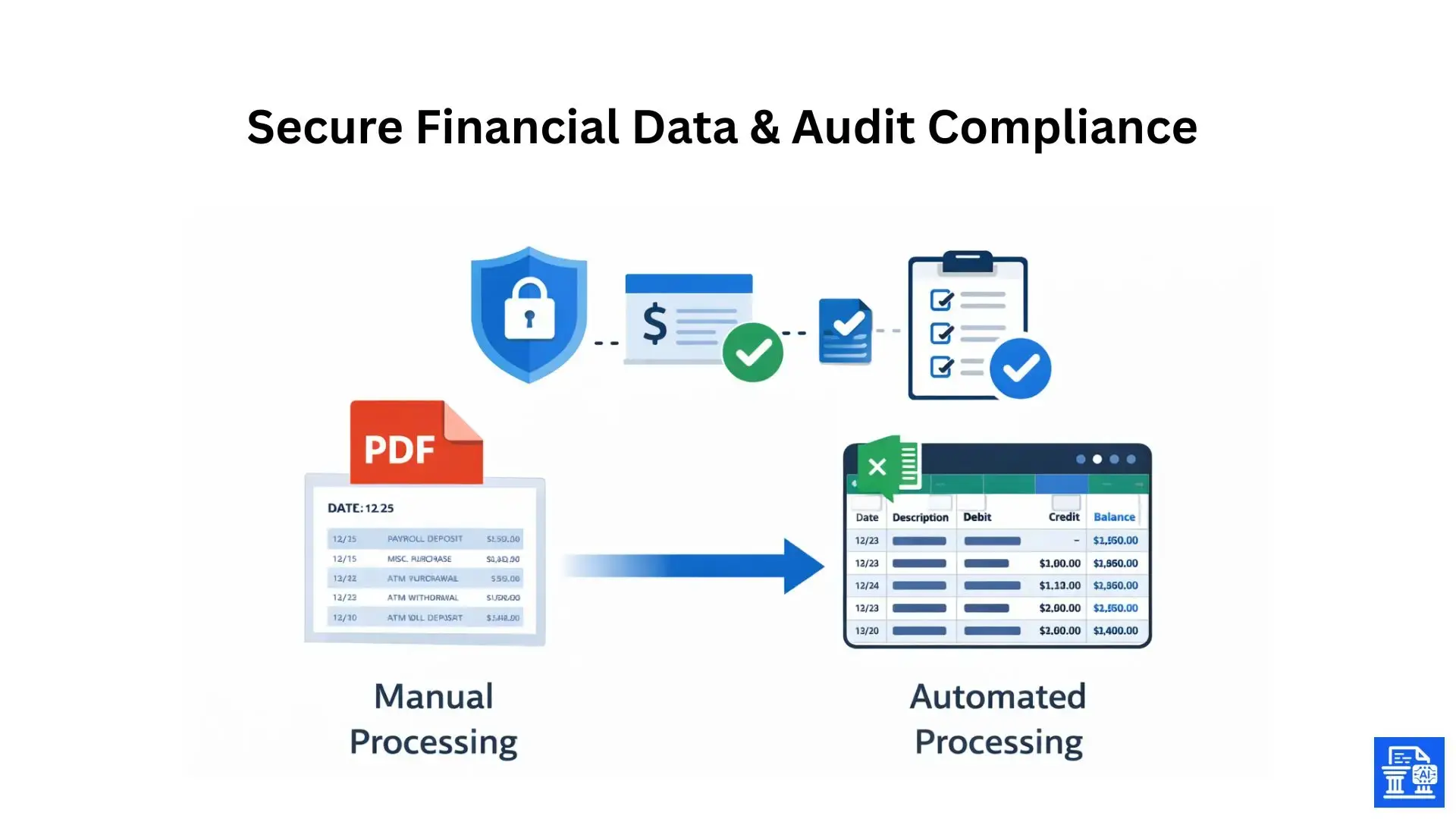
Handling payroll data requires strict security protocols.
Ensuring Data Security and Privacy
When using online converters, ensure they use encryption (SSL/TLS). Avoid free, sketchy online tools for sensitive financial documents . Look for tools that do not store your data permanently.
Regular Data Backup and Storage Protocols
Save your converted Excel spreadsheets in a secure place, like a password-protected cloud drive. Make sure it’s backed up. Never save them on a public desktop.
Maintaining an Audit Trail for Payroll Transactions
Keep the original PDF and the converted Excel file in the same folder. This "Source vs. Output" trail is vital if an auditor ever questions a transaction.
Tips for Maximizing OCR Accuracy with Scanned Statements
- Scan at 300 DPI or higher.
- Ensure pages are flat and well-lit.
- Avoid handwritten notes on the statement before scanning.
Collaboration and Review Processes for Finance Teams and Accountants
Implement a "Maker-Checker" system. One person formats the data. Then, another reviews the final payroll reconciliation before submitting it.
Choosing the Right Bank Statement to Excel Converter for Payroll Needs
What should you look for in a tool?
Essential Features for Payroll-Focused Conversion
- Check Number Extraction: Vital for matching paper checks.
- Multi-Page Support: Payroll statements can be long; the tool must handle page breaks seamlessly.
- Balance Reconciliation: The tool should verify that the starting balance + credits - debits = ending balance.
Evaluating Security and Compliance Standards
Check if the software is SOC2 compliant. If you are in Europe, GDPR compliance is a must. If you are handling healthcare payroll in the US, HIPAA awareness is beneficial.
User Experience and Ease of Use
You don't want a tool that requires a PhD to operate. Look for drag-and-drop interfaces and clear error messages.
Comparing Top Tools
- MoneyThumb: Best for accounting professionals and seamless QuickBooks integration.
- Nanonets: Strong on AI pipelines and customization.
- Tabula: Free, but requires manual setup and lacks advanced OCR accuracy .
Conclusion
Manual data entry is fading away. When you convert a bank statement to Excel , you get better efficiency, accuracy, and instant control over payroll cash flow. Start transitioning to automation and machine learning now. This will future-proof your payroll workflow and ease financial stress.
FAQs
1. How do I automate payroll processing using bank statements?
You can automate payroll by converting bank statements into Excel and reconciling them with payroll records.
Automation tools extract accurate transaction data from PDFs, eliminating manual entry and errors.
2. How can I Convert Bank Statement to Excel for payroll efficiently?
Converting bank statements to Excel allows structured, accurate payroll data for faster reconciliation.
This reduces manual entry errors and saves hours of work each month.
3. Are you still managing payroll in Excel, and is it efficient?
Excel is efficient for payroll only when data is automated and structured correctly.
Converting bank statements to Excel removes manual typing and improves accuracy and speed.
4. How does automated payroll save 10+ hours per month for small businesses?
Automation removes repetitive tasks like data entry, reconciliation, and error correction.
Bank statement conversion frees finance teams to focus on payroll review, compliance, and planning.
5. What is the best way to ensure payroll accuracy and compliance?
Payroll accuracy depends on clean, verifiable transaction data from bank statements. Tools like My Bank Statement Converter simplify audits and compliance by automating data extraction:
https://mybankstatementconverter.ai/

Leave a comment
Your email address will not be published. Required fields are marked *