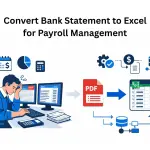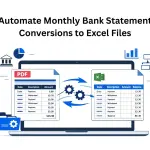
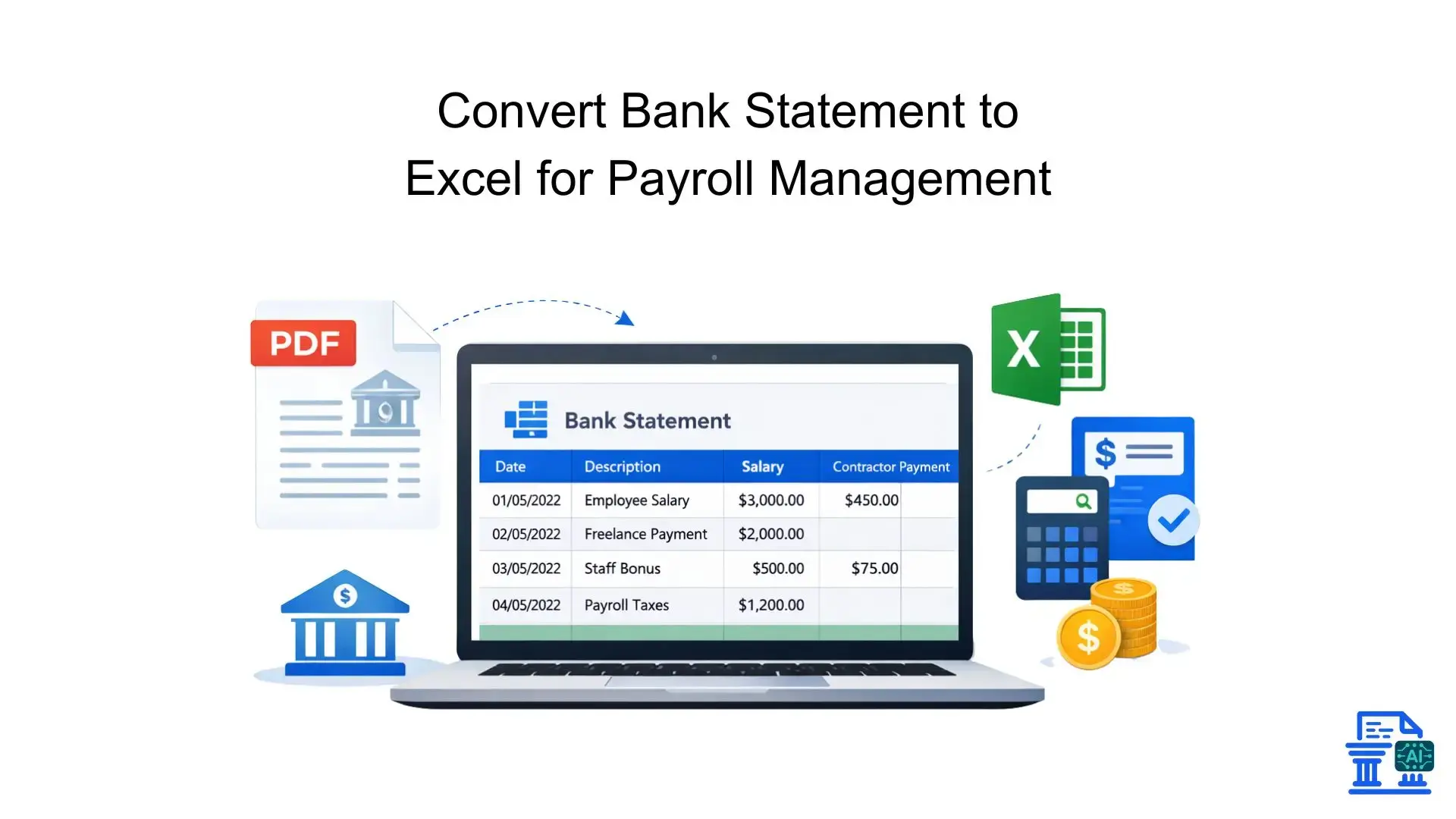
Learn to safely convert bank statements to Excel for payroll. Save time, reduce errors, and streamline your workflow with our step-by-step guide.
Bank Statement to Excel for Payroll removes the need for manual entry of many transactions. This helps avoid mistakes in employee pay and tax calculations. Automating the process turns a task that takes days into a quick, accurate 30-minute workflow.
Quick Summary
Manual data entry for payroll is slow, error-prone, and risky. Using Bank Statement to Excel for Payroll tools turns PDFs into structured Excel data. This saves time and boosts accuracy. This guide shows why this shift is important. It gives clear instructions and shows tools that help keep your financial data safe and compliant.
Why is Manual Payroll Entry Risky?
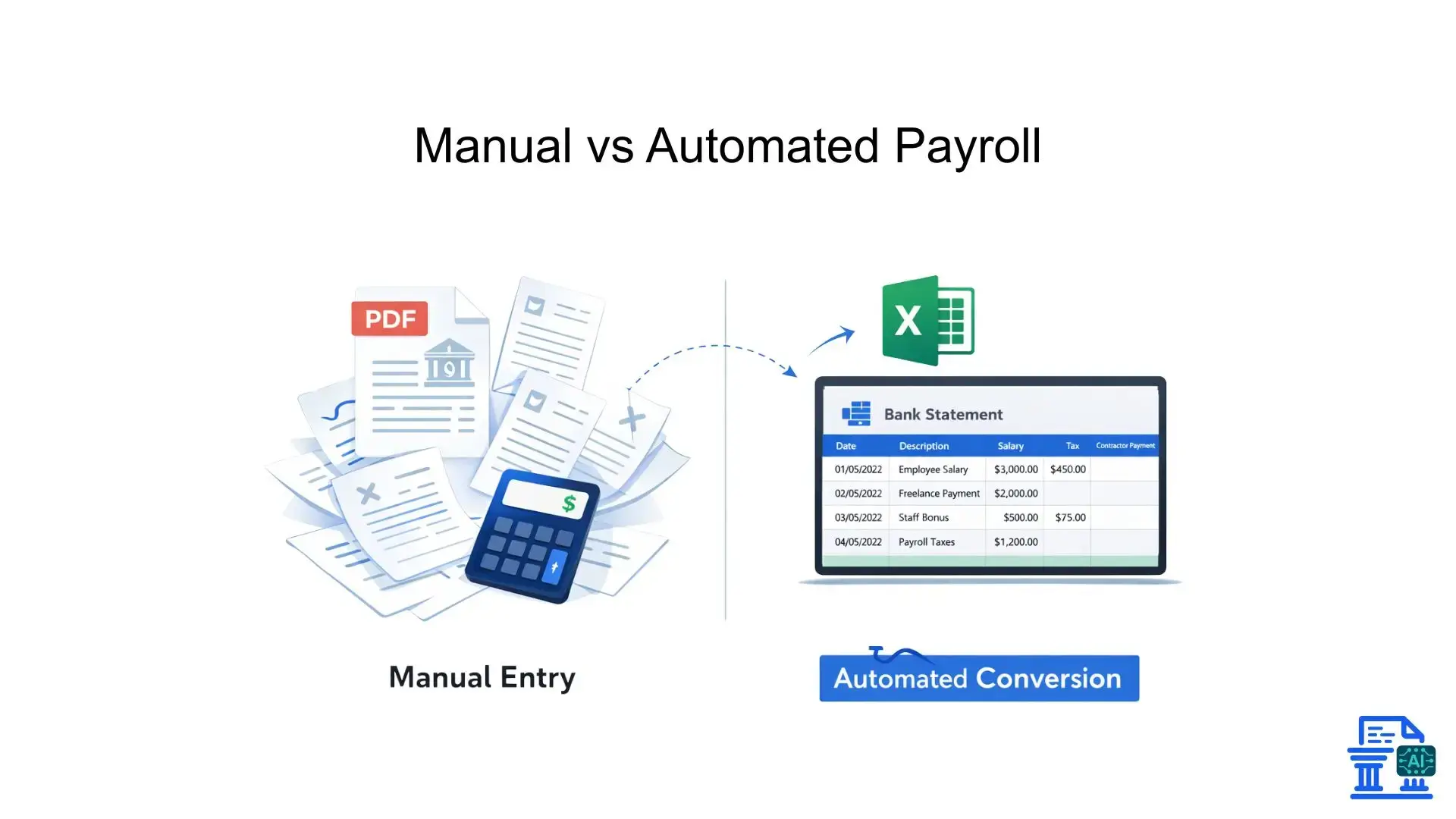
Manual payroll entry is risky. It raises the chances of data errors, delays, and compliance issues. These problems can result in costly financial and legal consequences.
The Time Sink of Manual Bank Statement Reconciliation
For finance teams, time is a finite resource often squandered on data entry. Transcribing bank transactions from a PDF statement to accounting systems or Excel is very inefficient. What should be a strategic analysis task becomes hours of simple copying. This shifts focus away from client advisory work and strategic planning.
Impact on Employee Payments and Tax Filings
Human error is inevitable when tired eyes meet small fonts. In payroll, a small transposition error can cause wrong salary payments or messed-up tax filings. These mistakes annoy employees and can lead to penalties from tax authorities. They can also harm trust within your organization.
Issues with Payroll Tracking & Categorization
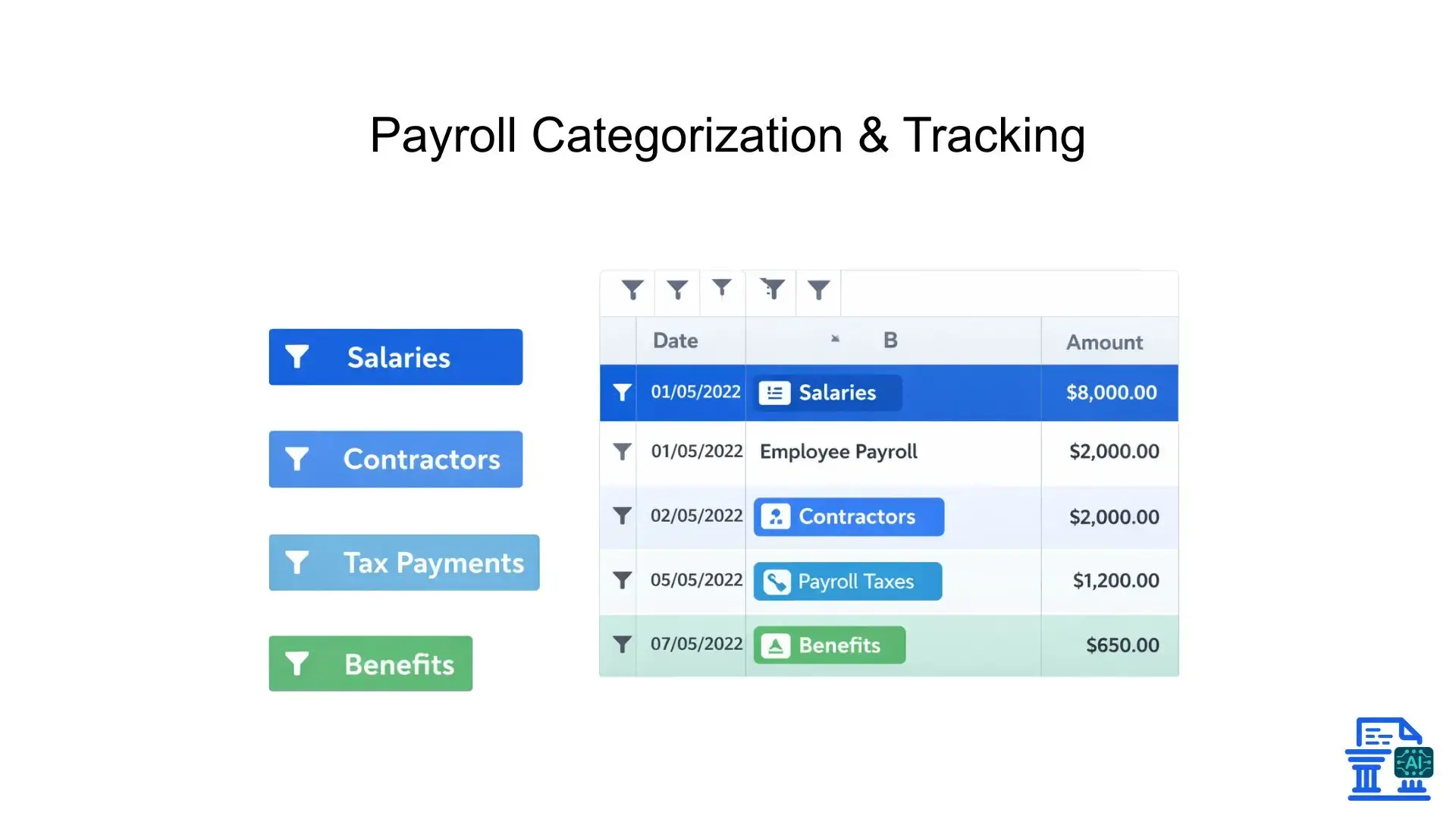
Payroll isn't just one lump sum. It involves distinct categories: salaries, contractor payments, tax deposits, and benefits.
- Salaries: Regular bi-weekly or monthly transfers.
- Contractors: Irregular payments that need specific 1099 tracking.
- Tax Deposits: critical payments to federal and state bodies. Manual tracking makes it nearly impossible to filter these efficiently, leading to a "needle in a haystack" search during reconciliation.
Compliance Risks and Audit Challenges from Disparate Data
When your financial data is stuck in PDF statements and separate spreadsheets, getting ready for an audit is a hassle. Auditors need a clear digital trail. Manual entry disrupts the chain of custody. This makes it hard to show that the numbers in your ledger match what's in your bank account.
What is Bank Statement Conversion?
Bank statement conversion turns PDF or scanned statements into editable Excel or CSV files automatically.
What is Bank Statement Conversion?
Bank statement conversion means turning a fixed document, like a PDF or a scanned image, into editable, structured data. It links the read-only formats from banks to the dynamic formats finance teams use, such as Excel or CSV.
Unlocking Financial Data from Unstructured Formats
PDFs are designed to look good on paper, not to play nice with software. Bank statement converter software acts as a translator. It reads the document's layout and pulls out the key information. This releases your financial data from its "digital paper" prison. Now, it's simpler to manipulate and analyse.
Core Components
Effective conversion isn't just about grabbing text; it's about context. The software must correctly identify and separate:
- Transaction Dates: When the money moved.
- Descriptions: Who was paid (e.g., "Direct Dep - John Doe").
- Amounts: The exact value, distinguishing between credits and debits.
Beyond Basic Conversion
Generic OCR (Optical Character Recognition) can have trouble with the complex layouts of banks like Wells Fargo or Chase. Specialised tools use machine learning to grasp the grid layouts of bank statements. This way, "Check #101" goes into the "Check Number" column, not the "Description" column.
How Does Excel Transform Workflow?
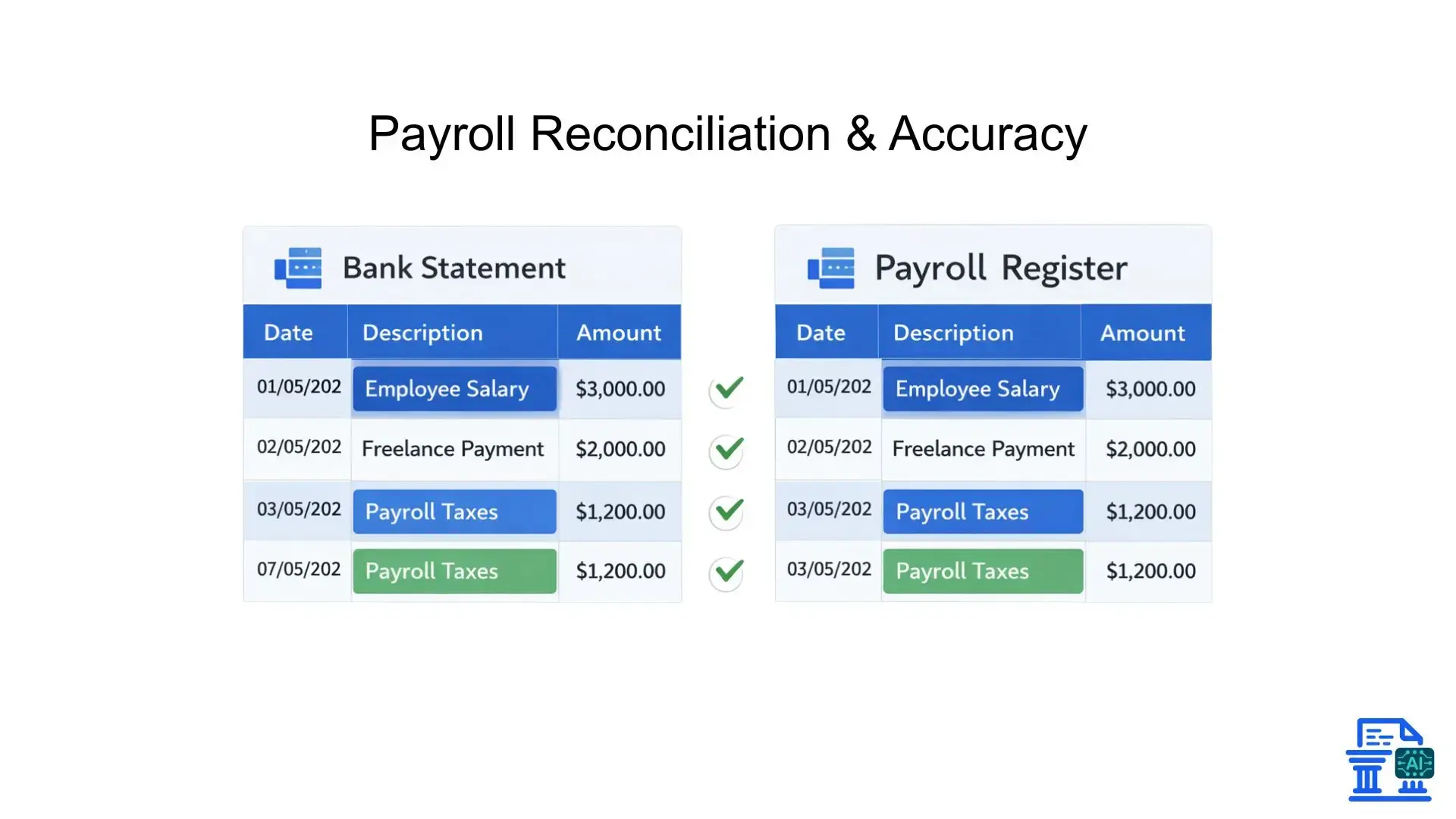
Excel changes how we work by organising data into clear, editable formats. This helps us calculate, analyse, and report faster.
Precise Identification and Categorization of Payroll Transactions
Once your data is in Excel sheets, you can use simple formulas to tag transactions. You can quickly filter keywords like "Payroll," "ADP," or "Tax." This helps you find relevant lines easily. You’ll ensure every penny spent on labour costs is tracked, without having to scroll through unrelated expenses.
Simplified Reconciliation
Bank reconciliation becomes a breeze. You can export a CSV file from your payroll provider, like Gusto or ADP. Then, line it up next to your converted bank statement in Excel. You can use a VLOOKUP or XLOOKUP function to quickly find differences between the bank withdrawal and the payroll register.
Streamlined Vendor and Contractor Payment Verification
- Sort by Payee: Group all payments to specific contractors to verify total year-to-date payments.
- Check for Duplicates: highlight duplicate amounts to ensure no one was paid twice.
- Verify Dates: Ensure payments were cleared within the expected pay period.
Enhancing Accuracy for Tax With holdings and Remittances
Tax payments often happen on different schedules than net pay. You can create a pivot table by converting your statements. This table will sum up all tax-related outflows. You can compare this total with your quarterly 941 filings. This way, you can check that you've paid exactly what you owe, no more, no less.
Faster Payroll Processing Cycles and Improved Timeliness
Speed matters. The faster you can reconcile the previous cycle, the sooner you can close the books. Automating data entry cuts the "loading challenge." This bottleneck makes work pile up. Automation lets accounting professionals complete payroll runs days earlier than manual methods.
Bolstering Financial Transparency for Payroll Audits and Reporting
When an auditor asks for proof of a specific quarter's payroll, you don't hand them a stack of papers. You hand them a clean, searchable Excel file backed by the original source PDFs. This level of organization shows strong internal controls. It also makes the audit process easier for everyone.
Converting Statements for Payroll
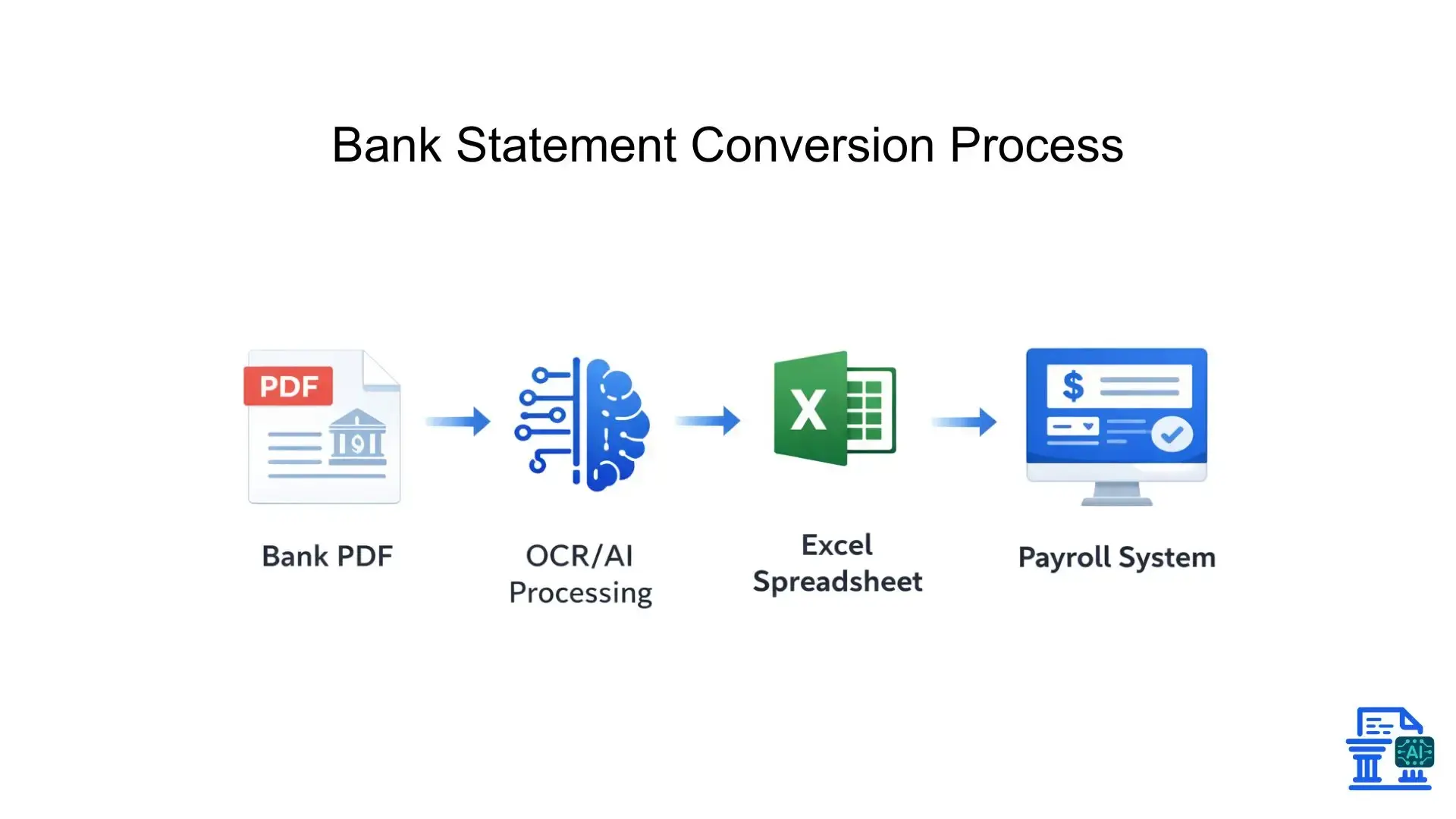
Changing statements for payroll keeps financial data accurate and organised. This makes salary calculations easier and cuts down on payroll errors.
Step 1: Gathering Your Payroll-Relevant Bank Statements
Start by downloading your digital statements from your banking portal. Make sure you have the official PDF statements, not just screenshots of transaction history. Official documents hold important verification data. If you have older paper records, create high-quality scanned statements to ensure OCR accuracy.
Step 2: Choosing Your Conversion Method
You generally have three options:
- Manual Entry: (Not recommended) Typing it out by hand.
- Generic PDF Converters: Standard tools like Adobe Acrobat (often struggle with table formatting).
- Specialized Bank Statement Converters: Tools built for finance, like Rocket Statements or Dext Cloud Software, which understand financial document layouts.
Step 3: Executing the Conversion Process
Upload your PDF bank statement to your chosen tool. Most modern software can handle batch processing. This lets you upload 12 months of statements all at once. The system will process files. It will use machine learning to automatically identify headers and transaction rows.
Step 4: Reviewing and Refining Your Excel Output
Before integrating the data:
- Check the total sum of the Excel column against the ending balance on the PDF.
- Scan for any "unrecognized" characters or formatting oddities.
- Ensure the date format matches your system (e.g., MM/DD/YYYY vs DD/MM/YYYY).
Optimizing Excel for Payroll Management
Optimising Excel for payroll management automates calculations, boosts accuracy, and simplifies salary processing.
Filtering and Sorting for Payroll-Critical Data
Use Excel’s "Text to Columns" or "Filter" features to clean up descriptions. If a bank description says "WIRE TRANSFER - PAYROLL SERVICE 88392," you can put "PAYROLL SERVICE" in its own category column. This makes reporting simpler.
Preparing Data for Seamless Import into Payroll & Accounting Systems
Most accounting systems (like Sage Accounting or Xero) require a specific import template.
- Delete unnecessary header rows (like your address).
- Rename columns to match your software's requirements (e.g., change "Date" to "TxnDate").
- Save the file as a CSV file for universal compatibility.
Utilizing Excel for Payroll Reconciliation and Discrepancy Detection
Add a "Check" column. Use this formula: subtract the payroll register amount from the bank statement amount. Filter this column to show any non-zero results. These are your discrepancies, investigate them immediately.
Generating Customized Payroll Reports and Analytics
With structured data, you can build a dashboard. Visualise labour cost trends over time, compare overtime payments month by month, or track contractor spending against full-time employee costs. These insights are gold for finance teams advising management on budget adjustments.
How to Ensure Payroll Security?
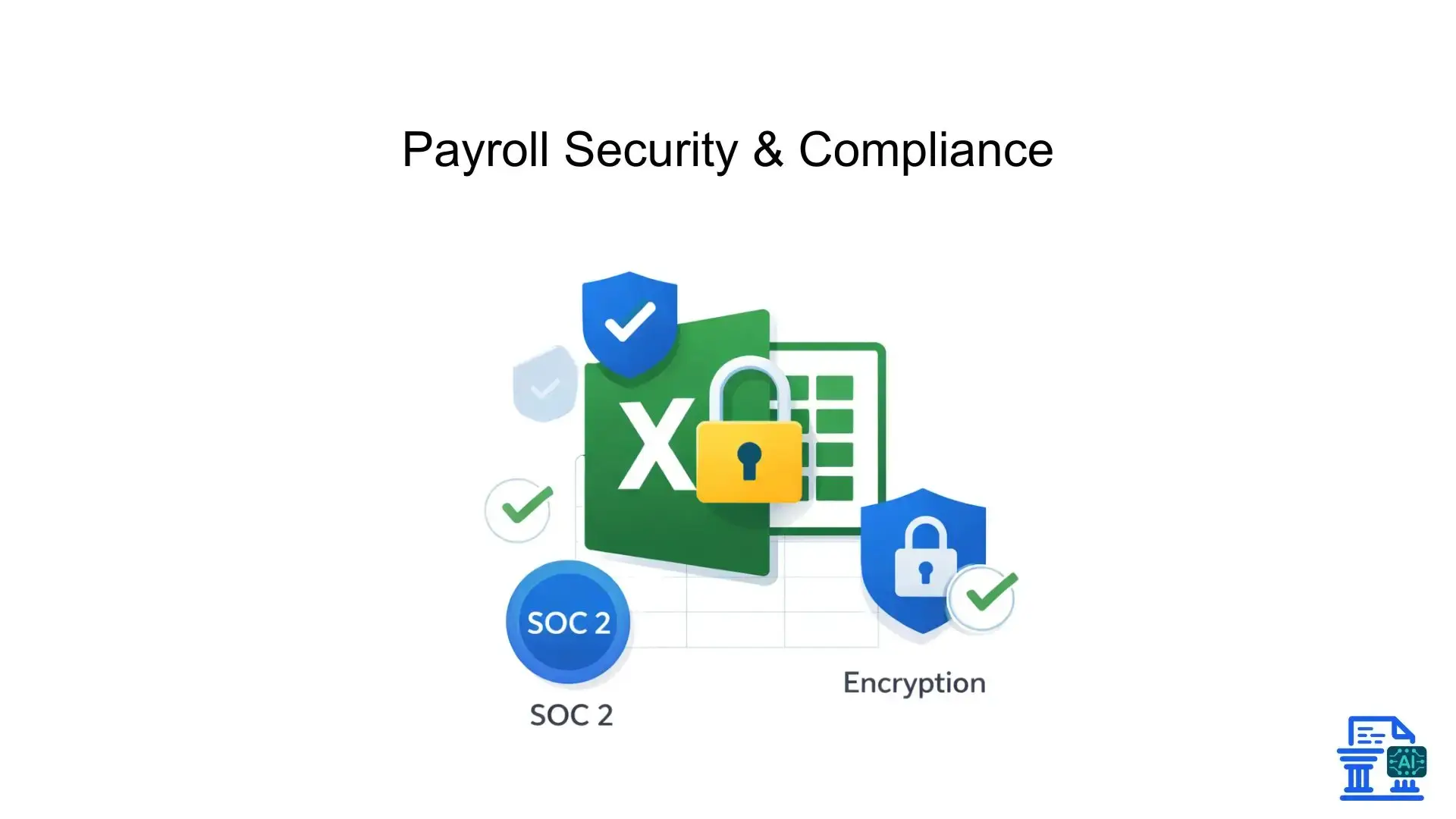
Payroll security relies on encrypted tools, access controls, and careful data handling. These measures protect sensitive employee and financial information.
The Paramount Importance of Protecting Sensitive Payroll Data
Payroll data contains Personally Identifiable Information (PII) like names and bank account numbers. A breach here isn't just a data loss; it's identity theft. You must treat converted Excel files with the same security as the bank vault itself.
Encryption Standards and Secure Data Handling in Conversion Tools
When selecting a converter, look for "SOC 2 Type II" compliance. This ensures the vendor follows strict security protocols. Make sure the tool uses 256-bit encryption for both uploading (data in transit) and storing (data at rest).
Compliance with Financial Regulations and Data Privacy Laws
Using "free" online converters can be risky. Many free tools monetize your data or lack enterprise-grade security. For Legal & Compliance reasons, always pay for trusted software. This ensures they don’t sell your data or keep it longer than needed.
User Experience and Security Features of Reputable Software
Top-tier tools offer:
- Two-Factor Authentication (2FA): Adding a layer of login security.
- Role-Based Access: Ensuring only authorized data entry personnel can see the files.
- Audit Logs: Tracking who uploaded, converted, and downloaded files.
Safeguarding Bank Account Information During Conversion and Storage
Never email these Excel files without password protection. If you need to share them with a bookkeeper or advisor, use a secure client portal or an encrypted file-sharing service. Store final files on a secure server, not a local desktop desktop.
Which Tool Fits Your Needs?
The right tool fits your needs by matching your payroll volume, accuracy, integrations, and security standards.
Essential Features for Payroll Management
Look for "Intelligent Document Processing." You want a tool that learns. If you correct a transaction description, the machine learning tech will remember it for next month's statement.
Integration Capabilities with Existing Accounting and Payroll Software
Does the tool play nice with your tech stack? The best converters have API functions or connect directly with accounting software, such as QuickBooks or Sage. This allows for a "one-click" push of data, bypassing the need to handle CSV files manually.
Time and Cost Savings for Payroll Operations
Calculate the cost of your time. If a $50/month subscription saves your finance team 10 hours of work (valued at $50/hour), the ROI is massive ($450 net savings/month).
Reputable Software Options for Bank Statement Conversion
- Rocket Statements: Excellent for batch processing large volumes of PDFs.
- MoneyThumb: Strong on OCR accuracy for scanned images.
- AutoEntry / Dext: Great all-rounders for invoices and bank data.
- ProperSoft: Good for converting to specific bank formats (like QBO or OFX).
Best Practices for Payroll Pros
Best practices for payroll pros involve automating processes, ensuring data accuracy, maintaining compliance, and protecting sensitive employee information.
Establishing a Regular Conversion Workflow for Timely Payroll Processing
Don't wait until month-end. Convert statements weekly. This micro-batching method makes the workload easier to handle. It also helps spot fraud or errors early, instead of weeks later.
Implementing Data Validation Techniques in Excel for Accuracy
Use Data Validation rules in Excel to prevent errors in your converted sheet. For example, restrict the "Amount" column to only accept numbers, or restrict the "Category" column to a dropdown list of your chart of accounts.
Collaborating with Accounting Professionals and Bookkeepers
Share the "read-only" source PDF alongside the editable Excel file. This allows your accountant to verify the numbers without fear of accidentally altering the data source.
Staying Updated with Machine Learning and Automation Advancements
The tech moves fast. Watch for "AI pipelines" and browser extensions that can convert directly within your banking portal. Tools are now focusing on real-time data extraction. This cuts out the need for manual file uploads completely.
Conclusion
Converting a bank statement to Excel for payroll isn’t just a technical task. It’s a smart way to handle finances. It cuts out manual entry and helps reduce costly mistakes. It delivers clear, reliable data, making payroll operations faster and more accurate for businesses of any size.
FAQs
1) Can we convert our bank statement to Excel?
Yes, bank statement PDFs or scanned statements can be converted into Excel/CSV using OCR or AI tools. This saves hours of manual typing and reduces payroll mistakes.
2) How do accountants convert client bank statements to Excel quickly?
They use bank-statement converter tools that extract transactions into a structured Excel file in minutes. mybankstatementconverter.ai is a good option for fast, payroll-ready conversion.
3) How do I import a bank statement into Excel without messing up columns?
Convert the PDF to Excel/CSV first, then open it in Excel for clean columns. After importing, quickly verify Date, Description, Debit/Credit, and Balance formats.
4) How can I organize bank statements in Excel for payroll management?
Use columns like Date, Payee, Debit, Credit, Balance, and Category, then filter by “Payroll,” “Tax,” or vendor names. This makes reconciliation and reporting much faster.
5) Can we edit bank statements in Excel for payroll or audits?
You can edit the Excel output for categorization, but don’t alter data to misrepresent the original statement. Always keep the original PDF as the source document for compliance.

Leave a comment
Your email address will not be published. Required fields are marked *