Learn to automate monthly bank statement conversions to Excel files using Power Query and AI. Save time, reduce errors, and streamline your finance workflow.
Imagine it’s the end of the month, and Bank Statement Conversion means staring at a stack of PDF statements and a blank Excel sheet. Automating this process saves business owners and finance teams hours. It also cuts down on errors and frees up time for important financial analysis.
Quick Summary
Bank Statement Conversion doesn’t have to be a manual nightmare. You can use automation tools like Excel’s Power Query or OCR technology to change unstructured PDF data into structured tables. This makes cash flow analysis and tax preparation more accurate. Plus, it saves you time for better financial management.
Why Manual Bank Statement Conversion Processing Is Holding You Back
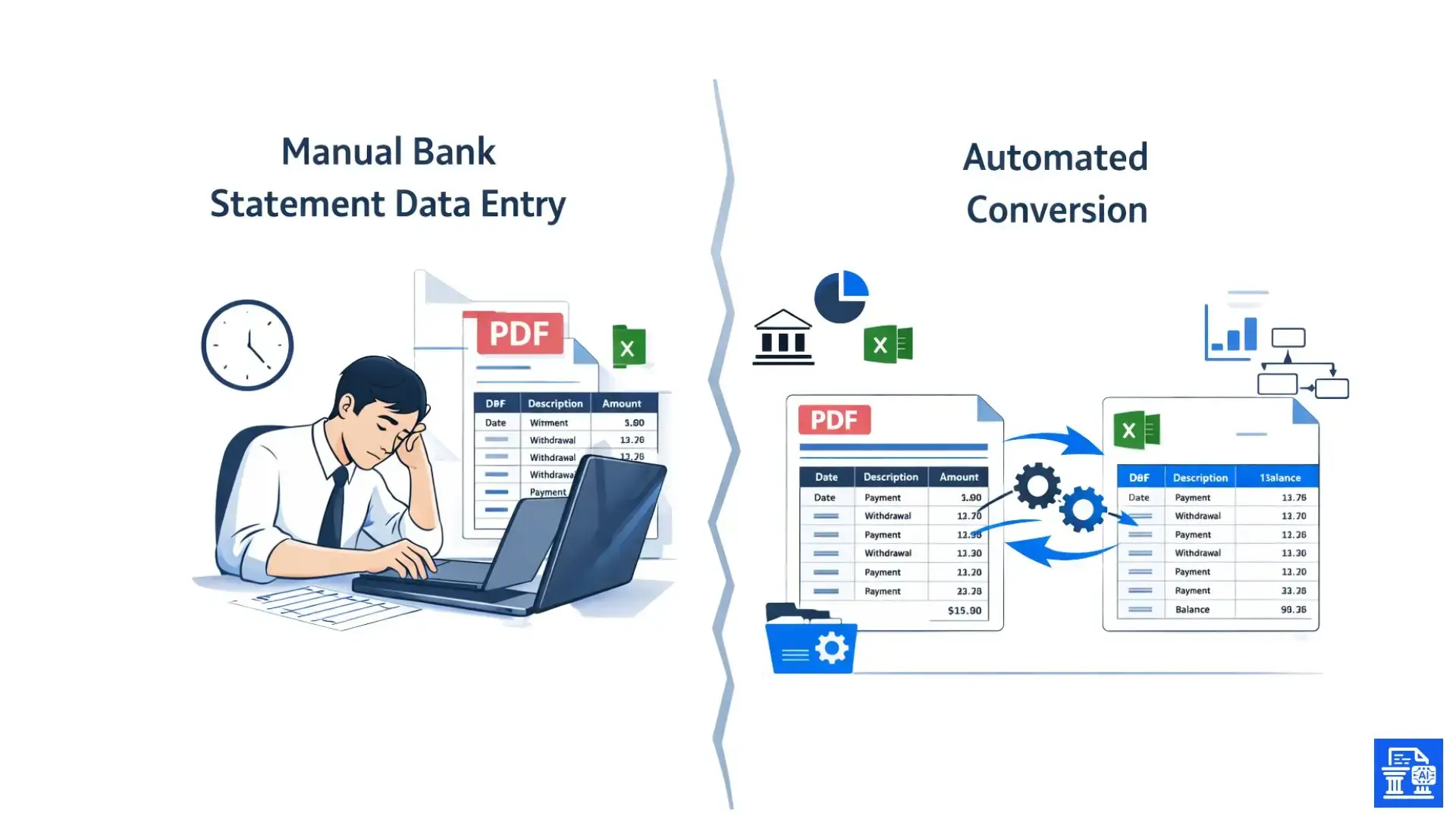
For many financial professionals, the first few days of the month are lost to the "monthly grind." This ritual means downloading PDF bank statements, opening a spreadsheet, and slowly transcribing by hand.
This outdated workflow creates a bottleneck. Instead of having real-time visibility into your cash flow, you are stuck waiting for data entry to be completed. Managing personal finances or company accounts payable with manual methods slows you down. It limits your agility and responsiveness.
The Pain Points of Manual Data Entry
Manual data entry is physically and mentally draining. Staring at rows of tiny numbers on a PDF bank statement and transcribing them into a spreadsheet leads to eye strain and fatigue.
- Repetitive Stress: Typing the same types of data over and over is monotonous.
- Format Frustration: Trying to copy-paste from a PDF often results in jumbled text that requires even more cleanup.
- Version Control: Manually updating sheets can lead to confusion about which file is the most current.
The Cost of Inefficiency
The true cost of manual entry goes beyond just the hours spent typing. Human error is inevitable. A misplaced decimal point or a transposed number can disrupt the whole reconciliation process. This often leads to hours of troubleshooting.
Furthermore, time spent on data entry is time lost on high-value tasks. Instead of analyzing trends or forecasting future expenses, you are bogged down in the mechanics of data collection. In a competitive market, missed chances for strategic thinking can hurt your business.
A Glimpse into a Streamlined Workflow
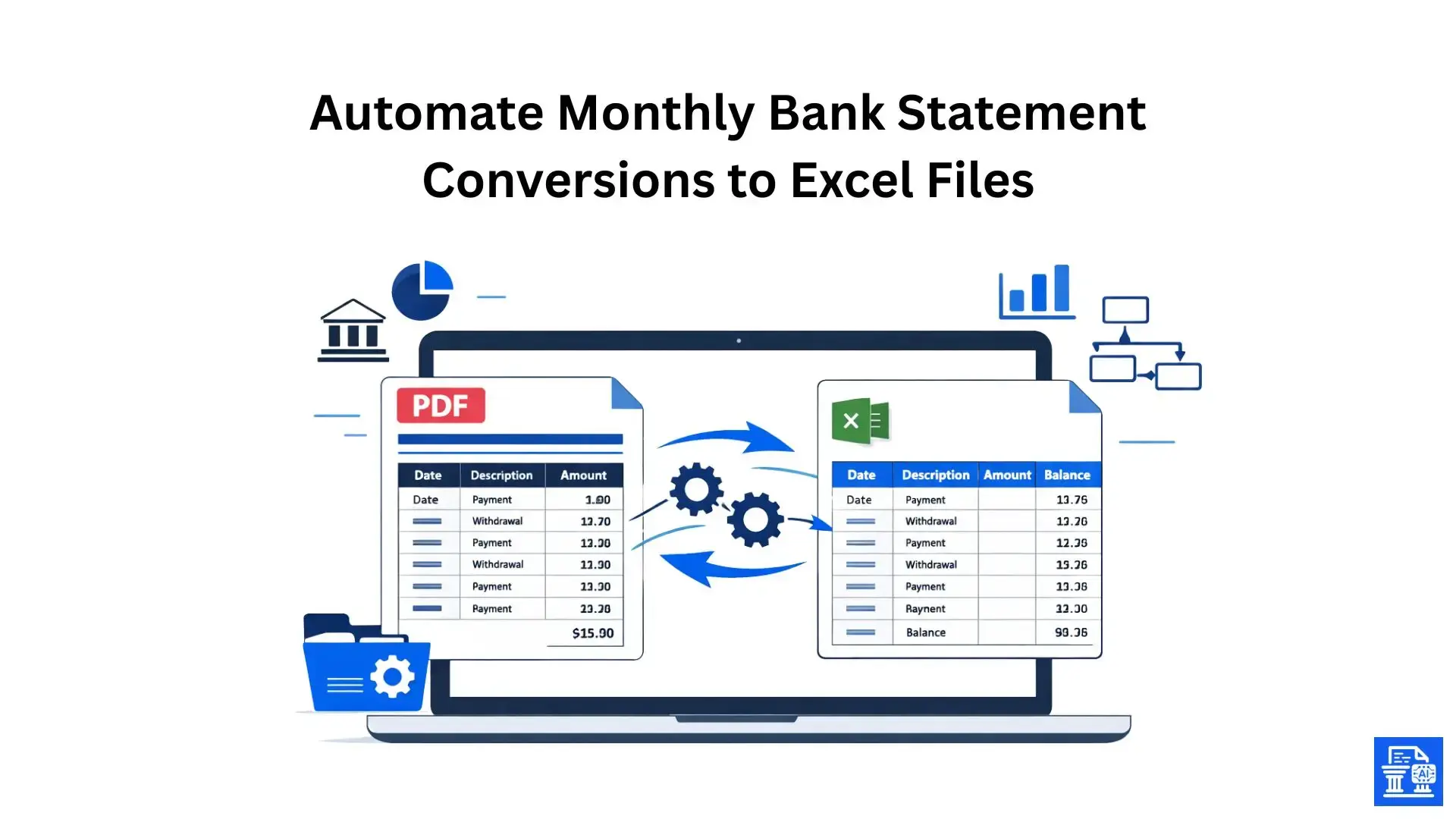
Imagine a world where your bank statements land in a folder, and with a simple click, the data appears perfectly formatted in your Excel workbook. This isn't science fiction; it's the reality of modern financial data automation.
By implementing a bank statement conversion workflow, you can turn a multi-day ordeal into a ten-minute task. Automation brings consistency, accuracy, and speed. This helps you trust your financial data and make quicker decisions.
The Foundation for Automation
Before you can automate, you need to understand the source material. Bank statements are made for people to read, not machines. This creates challenges for automation.
Common Bank Statement Formats and Challenges
Banks are notorious for inconsistent formatting. One bank might list the date first, while another lists the check number. Some statements are "native" digital PDFs. Others are scanned documents (images) that need Optical Character Recognition (OCR) to read.
- Native PDFs: These are generated directly by the bank's system and contain selectable text. They are easier to process.
- Scanned PDFs: These are essentially pictures of paper statements. They require advanced OCR technology to extract data.
- CSV Downloads: While helpful, they often lack the detail found in the official PDF statement.
Essential Data Points for Extraction
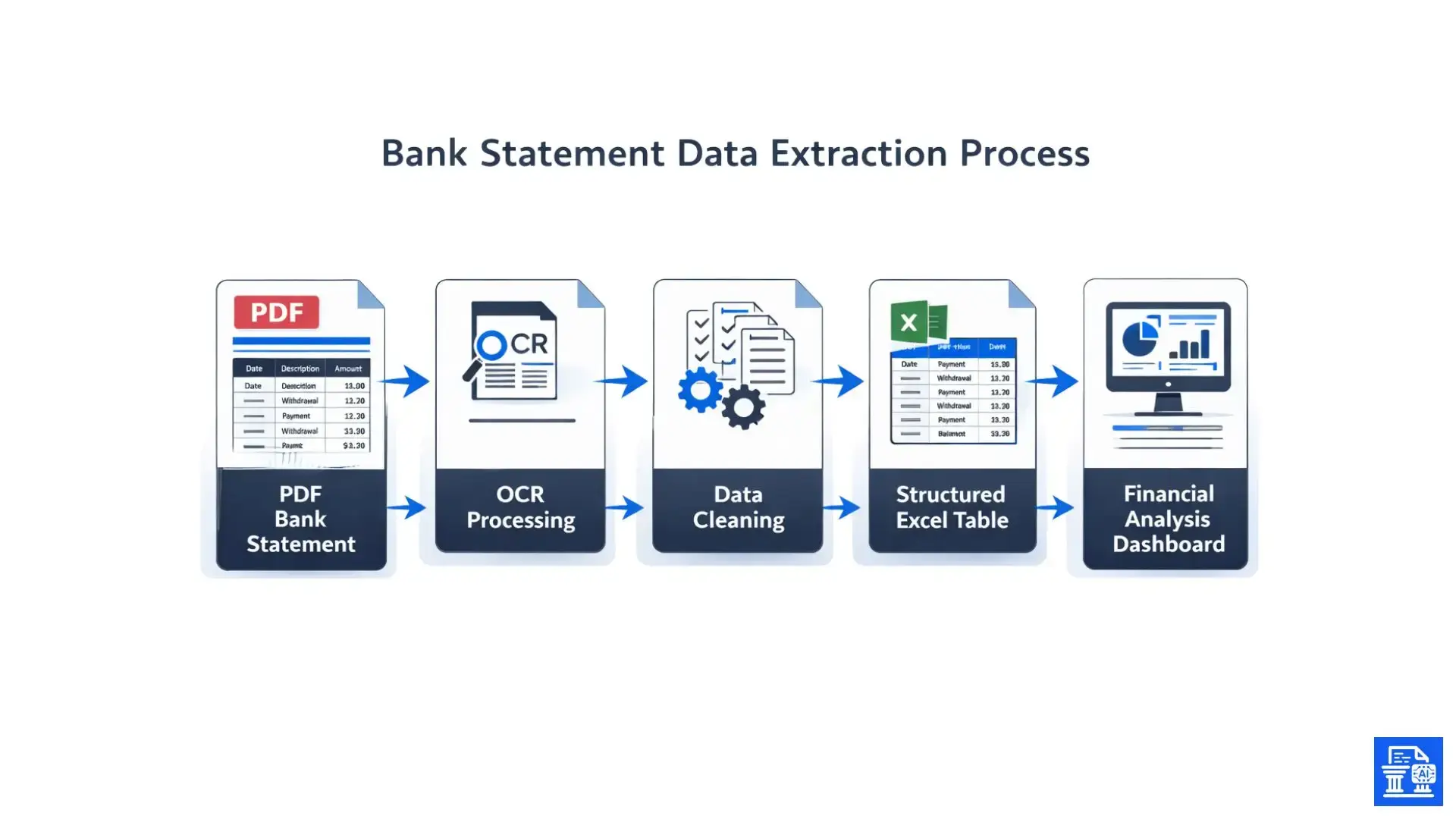
To build a useful financial model, you need to extract specific pieces of information from every transaction.
- Transaction Date: When the money moved.
- Description/Payee: Who was paid or who paid you.
- Amount: The value of the transaction (credits and debits).
- Balance: The running total (useful for verification).
Transforming Unstructured Data into Structured Data
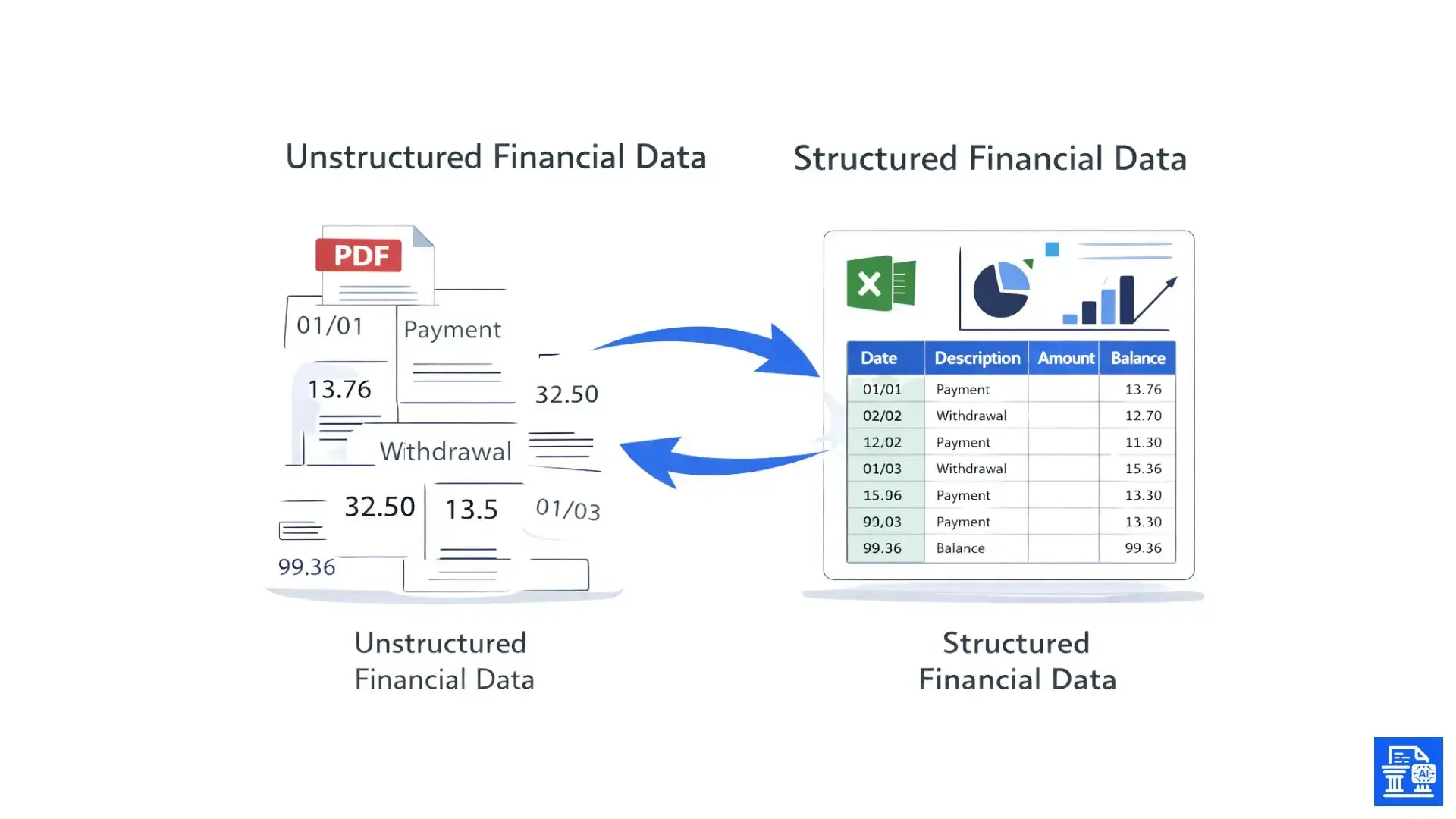
The main aim of automation is to convert unstructured data, like text from a PDF, into structured data, such as rows and columns in a database or Excel file.
Structured data allows for sorting, filtering, and pivot tables. It changes a static document into a dynamic resource. You can connect it to accounting software like QuickBooks Online or view it in dashboards.
Exploring Automation Solutions for Bank Statement Conversion
There isn't a one-size-fits-all solution for converting statements. The right tool depends on your volume of data, budget, and technical comfort level.
Online PDF to Excel Converters
For a quick, one-time conversion, free online PDF to Excel converters can be useful. You upload your file, and the site returns an Excel file.
- Pros: Fast, often free, no software installation required.
- Cons: Privacy concerns with financial data, often struggle with complex formatting, usually cannot handle batch processing.
Dedicated Bank Statement Conversion Software
For high-volume needs, dedicated software or a "bank statement converter" is often the best choice. Tools like Rocket Statements and Verify AI use smart AI tech and ML models. They interpret financial documents accurately.
- Accuracy: They handle multi-column layouts and headers better than generic converters.
- OCR: Built-in OCR capabilities handle scanned statements effectively.
- Integration: Many connect directly via API to accounting systems.
Leveraging Excel's Built-in Power Query for Monthly Automation
For many users, the best tool is one they already own. Excel's Power Query is a formidable engine for data transformation. It allows you to connect to a folder of PDF files, extract the tables, and clean the data automatically.
This is a "no-code" solution that is robust, secure (since data stays on your machine), and free for anyone with a modern version of Excel.
Your Ally for Monthly Excel Automation
Power Query is the secret weapon for finance teams looking to automate without buying expensive new software. It records your steps, so you only have to build the conversion process once.
What is Power Query? More Than Just an Excel Add-in
Power Query is a tool that helps you find, connect, combine, and refine data from many sources. Think of it as a recording device for data cleanup. If you tell it to "remove the top 3 rows" and "rename column A to Date," it will do that every single time you refresh the data.
Building a Robust, Automated Monthly Workflow
By pointing Power Query to a specific folder on your computer, you create a "drop zone." Every month, when you download your new bank statement PDF, you simply save it into that folder.
Open your Excel workbook. Click "Refresh All." Power Query will fetch the new file, apply your saved cleaning steps, and add the new transactions to your master list.
Automating Monthly Statement Conversion with Power Query
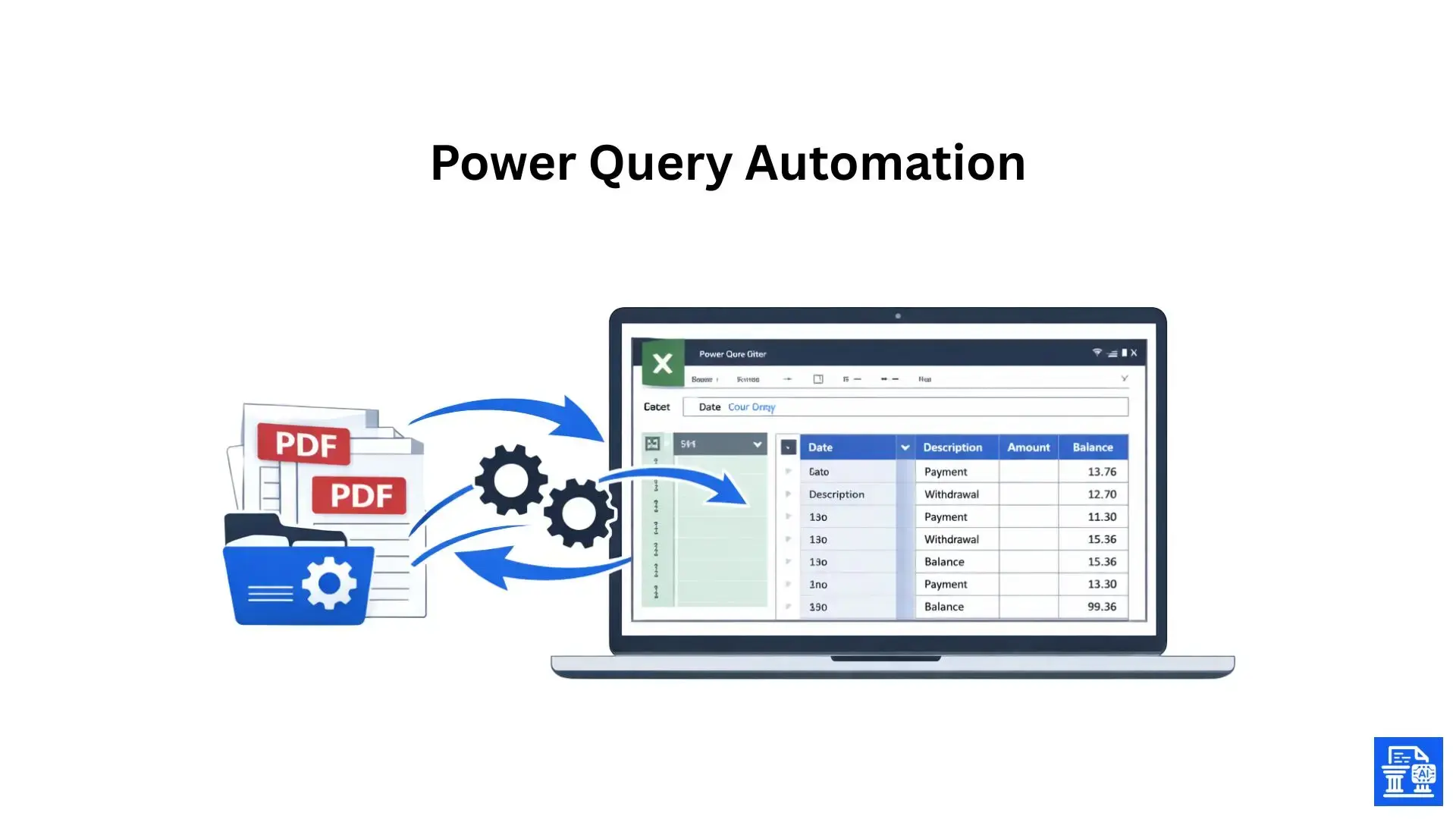
Here is a practical guide to setting up your own automation engine using Excel.
Preparing Your Excel Workbook and Data Source
Start by creating a dedicated folder on your computer, perhaps named "Monthly Bank Statements." Place your PDF bank statement files inside this folder. Open a blank Excel workbook; this will become your master data file.
Importing PDF Bank Statements into Power Query
- In Excel, go to the Data tab on the ribbon.
- Select Get Data > From File > From PDF . (If you want to automate multiple files, choose From Folder ).
- Navigate to your file or folder and click Import .
- The Navigator window will appear, showing you the tables Power Query has found inside the PDF. Select the table that contains your transaction data.
Transforming and Cleaning Your Transaction Data
Once the data is in the Power Query Editor, you will likely need to clean it up.
- Remove Header Rows: Use the "Remove Top Rows" function to get rid of bank logos or address lines.
- Promote Headers: Click "Use First Row as Headers" so your columns are correctly labeled (Date, Description, Amount).
- Filter Nulls: Filter out blank rows or page numbers that might have been pulled in.
- Change Data Types: Ensure the "Amount" column is set to Currency and "Date" is set to Date.
Loading Clean, Structured Data into Your Excel Spreadsheet
When the preview looks correct, click Close & Load . Power Query will process the data and spit out a clean, formatted table into your Excel sheet. Next month, just drop the new PDF in the source folder and click Data > Refresh All .
Maximizing Your Automated Excel Data
Now that you have automated the data entry, what can you do with this structured data?
Real-Time Financial Analysis and Reporting
With a live feed of transaction data, you can build dashboards that update instantly. You can track spending trends, monitor vendor payments, and keep a close eye on cash flow without waiting for the end-of-month reconciliation.
Streamlining Reconciliation and Bookkeeping
Reconciliation becomes a breeze. You can use formulas to match your Excel transaction list against your accounting software or ERP system exports. Discrepancies stand out immediately, allowing for rapid resolution.
Pivot Tables and Custom Formulas
Use Pivot Tables to summarize expenses by category or vendor. You can make custom formulas to sort transactions automatically using keywords in the description. For example, if the description has "Shell," the category will be "Fuel."
Troubleshooting and Maintaining Your Monthly Automation Workflow
Automation is powerful, but it requires occasional maintenance, especially if bank formats change.
Dealing with Variances in Bank Statement Formatting
If your bank changes their statement layout, your Power Query steps might break. You might need to return to the editor and fix the step where the error happened. This could mean choosing the right table or changing the number of rows removed.
Addressing Inconsistent Data Extraction
Sometimes, data extraction isn't perfect. A "check number" might end up in the description column. You can add conditional columns in Power Query to fix this logic (e.g., "If column A is a number, move to Check Number column").
Optimizing Performance for Large Volumes of Monthly Data
If you are processing years of data, the file might become slow. To optimise, load only the necessary columns. If you have hundreds of thousands of rows, consider loading the data to the "Data Model" instead of a sheet.
Data Security and Best Practices for Financial Data Automation
When dealing with financial data, security is paramount.
Why Data Security Matters for Bank Statements
Bank statements contain sensitive account numbers and transaction history. When using online converters, you are uploading this data to a third-party server. Always check their privacy policy. Using local tools like Power Query keeps the data on your own secure network.
Best Practices for Using Power Query
- Keep Source Files Organized: Don't move or rename the source folder, or the connection will break.
- Document Your Steps: You can add comments to your Power Query steps so you remember what you did six months from now.
- Validate Often: Don't blindly trust the automation. Always spot-check the totals.
The Importance of Regular Review and Validation
Automation handles the heavy lifting, but human oversight is still required.
- Spot Checks: Compare the Excel total against the PDF ending balance.
- Date Verification: Ensure dates haven't been swapped (e.g., US vs. UK date formats).
- Audit Trail: Keep the original PDFs safely stored as your source of truth.
Conclusion
Automating bank statement conversion boosts ROI by improving efficiency and accuracy. Automation eliminates manual entry, reduces errors, and unlocks structured financial insights instantly. Whether for business or personal use, automation puts smarter financial management within reach.
FAQs
1. How can I convert PDF bank statements to Excel or CSV automatically?
Use Excel Power Query or AI-powered tools to extract transactions from PDF bank statements.
They work with both scanned and digital PDFs for fast, accurate conversion.
2. What is the easiest way to convert bank statements into an Excel spreadsheet?
Automated converters extract transactions directly into structured Excel tables.
This eliminates manual entry and reduces errors and cleanup time.
3. Is there a way to auto-update monthly bank statements to Excel?
Excel Power Query can refresh data automatically from a folder of PDF statements.
AI tools like My Bank Statement Converter simplify recurring uploads and formatting: mybankstatementconverter.ai
4. What are the steps to convert credit card or bank statements to CSV format?
Upload the PDF to a statement converter, extract the transaction table, and export as CSV.
Automation tools handle extraction, formatting, and validation in one step.
5. How do we convert bank statements to CSV without losing data or accuracy?
Use specialized tools that preserve dates, amounts, and transaction structure. Automation avoids the errors common with manual copy-paste methods.

Leave a comment
Your email address will not be published. Required fields are marked *