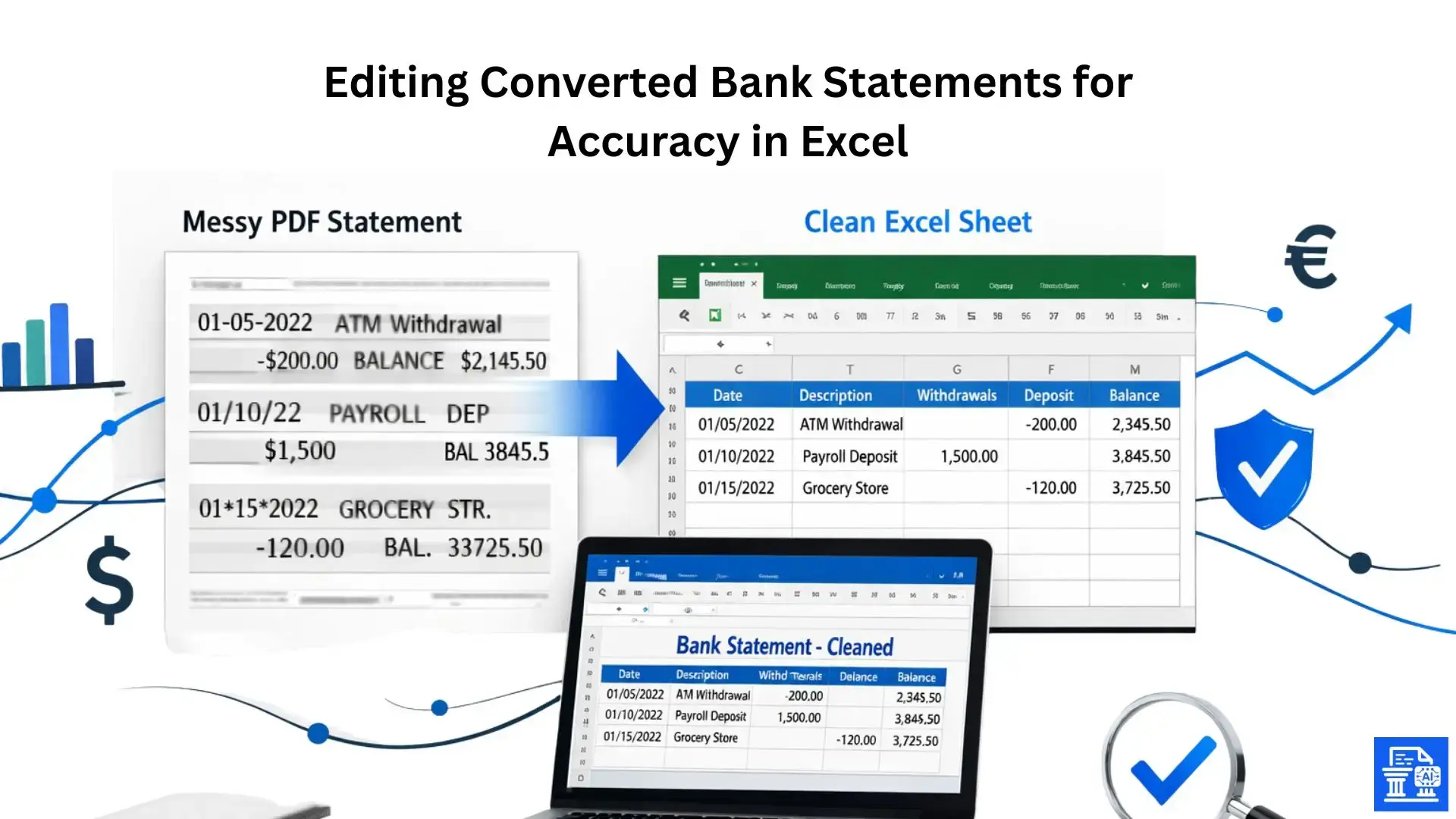
Learn to clean and verify financial data after converting from PDF. Master Excel techniques for editing converted bank statements for 100% accuracy.
Have you ever trusted a file converter blindly, only to find your decimals misplaced and your dates scrambled? When it comes to financial data, even a single digit out of place can cause hours of reconciliation headaches. This guide shows how Editing Converted Bank Statements in Excel helps you take control, turning messy data into a clear financial record.
Quick Summary
Converting bank statements from PDF to Excel often leads to issues. You might see merged columns, incorrect date formats, and misplaced decimals. This guide shows you key Excel techniques. It covers basic cleaning with TRIM and FIND & REPLACE. It also dives into advanced Power Query transformations. These steps help make sure your data is 100% accurate. By Editing Converted Bank Statements and acting as the "human-in-the-loop," you guarantee reliable data for accounting software like QuickBooks or Xero.
Why Manual Review Matters for Converted Data
Financial data is the backbone of business decision-making. When you rely on data extraction tools to pull numbers from a PDF statement, you are trusting algorithms with your money. While technology has come a long way, it isn't infallible.
A scanned bank statement or digital PDF usually has logos, headers, and multi-line descriptions. This formatting can confuse software. Skipping the manual review process is risky. I've seen businesses nearly overdraft because a "credit" was read as a "debit" during an automated import. Accuracy isn't just a preference; it's a necessity for reliable cash flow management.
Understanding OCR and AI in Bank Statement Extraction
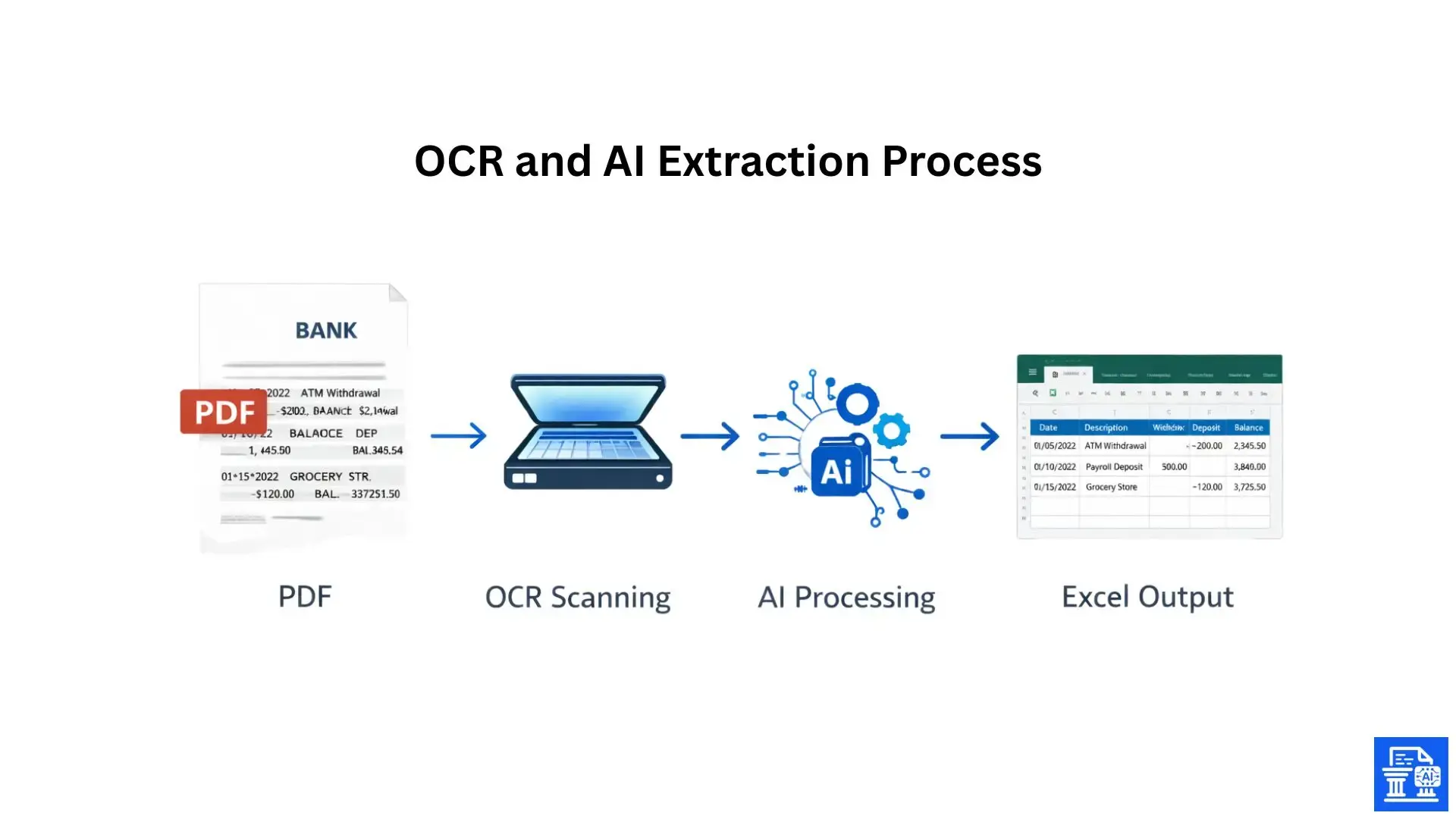
Modern bank statement extraction software uses OCR and AI to read documents. Tools like Klippa DocHorizon or generic Bank Statement OCR APIs scan PDFs. They try to convert visual elements into text and numbers.
- OCR processing : Recognizes the shapes of letters and numbers on a page.
- Machine Learning : Analyzes patterns to guess which column represents the date, description, or amount.
- Intelligent Document Processing : Tries to understand the context of the document layout.
Limitations of Automated Data Extraction
Despite the buzzwords, machines struggle with nuance. PDF bank statements differ greatly among institutions. A Chase statement looks nothing like a local credit union's layout.
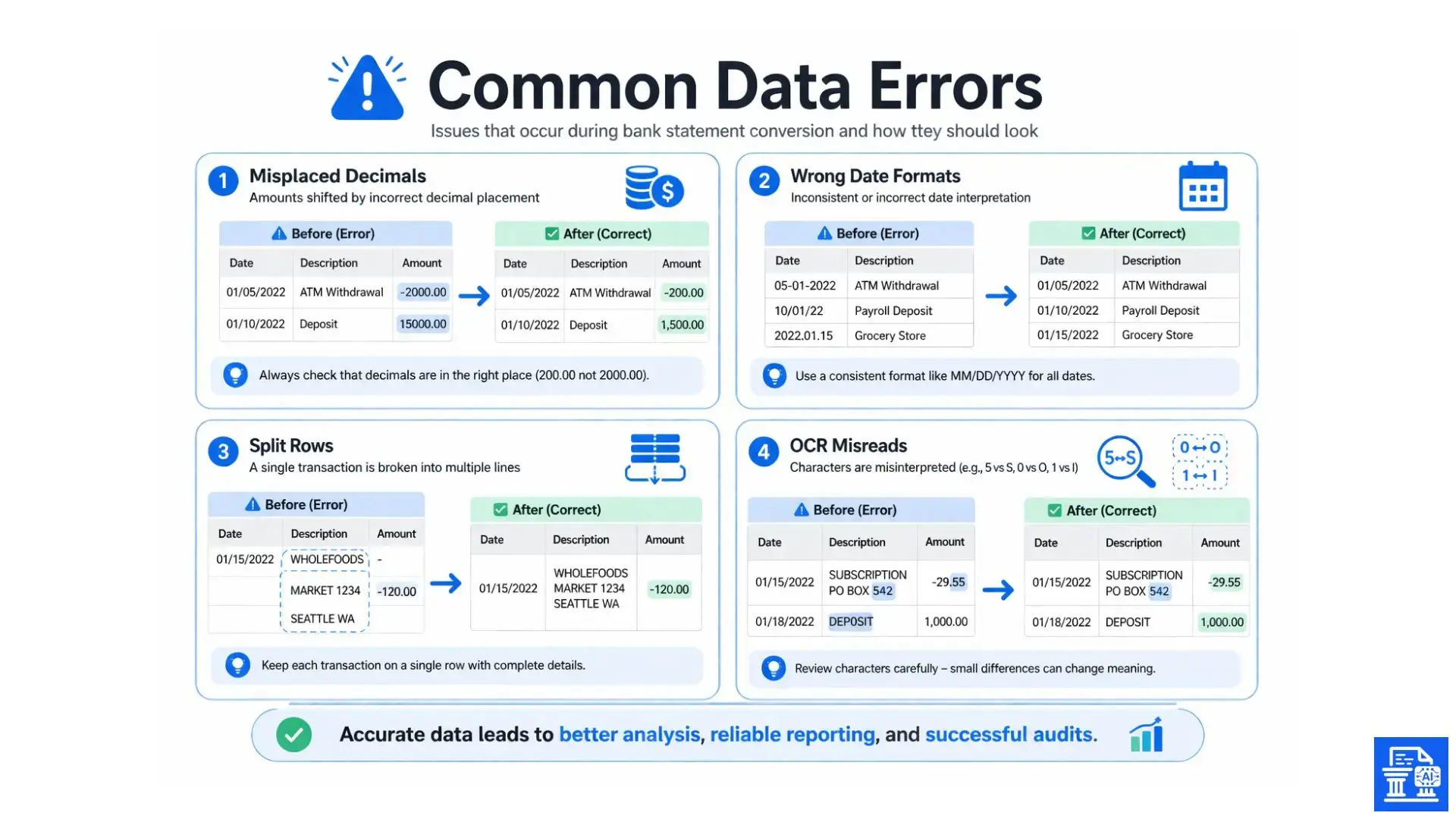
- Layout Complexity : Multi-line transactions often get split into separate rows.
- Visual Noise : Watermarks or low-quality scans (especially with scanned bank statements) lead to OCR misreads (e.g., reading a "5" as an "S").
- Ambiguous Formatting : Date formats (DD/MM/YYYY vs. MM/DD/YYYY) confuse generic machine learning algorithms.
The Criticality of Financial Accuracy
Pushing unedited data into your accounting software makes cleaning it up much harder. An error in Excel is easy to fix. But if it's imported into Xero or QuickBooks, you need to find the transaction, delete it, and then re-import.
Inaccurate data leads to:
- Incorrect tax filings.
- Skewed cash flow analysis.
- Audit failures due to a lack of a clear audit trail.
Excel as Your Final Verification Tool
This is where you come in. Excel acts as the bridge between raw extraction and final reporting. By using Microsoft Excel as your verification tool, you validate the work of the AI. You are the final quality control check, the "human-in-the-loop." You make sure the transaction details match reality before they affect your general ledger.
Preparing Your Converted Bank Statement Data in Excel
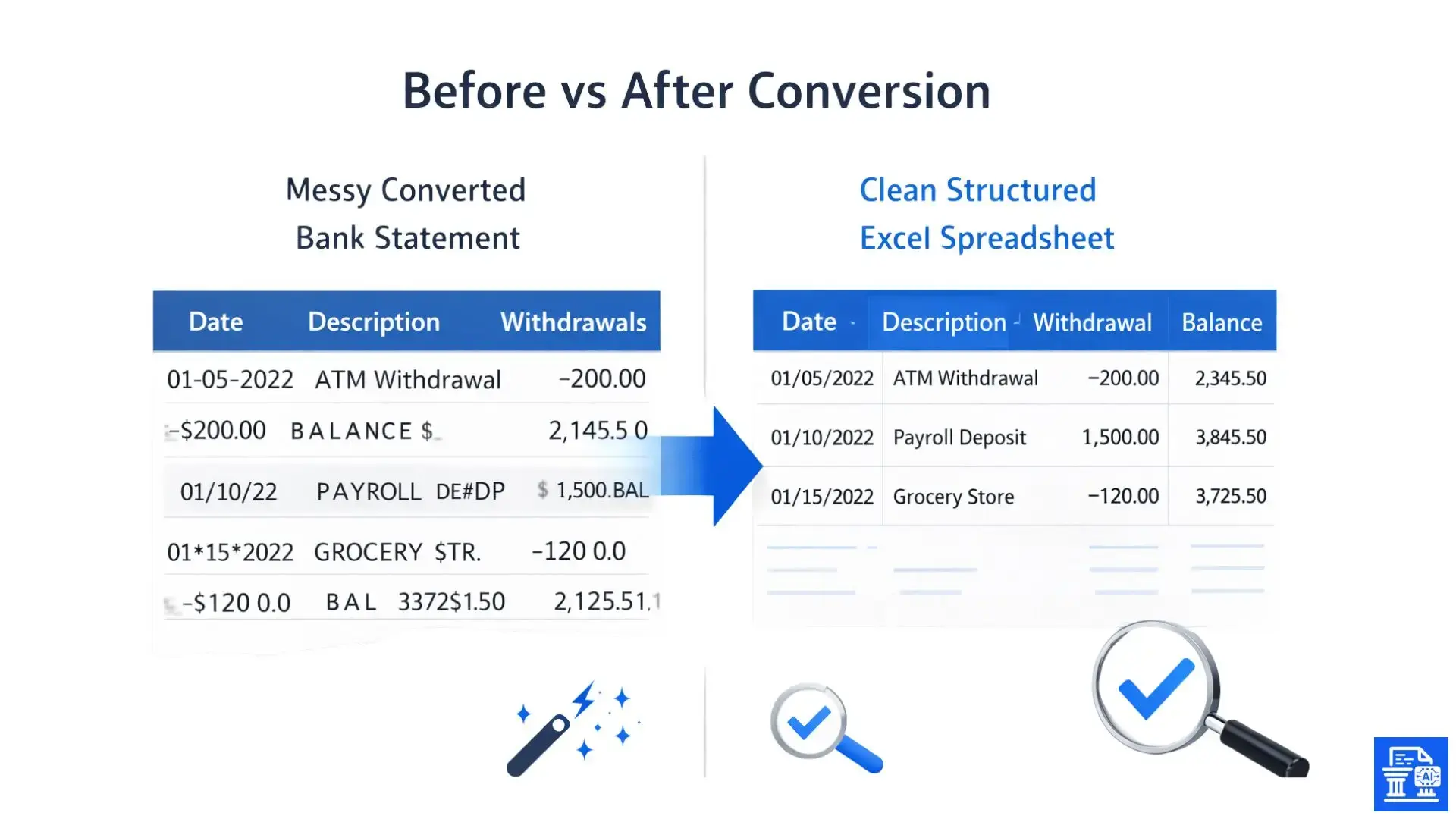
Before you start writing formulas, you need to assess what you're working with. Opening your converted file is the first step in the triage process.
Understanding Your Source
The quality of your Excel output depends heavily on the input. A high-resolution PDF from a banking portal will convert more clearly than a grainy scan of a paper statement. Digital bank statements often have text layers, which makes extraction easy. In contrast, image-based PDFs depend on visual recognition alone.
Identifying Common Conversion Anomalies
Open your file and look for the red flags immediately.
- Are headers aligned with the data?
- Are account numbers showing as scientific notation (e.g., 1.23E+10)?
- Did the currency format translate correctly, or are symbols ($, £, €) stuck to the numbers?
Key Columns for Bank Transactions
To be useful for ERP/Accounting software , your data generally needs to end up in a standard format. Ensure you have these core columns identified:
- Transaction Dates : When the money moved.
- Description/Payee : Who was involved.
- Amount : The value of the transaction (sometimes split into debit/credit amounts).
- Balance : The running total (useful for verification).
Common Data Extraction Pitfalls and How They Manifest in Excel
You will frequently encounter specific annoying issues.
- Merged Cells : The description might merge across three columns.
- Split Rows : A single transaction might span two rows, with the date on one line and the amount on another.
- Ghost Characters : Invisible spaces that stop formulas from working.
Preserving Original Data
Pro Tip: Never edit your only copy of the data. Always duplicate the sheet tab before you begin data cleaning. Better yet, use Power Query (which we will cover later) because it is non-destructive. If you make a mistake while editing manually, keep the original source data in a separate tab. This way, you can recover easily without needing to re-convert the PDF statement.
Foundational Excel Techniques for Data Cleaning and Standardization
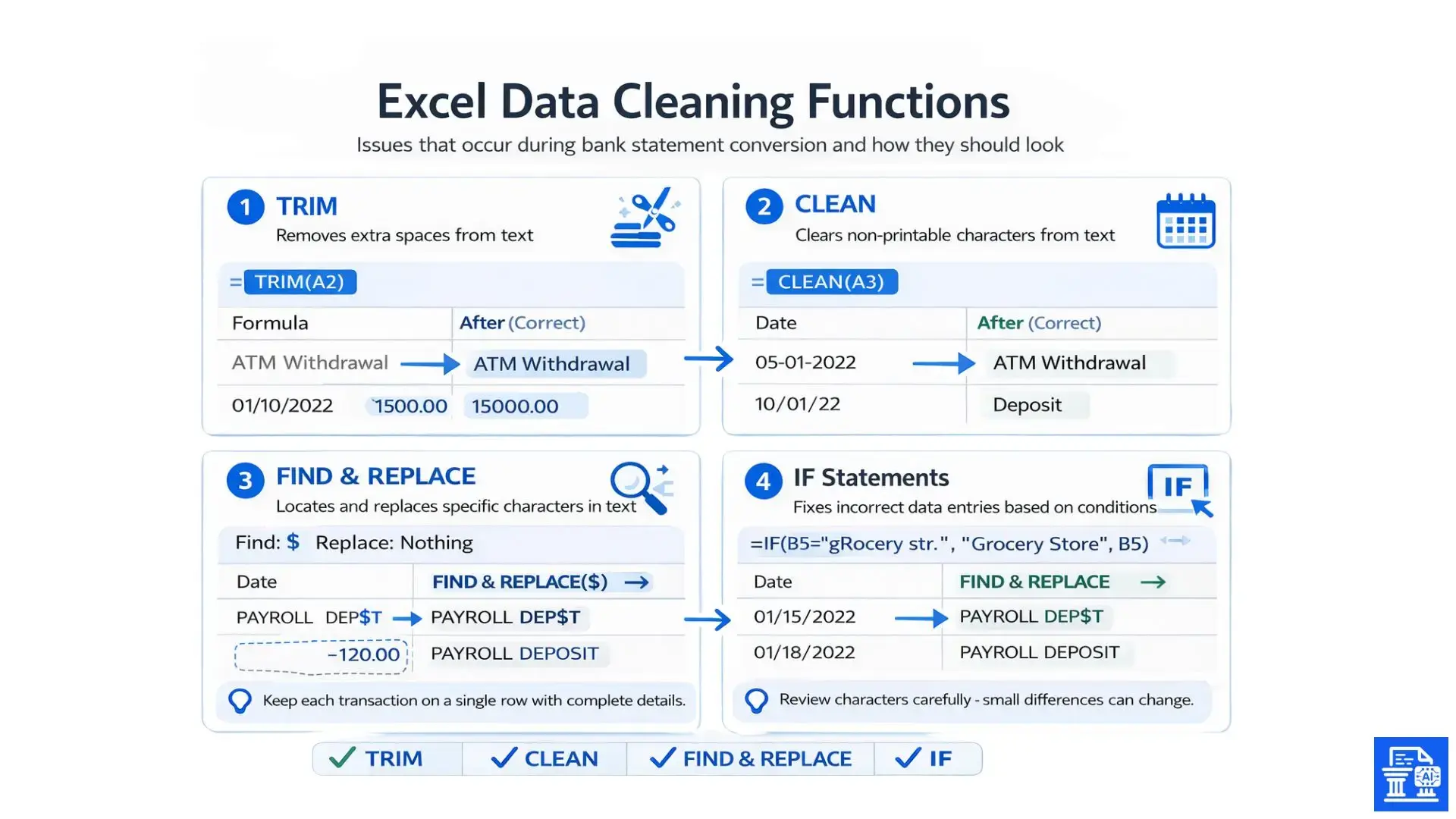
Now, let's get your hands dirty with some essential Excel functions. These are your bread-and-butter tools for fixing Excel spreadsheets.
Initial Formatting and Organization for Readability
First, select all your data and turn off "Wrap Text." Adjust column widths so you can see the data clearly. Apply a standard font. Visual clutter can hide data errors. So, making the sheet readable is a crucial first step for preserving formatting.
Removing Redundant Rows, Headers, and Footers
Bank statements usually repeat headers on every page of the PDF. When converted to Excel, these show up as junk rows in the middle of your data.
- Turn on Filters (Ctrl + Shift + L).
- Filter the "Date" column for text headers like "Date" or "Page".
- Select these rows and delete them in bulk.
Ensuring Consistent Date Formats
Excel is notoriously picky about dates. If your conversion resulted in text-based dates (e.g., "Jan 01 2024"), accounting software won't accept it. Use the "Text to Columns" feature in the Data tab to convert text dates into recognized Excel serial dates.
Correcting Debit/Credit Amounts
Sometimes, an OCR engine will read a speck of dust as a decimal point, or miss one entirely. A $100.00 transaction might appear as $10000.
- Scan the "Amount" column for outliers.
- Use Find & Replace (Ctrl + H) to take out currency symbols ($) or commas. This helps the cell read as a number.
Standardizing Transaction Details
Bank descriptions are often messy, containing codes like "POS DEBIT" or store numbers. Use Find & Replace to clean this up. For example, replace "AMZN MKTPLACE WA" with just "Amazon" to simplify categorization later.
Cleaning Text Data
Imported data often brings invisible baggage.
- TRIM : Removes extra spaces from the start and end of a cell.
- CLEAN : Removes non-printable characters (like line breaks) that often come from bank statement parsing.
- Usage : =TRIM(CLEAN(A2)) cleans the text in cell A2 perfectly.
Advanced Excel Techniques for Verification and Error Detection
Once the data looks clean, you must verify it is actually correct. This is where you audit the bank transactions.
Data Validation and Consistency Checks with Formulas
Don't just eye-ball it; use math to prove accuracy. Simple checks can save you from embarrassing errors. If you have a "Debit" column and a "Credit" column, ensure only one of them has a value for any given row using a count formula.
Reconciling Running Balances with Formulas
This is the "silver bullet" for accuracy. Bank statements almost always include a "Running Balance" column. You can recreate this math in Excel to verify your data.
- Take the starting balance.
- Add credits, subtract debits.
- Compare your calculated value against the bank's printed running balance.
- If they don't match, you have an error in that specific row (likely a typo in the amount).
Finding Missing Data and Duplicates with COUNT & SUM
Use the COUNTIF function to check for duplicate transaction IDs in your statement. Use SUM to add up your debits and credits. Then, compare this total to the summary section on the first page of your PDF bank statements.
Using IF Statements for Conditional Error Flagging
Create a "Check" column. Formula: =IF(My_Balance = Bank_Balance, "OK", "ERROR"). Filter this column for "ERROR" to instantly find the rows where the extraction failed. This is much faster than checking line-by-line.
Cross-Referencing Data with VLOOKUP or XLOOKUP
If you have a list of expected transactions from a CRM or an old log, use XLOOKUP to match them with your updated statement. This helps confirm that all expected deposits have officially cleared.
Conditional Formatting for Anomalies and Outliers
Use Conditional Formatting to highlight:
- Duplicate values.
- Transactions over a certain dollar amount.
- Dates that fall outside the statement period. This makes visual review significantly more effective.
Implementing Data Validation Rules for Future Consistency
If you are adding data manually, use Data Validation (in the Data tab) to restrict entry. For example, make a cell accept only date formats. Also, limit a "Category" column to a dropdown list of your specific general ledger accounts.
Efficient Sorting and Filtering for Targeted Review
Don't review randomly. Sort by "Description" to group all similar vendors together. This helps you spot mistakes fast. For instance, if you see ten "Uber" charges and one "Ubr" charge, you know there's a typo to fix.
Harnessing Power Query for Robust Data Transformation and Cleaning
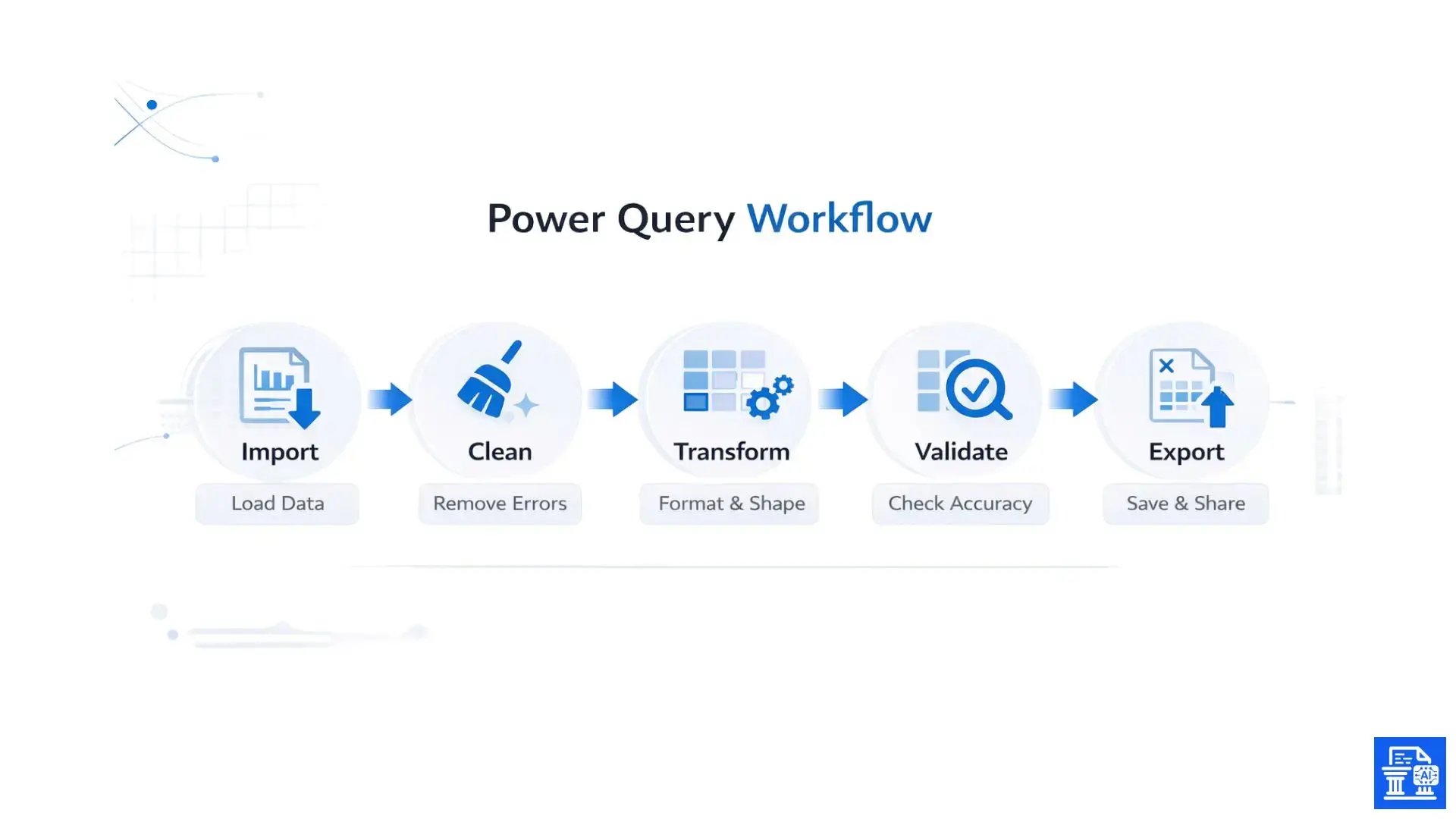
For recurring work, standard Excel formulas can be slow. Power Query is a tool in Excel (Get Data > From Table/Range). It tracks your cleanup steps. Then, you can replay them on next month's statement automatically.
Introduction to Power Query Editor: A Game-Changer for Data Cleaning
Power Query Editor allows you to manipulate data without writing complex macros. It handles big data sets easily and is distinct from the standard spreadsheet view. It is the best way to handle Get Data from PDF tasks efficiently.
Importing Data into Power Query
Select your raw data table and click "Data > From Table/Range." This opens the Power Query window. You aren't changing the cells directly. Instead, you're creating a recipe for processing the data.
Key Power Query Transformations for Bank Statements
In the editor, you can perform powerful actions:
- Remove Top Rows : Delete the first 5 rows of header junk.
- Use First Row as Headers : Promote the correct row to be your column titles.
- Fill Down : If a date is only listed on the first row of a day's transactions, "Fill Down" copies it to the blank cells below.
Changing Data Types Accurately
Power Query allows you to strictly define data types. Click the icon next to the column header to force the column to be "Currency," "Date," or "Text." This prevents the mixed-formatting issues common in Excel spreadsheets.
Refining Transaction Details
If your PDF converter put the Date and Description in one cell, use "Split Column by Delimiter" to separate them. If the description is in three columns, select all of them. Then, use "Merge Columns" to create one clear description.
Handling Errors and Null Values
Power Query lets you filter out "Null" values (blank rows) easily. You can also tell it to replace specific error values with 0 or text, ensuring that the final load to Excel is clean.
Standardizing Text Entries
Use the "Transform" tab to:
- Capitalize Each Word.
- Trim and Clean (just like the formulas, but automated).
- Add a prefix or suffix to descriptions.
Efficiency for Future Statements
The magic of Power Query is the "Refresh" button. Next month, when you get a new statement, just paste the raw data into your input table and click "Refresh." Excel runs all the steps you just built, cleaning the new data instantly.
Finalizing Accuracy for Reconciliation and Accounting Integration
Your data is now clean, but is it ready for the accountant? This final stage ensures compatibility.
The Art of Reconciliation
Do one final check. Does the sum of your Excel sheet exactly match the ending balance on the PDF? If there is a penny difference, you cannot proceed. That penny must be found.
Preparing Data for Export to Accounting Software
Most systems like QuickBooks or Xero require a CSV file for import. They typically need 3 or 4 specific columns: Date, Amount, and Description. Delete any helper columns (like your "Check" or "True/False" columns) before saving.
Ensuring Column Header Compatibility for Seamless Import
Check your software's documentation. Does it want "Date" or "Transaction Date"? Does it want "Amount" or "Debit" and "Credit" separate? Rename your Excel headers to match your accounting software's requirements. This helps avoid mapping errors when you import data.
Standardizing Categories and Vendors for Consistency
If you use budgeting tools or envelope budgeting, consistency is key. Ensure "Starbucks" isn't listed as "Starbucks Coffee" in one row and "Starbucks 123" in another. Consistent vendor names help your automated bank rules work when you import the file.
Documenting Changes for Transparency
If you changed a value because the OCR read it wrong, make a note. Add a "Notes" column in your Excel file and document "Changed $10000 to $100.00 - Scanning Error." This is vital for SOC 2 compliance or general audits.
Using Edited Data for Cash Flow and Budgeting Analysis
Now that you have clean data, you can use it! Build a Pivot Table to see total spend by vendor. This clean data is now ready for processing loan applications or reviewing finances.
Conclusion
Editing Converted Bank Statements with tools like OCR processing saves time. However, it needs human oversight to ensure data integrity. You can use Excel functions, like Power Query, to clean and check financial data easily. As the "Human-in-the-Loop," you pay close attention to details. This helps ensure accurate financial reporting, wherever you are.
FAQs
1. How do you edit a bank statement without legal issues?
Editing a bank statement to hide transactions or show false information is illegal. However, you can organize and review your statement data by converting it into an Excel file for better clarity and management.
2. Can I convert my bank statement into an Excel file for better organization?
Yes, you can convert your PDF bank statement into an Excel file for easier organization. This helps in sorting and analyzing the data, making it more manageable for financial review.
3. How does Editing Converted Bank Statements help with organizing financial data?
Editing Converted Bank Statements in Excel allows you to clean and structure the data for easier analysis, ensuring your financial records are accurate and well-organized.
4. How do I delete or hide past transactions in my bank statement?
Deleting or hiding transactions is fraudulent and illegal. However, you can correct formatting issues by organizing your statement data into a more structured format for review.
5. How can I convert my PDF bank statements into an organized Excel format?
You can convert your PDF bank statements into an Excel format using tools like MyBankStatementConverter.ai , making it easier to track and manage your transactions for financial purposes.

Leave a comment
Your email address will not be published. Required fields are marked *