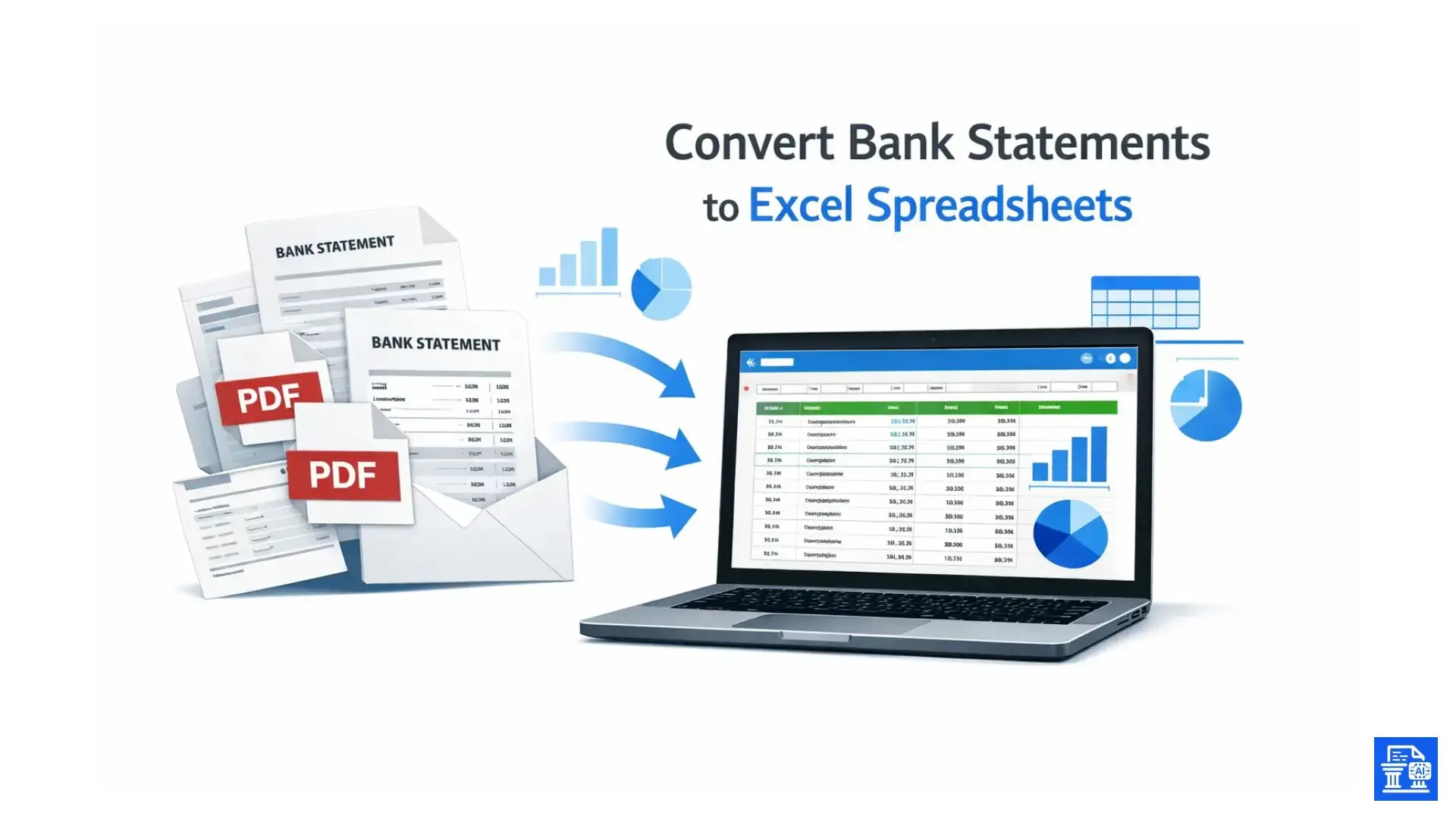
Learn to combine multiple bank statements to Excel with ease. Master PDF conversion, Power Query, and data cleaning for better financial clarity.
Converting Multiple Bank Statements to Excel can save you from hours of manual data entry and financial frustration. Whether you’re a small business owner or freelancer, this guide shows how to merge scattered PDFs into one clean, organized Excel file. Turn chaotic records into a powerful tool for financial clarity.
Quick Summary
Converting Multiple Bank Statements to Excel transforms messy PDF or CSV files into clean, structured data. Using tools like Power Query or OCR, you can merge and clean statements quickly, creating a unified financial view. This saves time and simplifies budgeting, tax preparation, and forecasting.
Why Consolidate Your Financial Data?
Consolidating your financial data gives you a clear view of your cash flow. This helps you save time, reduce errors, and make better financial choices.
The Challenge of Fragmented Finances
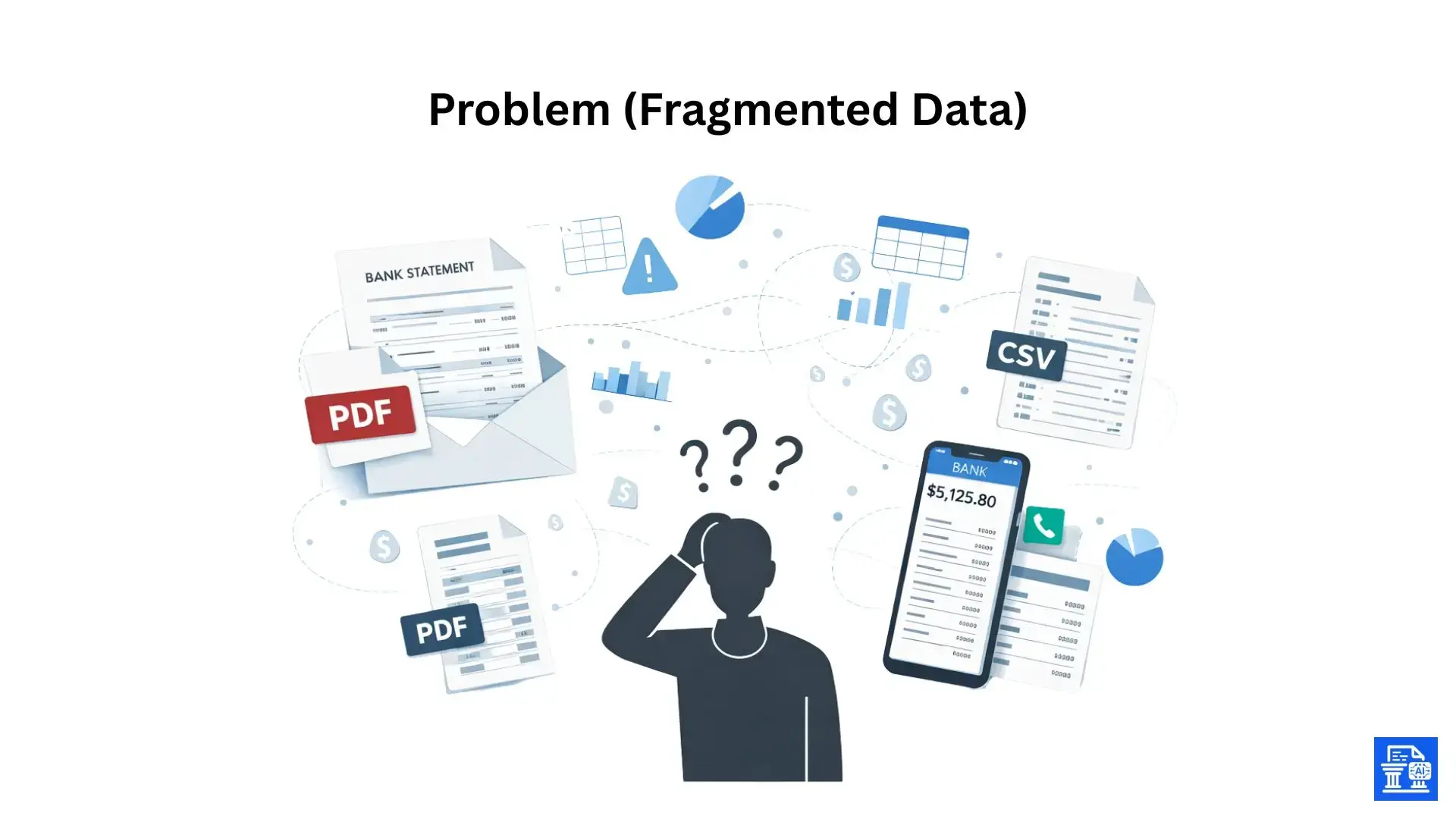
If you have accounts at different banks, like a checking account at Chase and a savings account at Wells Fargo, you understand the struggle. Each bank provides data in a slightly different format.
Maybe one month you downloaded a CSV file, and the next, you only saved the PDF statement. When you need to analyze your spending or prepare for an audit, you are left jumping between different files, formats, and layouts. This fragmentation makes it nearly impossible to get a clear picture of your financial health.
The Power of a Unified View in Excel
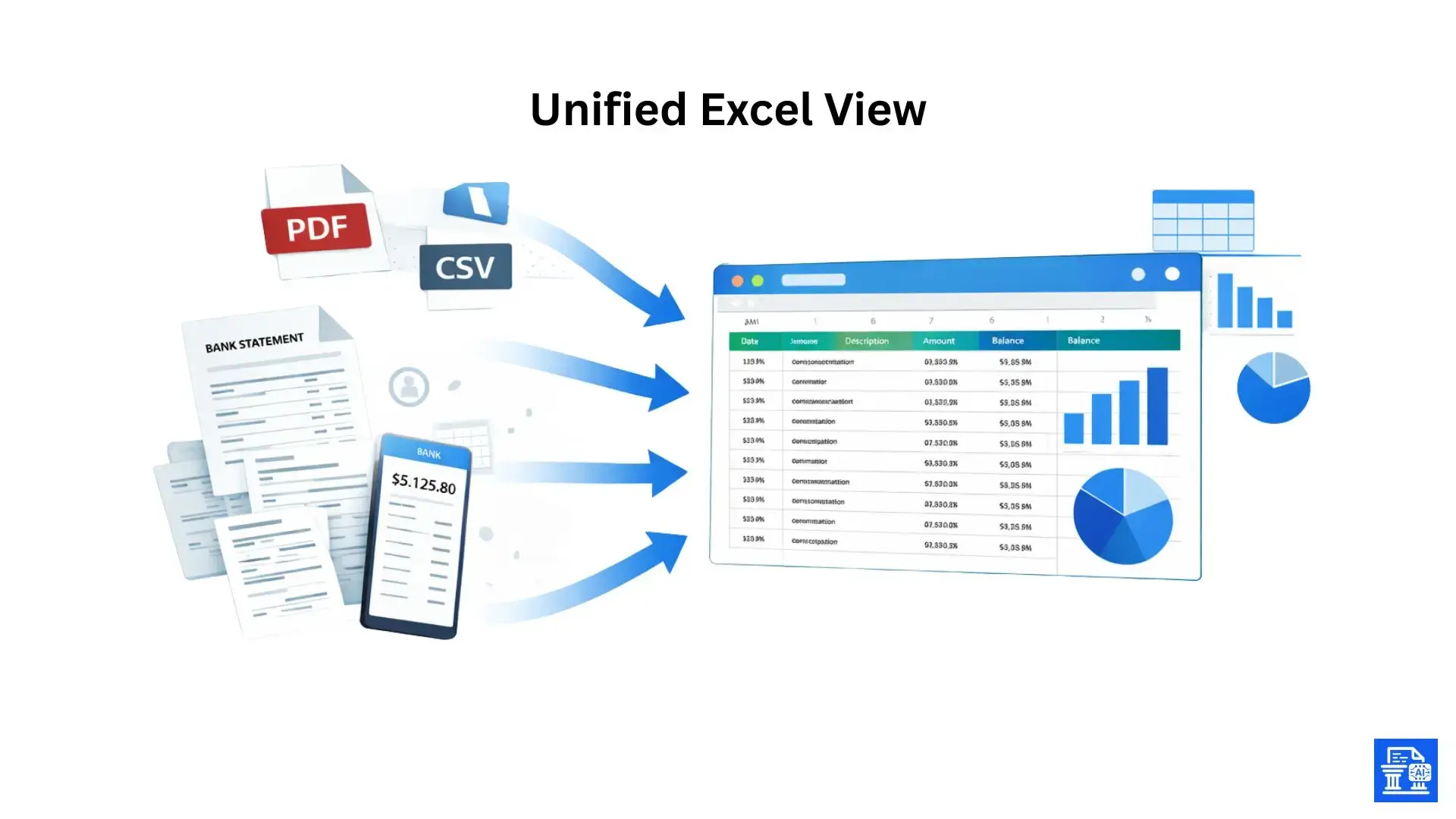
Bringing all your transaction data into a single master Excel workbook changes the game. Suddenly, you can filter by date, category, or vendor across all your accounts.
I once spent three days helping a client manually copy rows from twelve different credit card statements. Once we switched to an automated Excel workflow, that three-day job turned into a 15-minute task. A unified view allows you to see the big picture instantly, rather than getting lost in the weeds of individual files.
Benefits of Combining Bank Statements for Financial Management
- Faster Tax Prep: Handing your accountant a clean Excel file is much cheaper than handing them a shoebox of receipts.
- Better Budgeting: You can pivot table your way to seeing exactly how much you spent on "Office Supplies" versus "Client Dinners" for the whole year.
- Error Detection: It is much easier to spot duplicate charges or subscriptions you forgot to cancel when they are all in one list.
Step 1: Getting Your Bank Statements Excel-Ready
Before you can analyze your finances, you need to gather and prepare your bank statements so they can be easily imported and combined in Excel.
Direct Export: The Easiest Path from Your Bank
The golden rule of financial data management is to start with the best possible source. Most modern banks allow you to export transaction history directly.
- Log into your online banking portal.
- Navigate to your transaction history or "statements" tab.
- Select the date range you need.
- Choose "Download" or "Export" and select CSV format or Excel format .
Converting PDF Bank Statements to Excel
Sometimes, you only have the PDF statement. This is common with older records or scanned documents. Since you cannot easily copy-paste from a PDF without formatting issues, you need a workaround.
- Adobe Acrobat Pro: If you have it, the "Export to Spreadsheet" feature is decent, though it often leaves messy headers.
- Specialized Converters: Tools like Wondershare PDFelement or dedicated bank statement converters are often better at recognizing the grid structure of a bank statement.
- Better Bank Statements: For high-volume needs, services like this use advanced OCR technology (Optical Character Recognition) to extract transaction data accurately, even from scanned PDFs.
Ensuring Consistency Across Different Statement Sources
Before you start merging, take a look at your files. A Bank of America CSV might list the date in column A, while a local credit union puts it in column C.
You need to standardize your approach. Ensure that every file you intend to merge has the same basic structure: Date, Description, Amount, and Balance (if available). When working with scanned PDFs, make sure the OCR engine correctly identifies decimal points. A missing decimal can change a $50.00 lunch into a $5,000.00 accounting nightmare.
Step 2: Bringing Your Data into a Master Excel Workbook
This step is about putting all your prepared statements into one Excel workbook. This way, you’ll have a single file for clear and organised financial analysis.
Consolidating Financial Data
Your goal is to create one continuous list of transactions. This "master sheet" will be the source of truth for all your analysis.
Copy-Pasting and Importing CSV Files
If you only have three or four statements, the manual method is fine. Open your CSV files. Copy the transaction rows, but leave out the headers from the second, third, and fourth files. Then, paste these rows into your master Excel file.
However, be careful with transaction dates . Excel can be finicky about date formats. If one sheet uses DD/MM/YYYY and another uses MM/DD/YYYY, your chronological sorting will break. Always format the date column to "Short Date" immediately after pasting to check for errors.
Advanced Combining with Excel Power Query
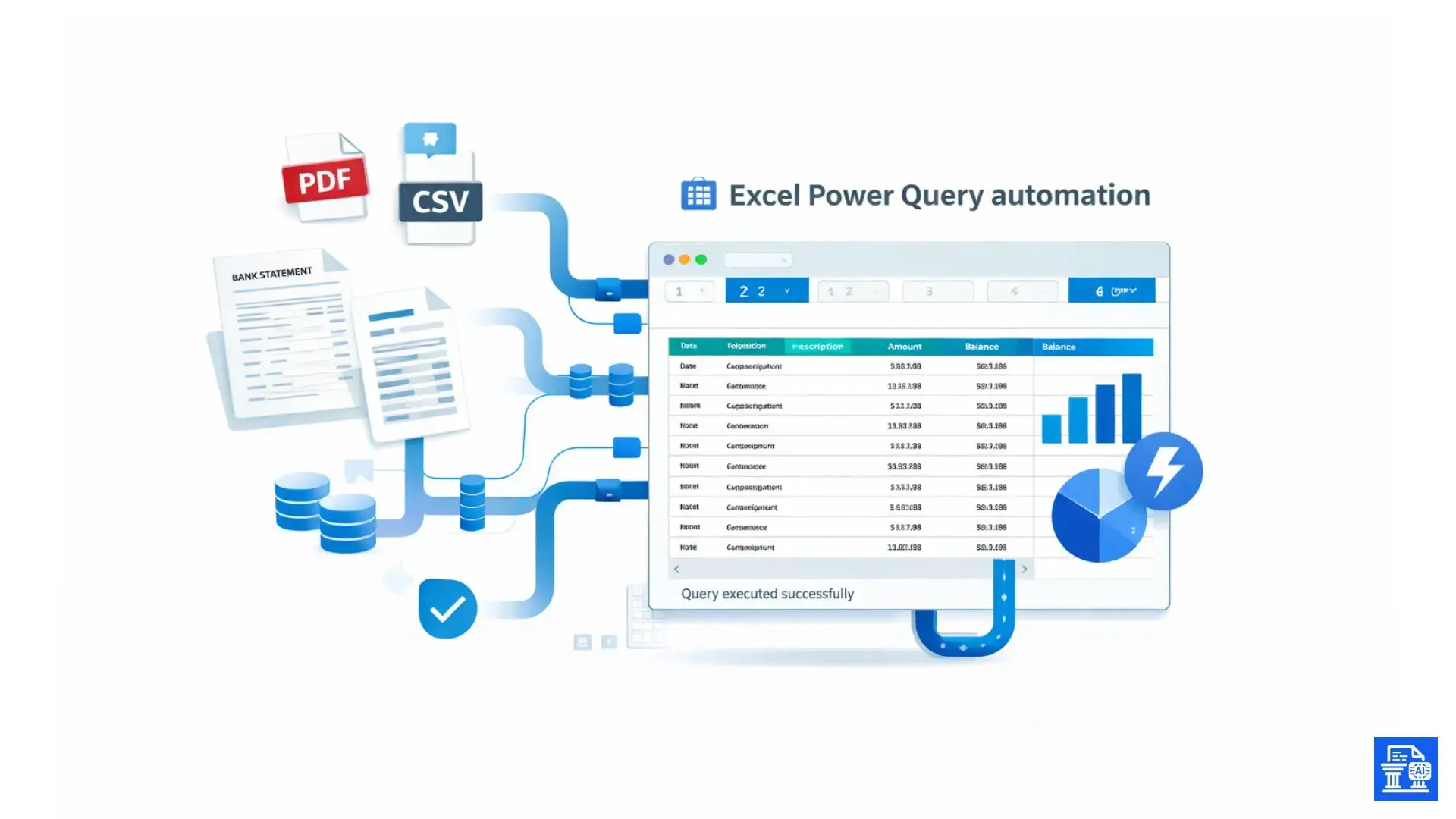
For those with more than a handful of files, Power Query is your best friend. It is a tool built into Microsoft Excel (under the "Data" tab) that automates the "Get & Transform" process.
- Put all your statement CSVs into one specific folder on your computer.
- In Excel, go to Data > Get Data > From File > From Folder .
- Select your folder. Excel will show you a list of the files.
- Click Combine & Load .
- Power Query will automatically stack the data from all files into one table.
Alternative Combining Methods in Excel
- Google Sheets: You can use the IMPORTRANGE function to pull data from multiple sheets into one master tab.
- Third-party connectors: Tools like Fintable or Tiller can sync bank data directly to Google Sheets or Excel, bypassing the download process entirely.
Step 3: Cleaning, Standardizing, and Structuring Your Combined Data
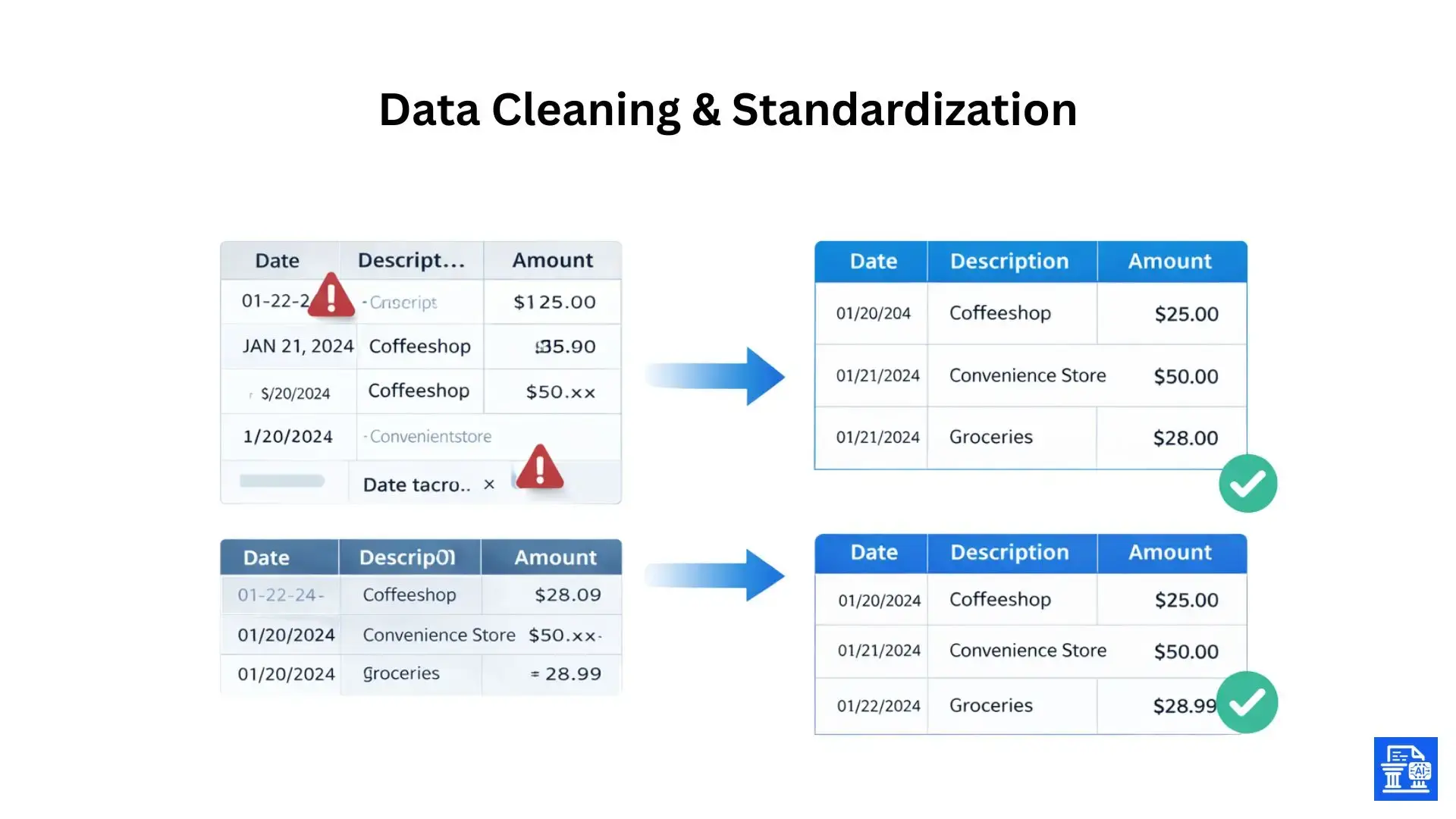
After combining all statements, the next step is to clean and standardise the data. This ensures that dates, descriptions, and amounts are consistent for accurate analysis.
Ensuring Data Integrity and Accuracy
Once your data is in one place, you must clean it. "Dirty" data leads to bad financial decisions.
- Remove Header Rows: If you copy-pasted, ensure you didn't accidentally paste the header row (Date, Description, Amount) in the middle of your data set.
- Check for Blanks: Filter your amount column to find blank cells and investigate them.
- Fix Negative/Positive Logic: Some banks list expenses as negative numbers (e.g., -50.00), while others list them as positive numbers in a "Debit" column. Standardize this so all outflows are negative and inflows are positive.
Adding Value with Essential New Columns
To make your structured data truly useful, add a "Category" column. You can simple formulas or manual entry to tag transactions.
For example, if the description contains "Shell" or "Exxon," you can tag it as "Auto/Gas." If it says "Starbucks," tag it as "Meals." This turns raw text recognition into meaningful business intelligence.
Verifying Your Consolidated Data
Reconciliation is the process of making sure your Excel numbers match the bank's numbers.
Compare the "Ending Balance" on your PDF statement to the running balances in your Excel sheet for that same date. If they don't match, you likely missed a transaction or have a typo in an amount. Do not skip this step!
Step 4: Unleashing the Power of Your Consolidated Financial Data
Now that your data is organised, you can easily analyse trends, track cash flow, and make confident financial decisions.
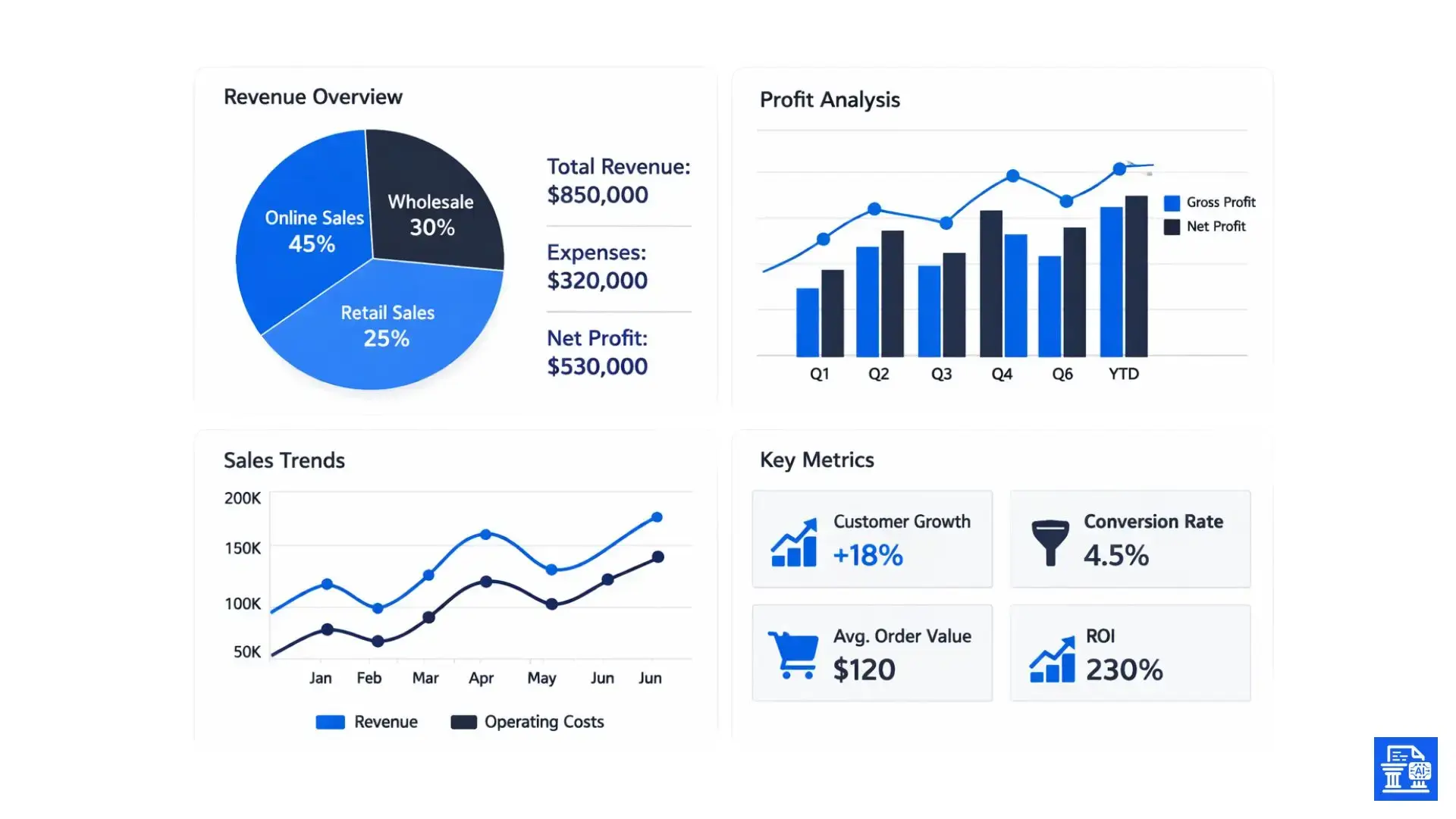
Comprehensive Financial Analysis at Your Fingertips
Now comes the fun part. With structured datasets, you can insert a Pivot Table .
- Drag "Category" to Rows.
- Drag "Amount" to Values.
- Drag "Date" to Columns (grouped by Month).
Instantly, you have a month-by-month profit and loss statement. You can see cash flow trends, identifying months where spending spiked or revenue dipped.
Streamlining Tax Preparation and Accounting
When tax season arrives, you won't be scrambling. You can filter your master list for tax-deductible categories and sum them up.
If you work with accounting firms, they will love you for providing a clean .xlsx or CSV file rather than a shoebox of papers. It reduces their billable hours and ensures they don't miss valid deductions.
Visualizing Your Finances with Excel
Numbers are great, but charts are better. Use your consolidated data to create:
- Pie Charts: To visualize expense breakdowns (e.g., 40% on Rent, 20% on Payroll).
- Line Graphs: To track your bank balance over time to ensure you always have enough runway.
- Dashboards: Business intelligence dashboards can be built right in Excel to show key metrics at a glance.
Best Practices for Secure and Efficient Financial Data Management
Using best practices keeps your financial data secure, organised, and easy to access. This helps you manage your finances efficiently and confidently.
Prioritizing Data Security and Privacy
You are dealing with sensitive financial information. Never save these files on a public computer or share them via unsecured email.
- Encryption: Password protect your Excel workbook (File > Info > Protect Workbook > Encrypt with Password).
- Secure Storage: Store your files in a secure cloud environment like OneDrive or Google Drive with 2-Factor Authentication enabled.
Establishing an Automated Workflow for Ongoing Management
Don't let the pile build up again. Set a recurring calendar appointment for the first Friday of each month. This way, you can download your new statements and add them to your master file.
If you are using Power Query , you just drop the new month's CSV into your folder and hit "Refresh" in Excel. The new data will automatically be added and formatted.
Regular Data Backups and Version Control
- Save Versions: Save your file as "Financials_Master_v1," "v2," etc., before making major changes.
- Cloud Backup: Ensure your local folder syncs to the cloud in case your hard drive fails.
Continuous Review and Reconciliation
Make it a habit to scan your transaction data monthly. This isn't just about organization; it's about security. You’re more likely to spot fraudulent charges or billing errors if you check your data regularly, not just once a year.
Conclusion
Converting Multiple Bank Statements to Excel gives you clear, organized financial data from PDFs and CSV files. Using tools like OCR and Power Query, you can track cash flow well. They also help simplify tax prep and support informed decision-making. Start with a few statements and build a workflow that reduces financial stress.
FAQs
1: How can I convert Multiple Bank Statements to Excel efficiently?
Export your PDFs or CSVs and merge them using Power Query or Excel’s import tools. For faster results, apps like My Bank Statement Converter can automate the process and produce a clean, unified Excel file.
2: How do I merge multiple Excel spreadsheets without losing data or formatting?
Use Excel’s Power Query to import and append spreadsheets into a master workbook. This preserves formatting, ensures accuracy, and creates a unified dataset for analysis.
FAQ 3: How can I combine data from two or more Excel sheets into one?
Combine sheets using Power Query, the Consolidate tool, or by importing CSVs. This ensures all transaction data is consistent and ready for reporting.
4: How do I combine multiple PDFs or text files into one Excel spreadsheet?
Import text files via Power Query and use OCR for PDFs. This consolidates all transaction data into a single Excel workbook without manual copy-pasting.
5: How do I insert or import large amounts of data into an Excel spreadsheet efficiently?
Use Excel’s Get & Transform Data feature to import CSVs, text files, or other workbooks in bulk. It automatically organizes the data, saving time and reducing errors.

Leave a comment
Your email address will not be published. Required fields are marked *