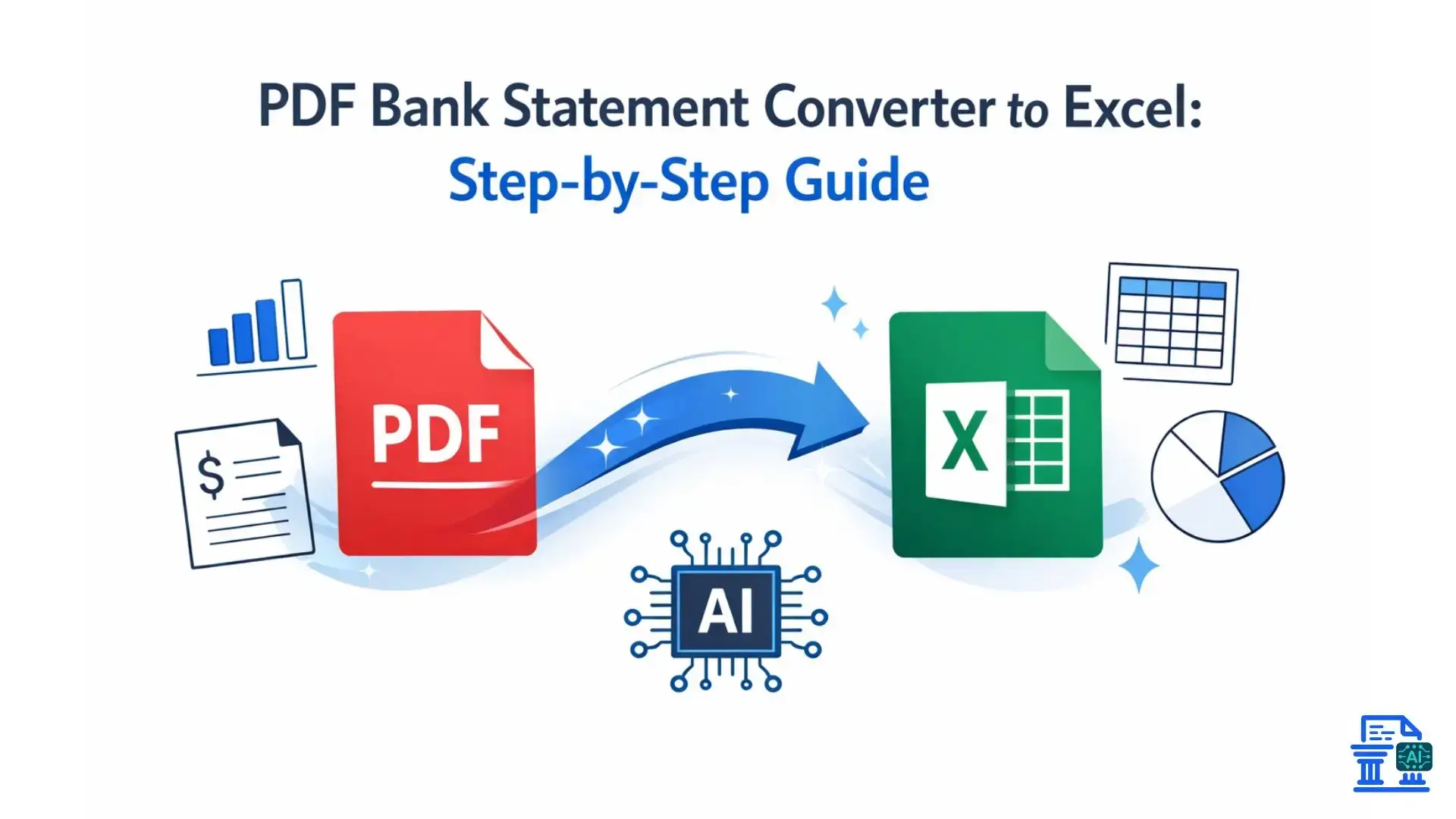
Learn how to use a bank statement converter to Excel to automate data entry. A secure, step-by-step guide to unlocking PDF financial data.
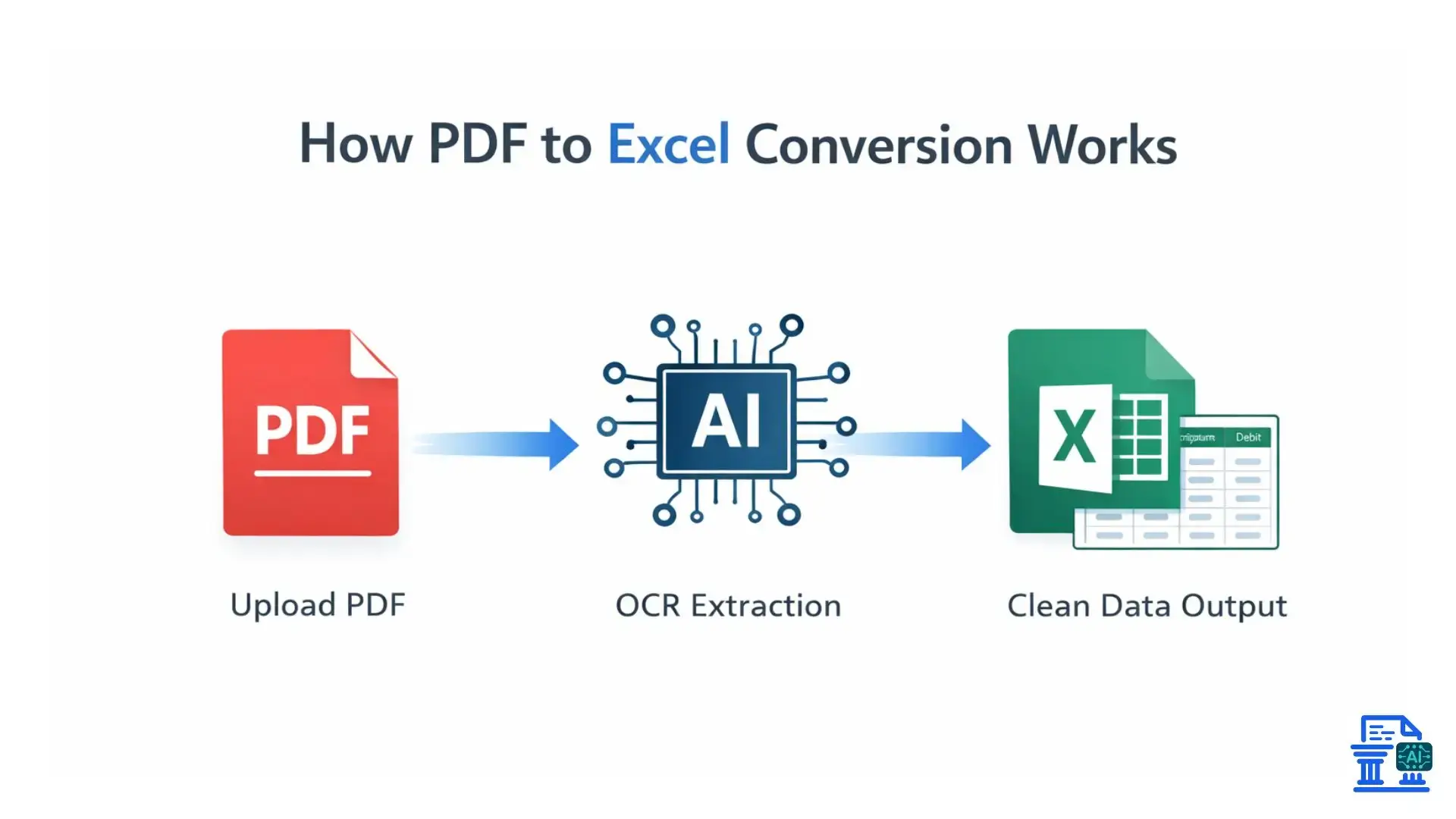
Stop manually typing data from your bank statements and wasting hours on repetitive work. With a Bank Statement Converter to Excel , you can quickly turn complex PDFs into clean, structured spreadsheets. This saves time, reduces errors, and makes your financial data far easier to manage.
In this guide, you’ll learn how to securely and accurately convert PDF bank statements to Excel in just minutes. By the end, you’ll be able to track, organize, and analyze your financial information with confidence.
Quick Summary
Manually entering transaction data from PDF bank statements into Excel is time-consuming and prone to errors. Using a dedicated Bank Statement Converter automates this process, using OCR technology to extract data into editable formats like CSV or Excel. This guide covers how to choose the right tool, a step-by-step conversion process, and tips for integrating data into software like QuickBooks or Xero, saving you hours of administrative work.
Unlocking Your Financial Data from PDF Statements
We have all been there: staring at a digital stack of PDF bank statements, knowing that the data inside is locked away in a static format. You need to analyze spending, prepare for tax season, or reconcile accounts, but the numbers are trapped in a "read-only" file. It is frustrating, inefficient, and frankly, a waste of valuable time.
The good news is that technology has caught up. You no longer need to accept the limitations of a standard PDF statement . By converting these documents into a dynamic Excel format , you unlock the ability to manipulate, sort, and analyze your financial history with ease. This guide is designed to take you from a static PDF to a fully functional spreadsheet without the headache of manual entry.
Why PDFs are a Challenge
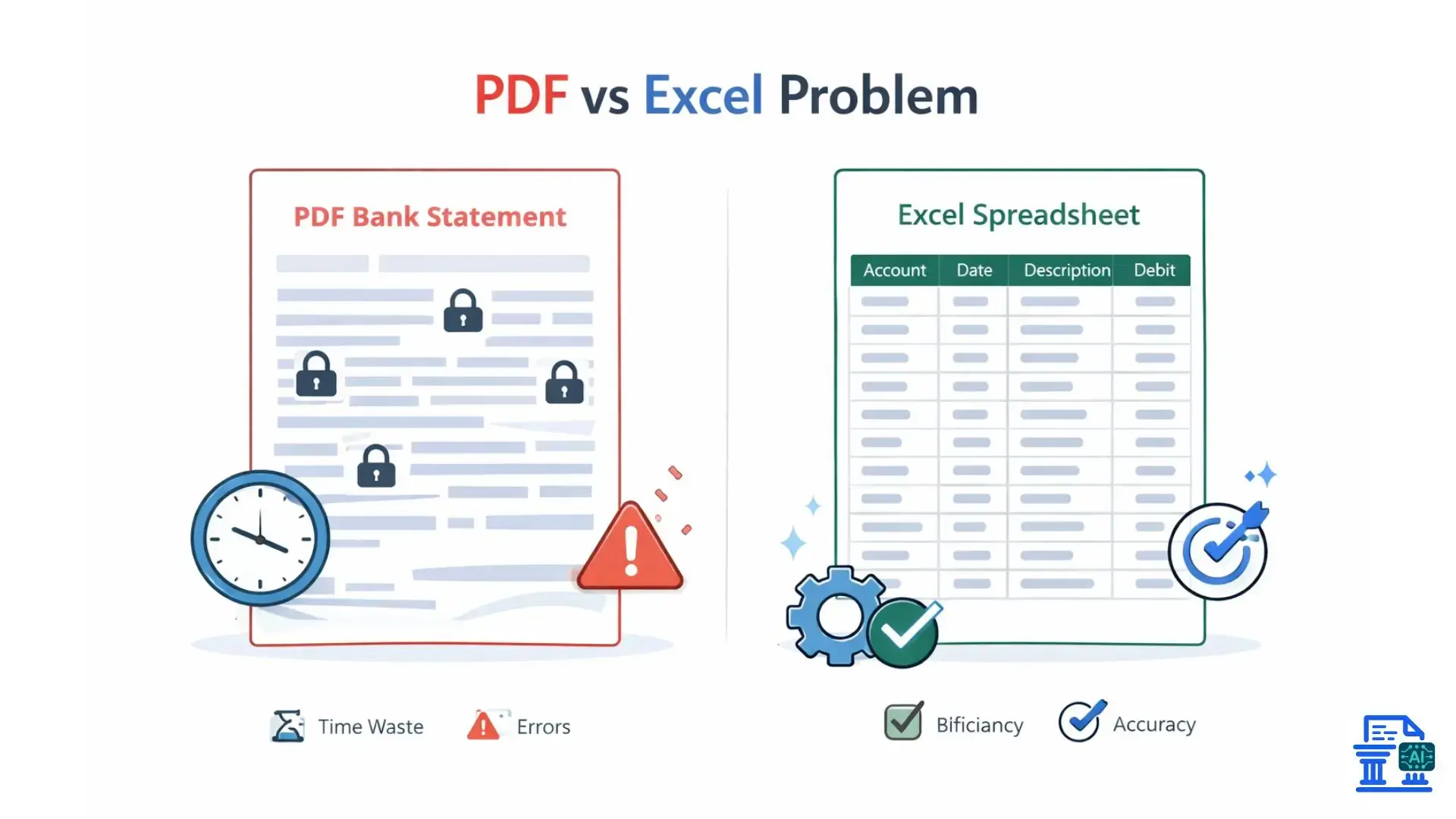
PDFs (Portable Document Format) were designed to preserve the look of a document, not to facilitate data extraction. When you try to copy and paste text from a bank statement PDF directly into Excel, the formatting usually breaks. Columns merge, dates get mixed up, and headers disappear.
This forces many business owners and accountants into the trap of manual data entry.
- Time Sink: typing out hundreds of transactions line-by-line takes hours.
- Error Risk: one missed decimal point or a transposed number can throw off your entire reconciliation.
- Fatigue: repetitive data entry is mentally draining, increasing the likelihood of mistakes as you go.
The Power of Excel for Financial Data Management
Once your data is in Microsoft Excel or Google Sheets, it becomes a powerful tool for financial clarity. Excel spreadsheets allow you to use pivot tables to categorize expenses, create charts to visualize cash flow, and run formulas to spot trends.
Imagine instantly filtering your transaction data to see exactly how much you spent on "Office Supplies" last quarter, or comparing income across different months. This level of financial data management turns raw numbers into actionable business intelligence.
Your Path to Automated Bank Statement Conversion
In this post, we will walk through the entire process of automating PDF to Excel conversion. We will cover:
- Why conversion beats manual entry every time.
- How to prepare your files for the best results.
- Choosing the right PDF bank statement converter.
- A detailed, step-by-step walkthrough of the conversion process.
- How to import your clean data into accounting software.
Why Convert Your PDF Bank Statements to Excel?
Moving beyond simple data entry, converting your statements opens up a new level of financial control. It isn't just about saving keystrokes; it's about accuracy and audit-readiness.
Enhanced Data Analysis and Reporting
When your financial history is in a structured Excel format, you can perform deep dives into your spending habits. You can create custom financial reports that your bank's portal simply cannot generate. For example, you might want to analyze vendor costs across multiple bank accounts, something impossible to do with separate PDFs.
Streamlined Bank Reconciliation and Accounting Workflows
Bank reconciliation is the process of matching your internal records with your bank statement. If you are using software like Intuit QuickBooks software or Xero, having your statement data in a CSV or Excel file allows for rapid matching. You can upload the file, and the software will often auto-match transactions, leaving you to review only the exceptions.
Improved Efficiency and Time Savings
Efficiency is the most immediate benefit. What used to take three hours of typing can now be done in three minutes with a PDF bank statement converter. This frees you up to focus on high-value tasks, like financial planning or growing your business, rather than being stuck in the weeds of data entry.
Reduced Errors Compared to Manual Input
Humans make mistakes; computers generally don't (when programmed correctly). Automated extraction eliminates typos. If the bank statement says "$450.00," the converter will output "$450.00." There is no risk of your finger slipping and typing "$45.00" or "$4500.00," ensuring your financial data remains trustworthy.
Facilitating Financial Planning and Decision-Making
Clean data leads to clear decisions. When your transaction table is accurate and up-to-date, you can forecast future cash flow with confidence. Whether you are a freelancer in Austin planning for taxes or a CFO in London managing an ERP system, accessible data is the foundation of smart financial strategy.
Essential Preparation Before You Convert Your PDF
Before you start uploading files, a little preparation goes a long way. Ensuring you have the right files and understanding what you are working with will prevent errors down the line.
From Bank Portal to Local Files
First, log in to your online bank portal (whether you use Barclays Bank UK PLC, HSBC UK, Lloyds Bank, or a local credit union). Navigate to the statements section and download your official monthly statements.
- Always download the "official" statement PDF, not just a print-to-PDF view of your recent transactions page.
- Save these files in a dedicated folder on your computer with clear naming conventions (e.g., "Chase_Jan2024.pdf").
Understanding Different PDF Types
Not all PDF files are created equal.
- Text-based PDFs: These are generated digitally by the bank. You can usually highlight and select the text with your cursor. These convert the most accurately and quickly.
- Scanned PDFs: These are images of physical paper statements. If you scanned a paper document, the computer sees it as a picture, not text. These require Optical Character Recognition (OCR) to read.
Ensuring Optimal PDF Quality for Accurate Conversion
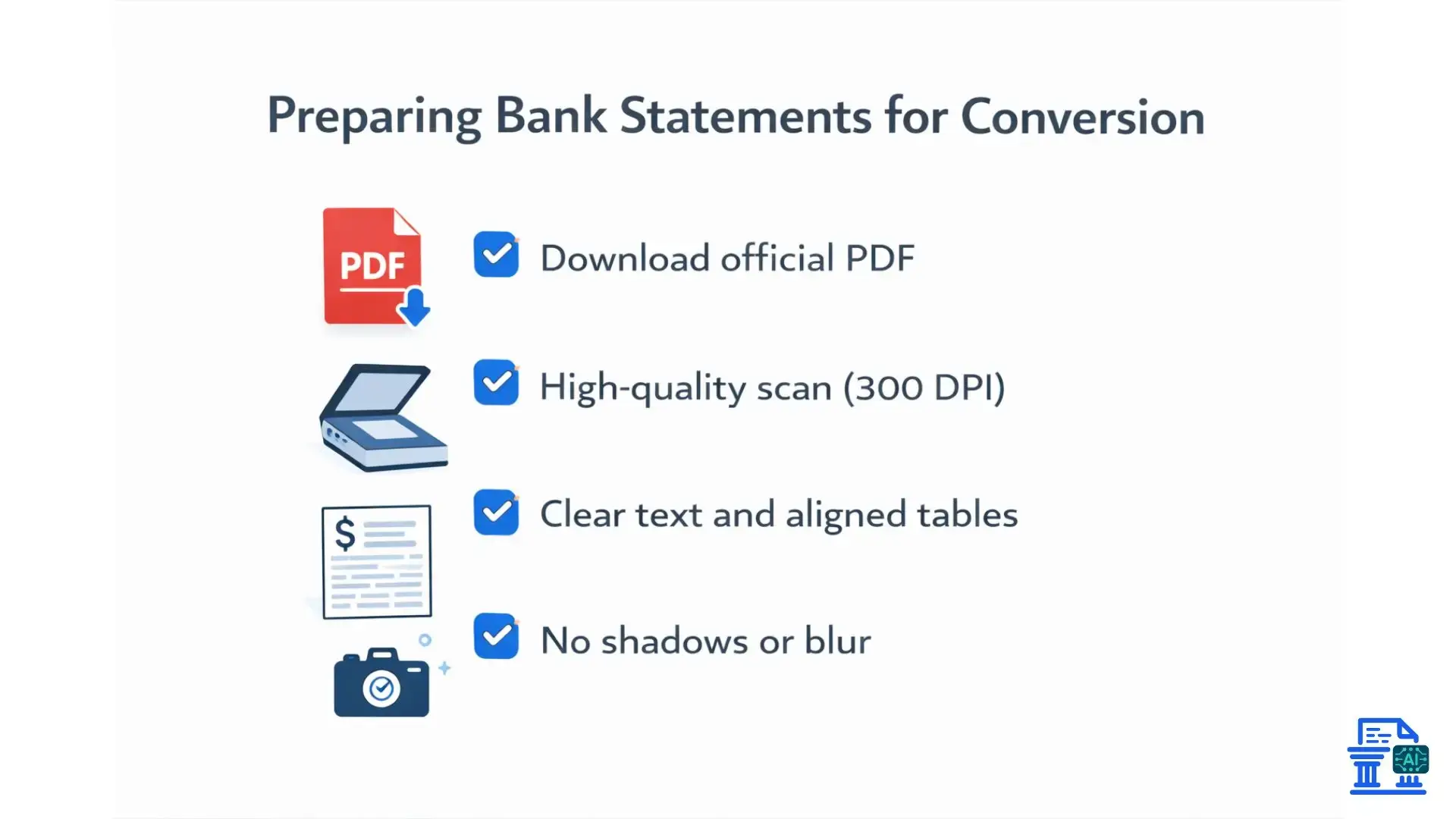
For scanned documents, quality matters. If you are scanning physical bank journals or paper statements:
- Ensure the scan is flat and not skewed.
- Scan at a high resolution (at least 300 DPI).
- Avoid shadows or handwriting over the transaction data.
- Clean, crisp scans help the OCR technology distinguish between a "5" and an "S" or an "8" and a "B".
Choosing the Right PDF Converter?
Selecting the right tool is critical. Some free online tools are risky for sensitive financial data, while robust paid software offers better security and accuracy.
Understanding Converter Technologies:
Most converters use parsing algorithms to identify the structure of a bank statement. They look for dates, descriptions, and amounts. Advanced tools utilize AI-powered extraction and OCR technology to handle complex layouts or poor-quality scans, learning from thousands of different bank formats to improve accuracy.
Types of Converters Available:
- Web-based Converters: Convenient and often free for single pages, but check their privacy policy carefully.
- Desktop Software: Installed locally on your machine. Often more secure as files don't leave your computer.
- Specialized Financial Converters: Tools like Rocket Statements or VeryPDF Table Extractor are designed specifically for bank statements, understanding the nuances of credits, debits, and running balances.
Key Features to Look for in a Bank Statement Converter:
When shopping around, prioritize these features:
- Security: Does it mention data security and encryption?
- Accuracy: Can it handle scanned PDFs?
- Format Options: Does it export to CSV format, Excel, and JSON formats?
- Batch Processing: Can you upload 12 months of PDF bank statements at once?
Converting Your Statement
Ready to turn that PDF into a spreadsheet? Follow this simple workflow.
Step 1: Access Your Chosen PDF Bank Statement Converter
Navigate to your chosen tool. If you are using a secure cloud-based tool, ensure you are on the correct URL. If you are using desktop software, launch the application.
Step 2: Upload Your Bank Statement PDF File
Look for a "Upload" or "Import" button. Select your PDF statement from your local folder.
- Pro Tip : If your file is password-protected, you will likely need to enter the password (often your SSN or account number) to unlock it before the software can read it.
Step 3: Configure Extraction and Output Settings
Before hitting convert, check the settings.
- Output Format: Choose Excel Spreadsheets (.xlsx) or CSV format depending on your needs.
- Page Range: If the PDF includes filler pages (like promotional offers), select only the pages containing the transaction table.
- Date Format: Ensure the date format matches your region (e.g., MM/DD/YYYY for the US, DD/MM/YYYY for the UK).
Step 4: Initiate the Conversion Process and Review Results
Click "Convert." The software will process the document. Many modern tools provide a "preview" window where you can see the extracted data side-by-side with the original PDF. This is your chance to catch any obvious conversion process errors before downloading.
Step 5: Download Your Converted Excel Spreadsheet
Once processed, download the file. Save it with a distinct name, such as "Converted_Chase_Jan2024.xlsx," to keep your original and converted files separate.
Step 6: Review and Refine Your Data in Excel
Open the file in Microsoft Excel .
- Check the "Balance" column to ensure the math works out.
- Scan for any formatting oddities.
- Ensure that credits and debits are in the correct columns (or represented by positive and negative signs).
Integrating Excel Data into Accounting Software
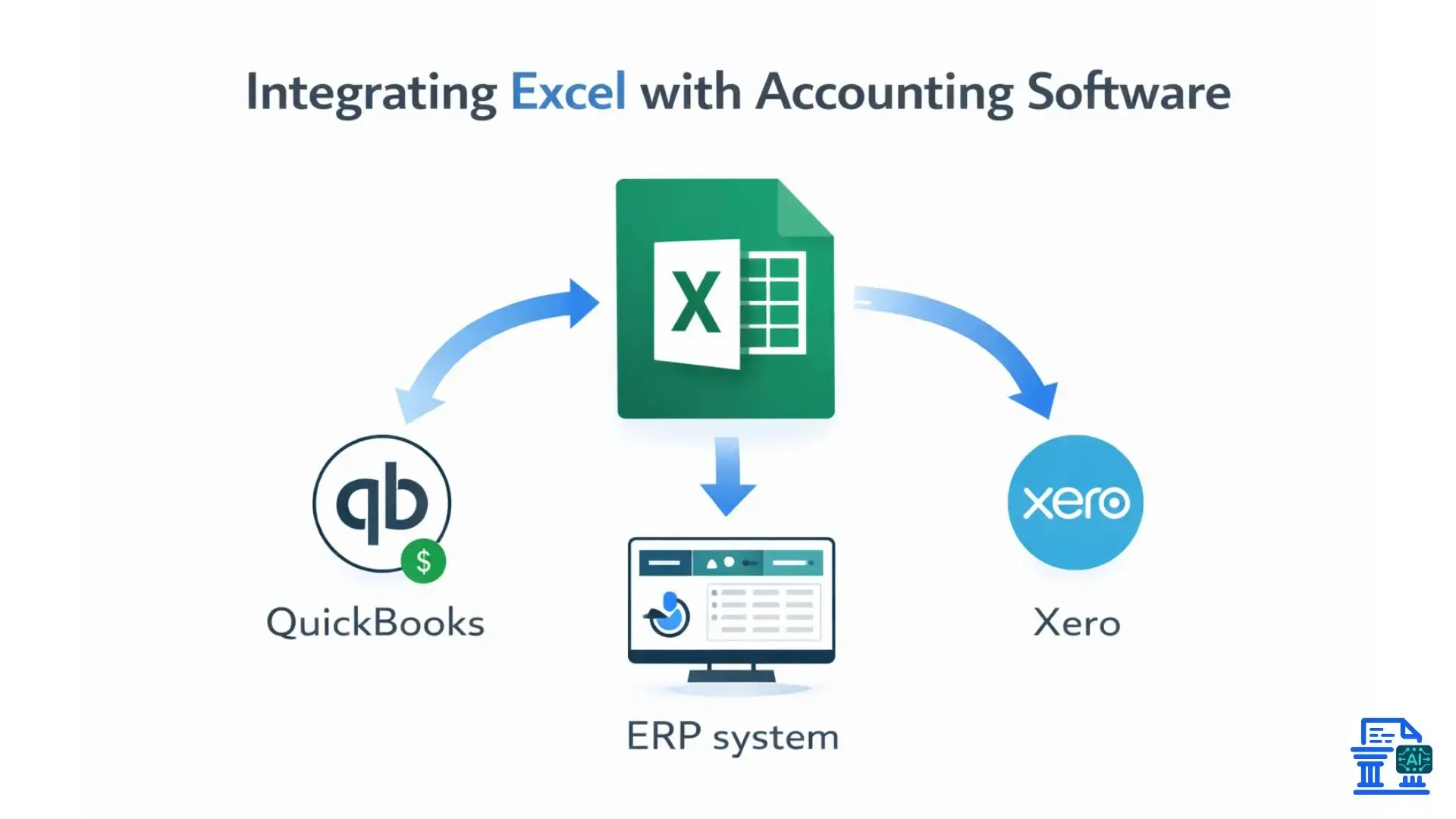
Now that your data is in Excel, the real magic happens: importing it into your financial ecosystem.
Why Integrate? Streamlining Your Workflow
Manual entry into accounting software is just as tedious as manual entry into Excel. Importing a clean CSV or Excel file into QuickBooks Online, Xero, or SAP software ensures your books match your bank exactly, saving massive amounts of reconciliation time.
Preparing Your Excel File for Import:
Most accounting platforms prefer CSV files (Comma Separated Values).
- Delete header rows that contain personal info (name, address), so only the column headers (Date, Description, Amount) remain at the top.
- Ensure you have separate columns for "Date," "Description," and "Amount."
- Save the file as a .CSV.
Importing into Popular Accounting Platforms:
- QuickBooks Online: Go to "Banking," select "Upload transactions," and map your CSV columns to the QuickBooks fields.
- Xero: Navigate to your bank account dashboard and select "Import a Statement."
- Sage/Other ERPs: Look for the "Import" utility within the general ledger module.
Utilizing the Data for Bank Reconciliation
Once imported, the software will present the transactions. You can now match them against the ledger entries you've already created (like invoices sent or bills paid). This is automated bank statement conversion at its finest, turning a painful monthly chore into a quick verification task.
Advanced Tips and Troubleshooting for Optimal Conversion
Sometimes, things don't go perfectly. Here is how to handle tricky situations.
Overcoming Scanned PDF Challenges with Advanced OCR
If your scan is blurry, standard converters will fail. You need a tool with AI-powered OCR technology. If the conversion comes out garbled:
- Rescan the document at a higher DPI (600 DPI).
- Convert the image to grayscale to increase contrast.
- Use a dedicated OCR tool (like Adobe Acrobat Pro) to "recognize text" before putting it into the converter.
Ensuring Data Accuracy and Verification Post-Conversion
Always perform a "balance check." In Excel, use a formula to sum the starting balance plus all credits minus all debits. The result should exactly match the ending balance on the PDF. If it doesn't, a transaction was likely missed or misread.
Batch Processing for Multiple Bank Statements
If you have a whole year of data to catch up on, do not do it one by one. Look for a tool that supports batch processing or batch conversion. You can upload 12 files at once, and the tool will merge them into a single, continuous Excel sheet, perfect for annual tax prep.
Common Conversion Errors and How to Fix Them:
- Dates reading as text: Highlight the column in Excel, go to "Data" > "Text to Columns" to force Excel to recognize them as dates.
- Merged cells: Some converters merge rows for long descriptions. Use the "Unmerge" button in Excel to fix layout issues.
- Negative numbers: Ensure withdrawals are actually negative. If they aren't, you can multiply the withdrawal column by -1 in a helper column.
Protecting Your Financial Information
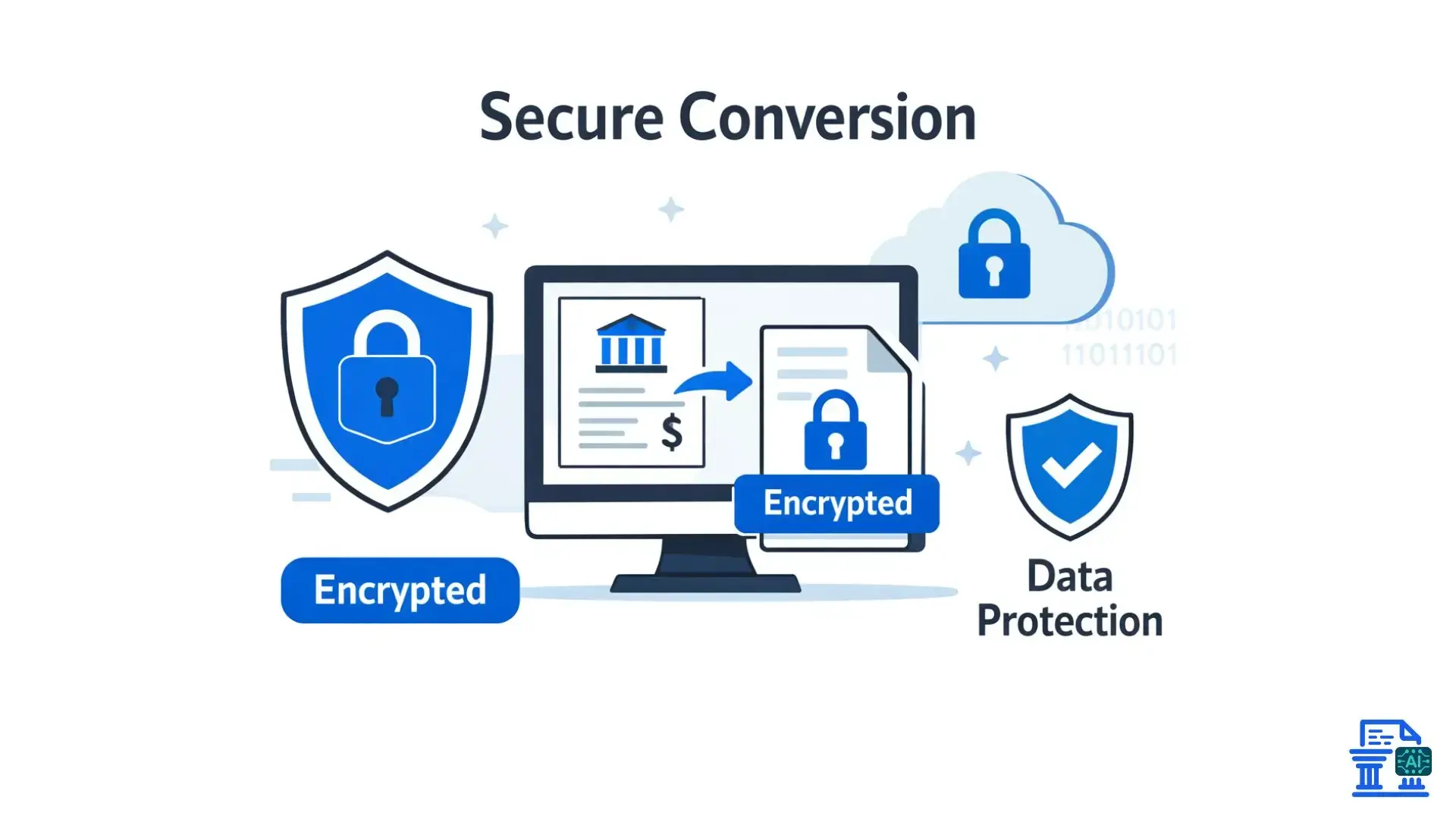
You are dealing with sensitive financial data . Security should be your top priority.
Understanding the Risks of Online Converters
Free, unknown online converters may store your data on their servers. While many are legitimate, some may not have rigorous security standards. Avoid uploading statements with visible full account numbers or social security numbers to unverified free sites.
Importance of Reputable Software and Encryption Protocols
Stick to reputable providers. Look for:
- SOC 2 Compliance: A standard for data security.
- 256-bit SSL Encryption: Ensures data is safe during transfer.
- Data Deletion Policies: Does the service automatically delete your file after an hour?
Best Practices for Handling Sensitive Bank Statement Data
- Redact sensitive info: If possible, black out your account number before uploading.
- Use local tools: Desktop software is generally safer for highly sensitive data.
- Don't email unencrypted files: If sending the Excel sheet to your accountant, use a secure portal, not standard email.
Password Protection and Data Encryption Features
If you are storing these converted Excel files, password-protect the workbook. In Excel, go to File > Info > Protect Workbook > Encrypt with Password. This adds a layer of safety if your computer is ever compromised.
Conclusion
Automating your workflow with a Bank Statement Converter to Excel removes tedious manual entry, cuts errors, and gives you instant analysis power. It lets you scale financial tasks efficiently, whether you're managing business accounts or tracking production expenses. Download a sample statement, test a converter, and experience how much time you save.
FAQs
1. Can we convert our bank statements to Excel easily?
Yes, PDF bank statements can be converted to Excel using AI-powered converters. These tools extract transactions and columns accurately, saving hours of manual entry.
2. What is the easiest way to convert PDF bank statements into Excel or CSV?
AI-based converters automatically extract transaction data from PDFs and scanned statements.
3. How do I import a bank statement into Excel without errors?
Convert your PDF or scanned statement to CSV or XLSX first. Then, import into Excel, ensuring dates and amounts are aligned for accurate formatting.
4. How do accountants quickly handle multiple bank statements?
Accountants use batch PDF-to-Excel or AI tools to process hundreds of statements at once. This maintains column accuracy and speeds up reconciliation and reporting.
5. What is the best Bank Statement Converter to Excel for avoiding manual entry?
Automated PDF-to-Excel converters read tables and transactions accurately. They generate structured spreadsheets ready for analysis, accounting, or integration with software like QuickBooks or Xero.

Leave a comment
Your email address will not be published. Required fields are marked *