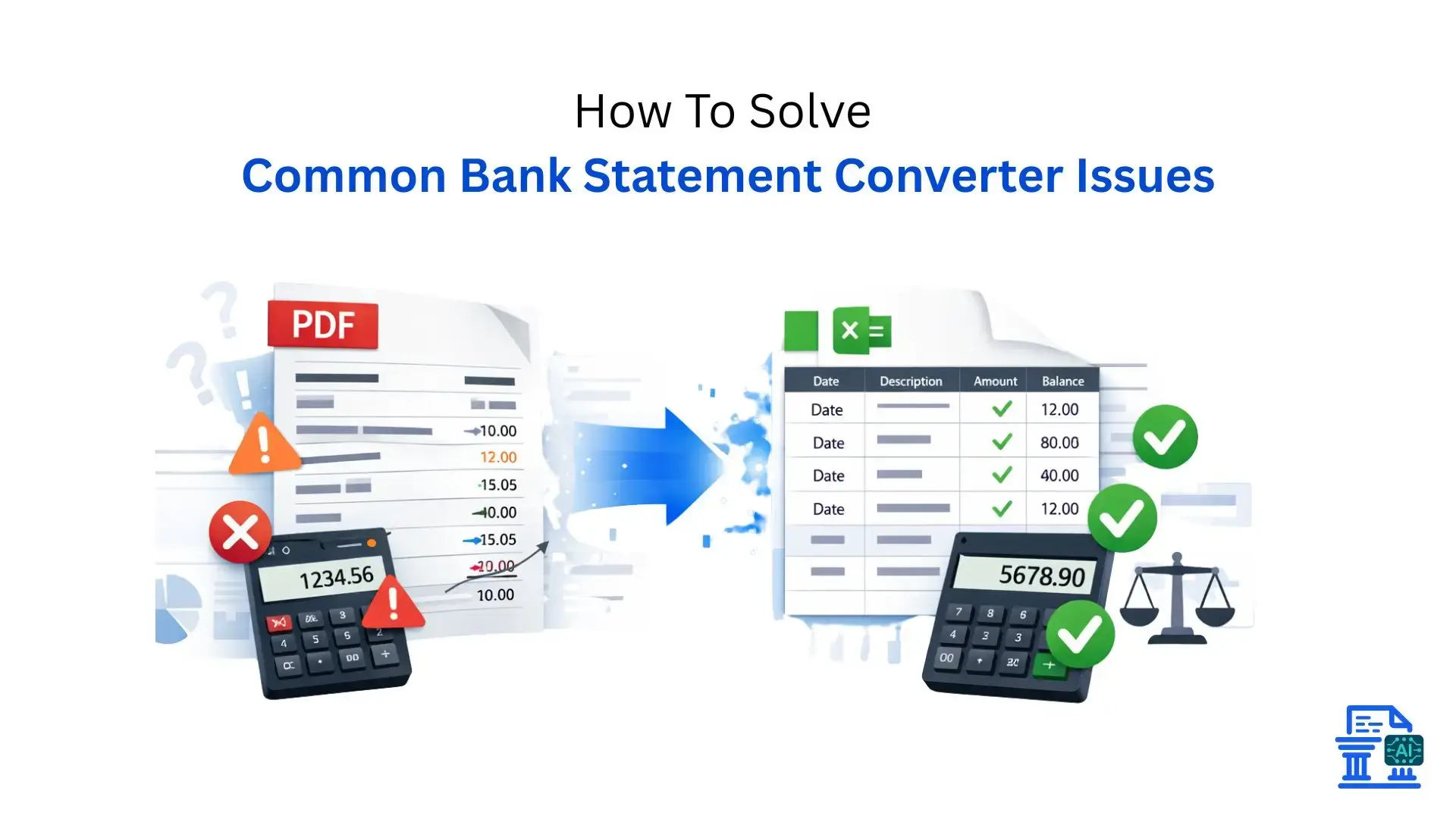
Struggling with bank statement converter issues? Learn how to fix OCR errors, missing transactions, and formatting glitches for accurate financial data.
Bank Statement Converter Issues are a common frustration for businesses dealing with PDF-based financial data. Manually re-entering transactions wastes time, while automated tools often introduce errors or formatting gaps.
This guide breaks down the most common obstacles and delivers expert solutions to help you extract clean, accurate data every time.
Quick Summary
Bank statement converters turn static PDFs into editable formats, but Bank Statement Converter Issues like OCR errors, misaligned columns, and missing transactions are common. Understanding file types, selecting the right tool, and validating data can streamline workflows and ensure accurate financial reporting.
The Value of Converting Bank Statements to Structured Data
Why bother converting files at all? The answer lies in efficiency and analysis. A PDF statement is essentially a digital piece of paper, you can look at it, but you can't interact with the numbers.
Converting these documents into structured data (like an Excel file or CSV) unlocks the ability to use pivot tables, perform automated analysis, and import transaction lists directly into accounting software like QuickBooks or Xero. It turns a static record into a dynamic tool for cash flow management.
The Frustration of Conversion Errors and What This Guide Offers
Despite the benefits, the conversion process can be maddening. You might run a bank statement PDF through a converter only to find that transaction dates are jumbled, bank fees are missing, or the Account holder name is spelled wrong.
These conversion errors don't just waste time; they create a high error rate in your books, leading to nightmares during the reconciliation process. This guide draws on years of accounting tech experience to help you troubleshoot these specific issues, ensuring your financial data is clean, accurate, and ready for your finance teams.
What Causes Bank Statement Conversion Problems?
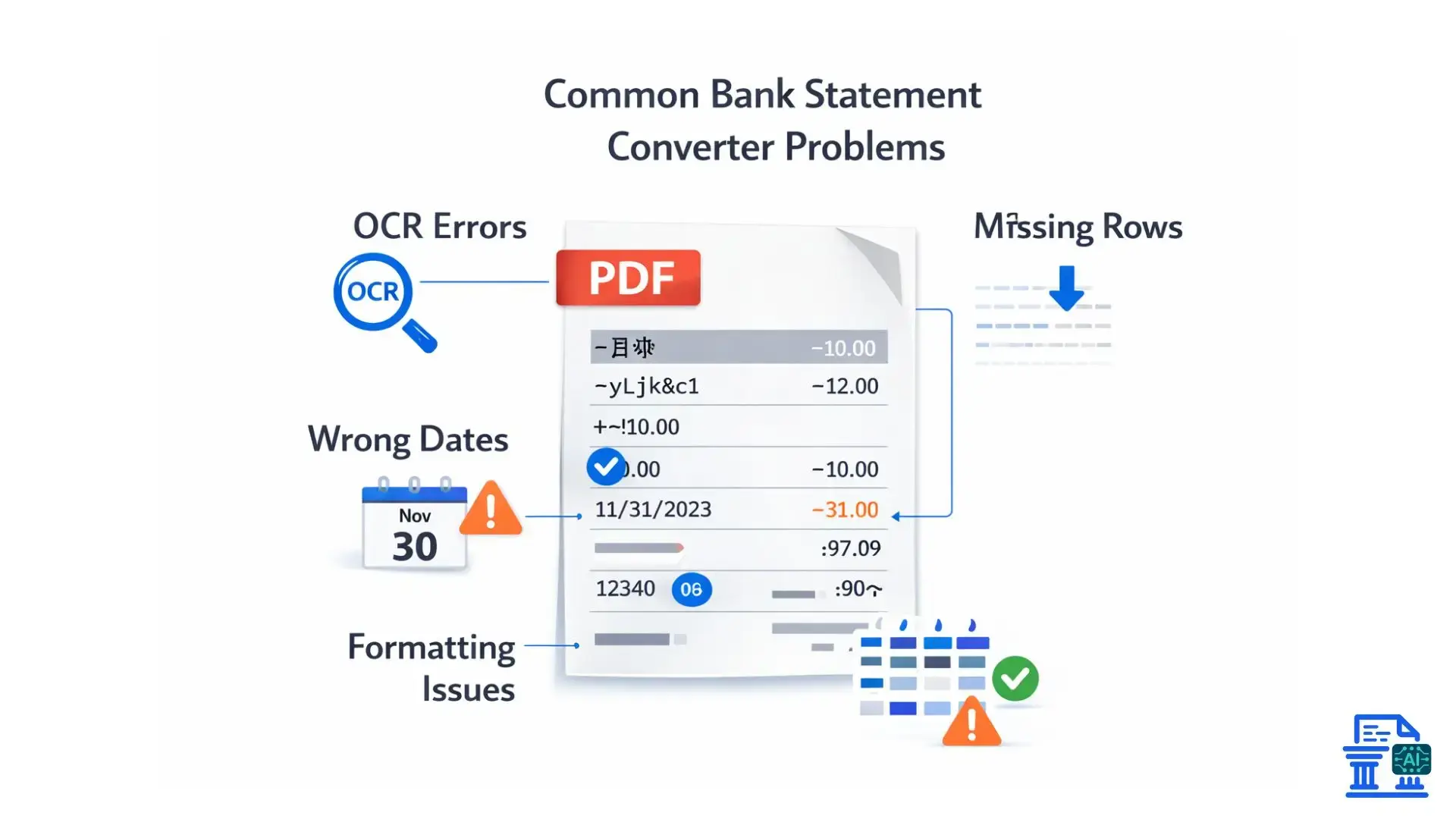
To fix a problem, you first have to understand why it's happening. Bank statement conversion isn't magic; it's technology interpreting visual data, and several factors can confuse that technology.
The Nature of PDF Bank Statements
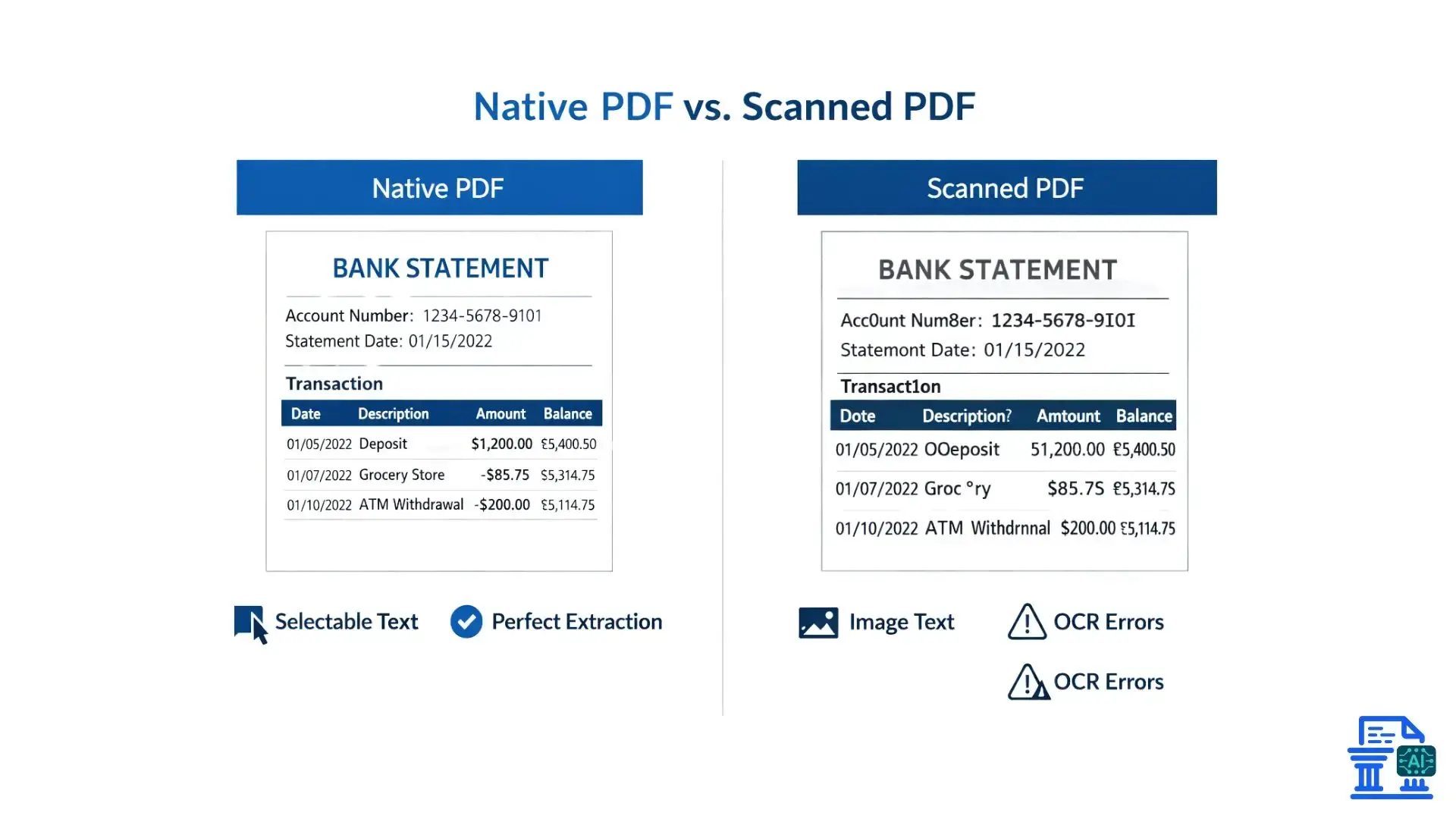
Not all PDF bank statements are created equal. Some are "native" PDFs generated directly by the bank platform, containing digital text layers. Others are "scanned" PDFs, images of paper statements.
- Native PDFs: Generally easier for converters to read because the text data exists in the code.
- Scanned PDFs: require the software to "see" the text, which introduces significant room for error.
- Hybrid PDFs: Some statements mix digital text with images (like bank logos), confusing simple extraction tools.
Limitations of Optical Character Recognition Technology
Optical Character Recognition is the technology used to read scanned text pages. While tools like ABBYY FineReader or Tesseract OCR are powerful, they aren't perfect.
If a scan is blurry, tilted, or has low contrast, the OCR might read a "5" as an "S" or a "1" as an "l." These tiny misinterpretations wreak havoc on financial data accuracy, requiring tedious manual review.
Data Structure and Formatting Inconsistencies
Banks are notorious for inconsistent formatting. A statement from Chase looks different from one from Wells Fargo or a local credit union.
- Merged Columns: Some banks combine the description and transaction type into one column.
- Floating Dates: The date might appear only once for a group of transactions.
- Layout Changes: Banks often change their layouts without warning, breaking automated custom scripting or templates.
Tool-Specific Limitations and User Errors
Sometimes the tool just isn't the right fit for the job. Using a generic PDF converter instead of a specialized bank statement converter often results in formatting issues because the tool doesn't understand the context of debits and credits. Furthermore, user error, like uploading the wrong file type or neglecting to check regional settings (e.g., DMY vs. MDY date formats), accounts for a significant portion of reconciliation issues.
Troubleshooting Bank Statement Converter Issues
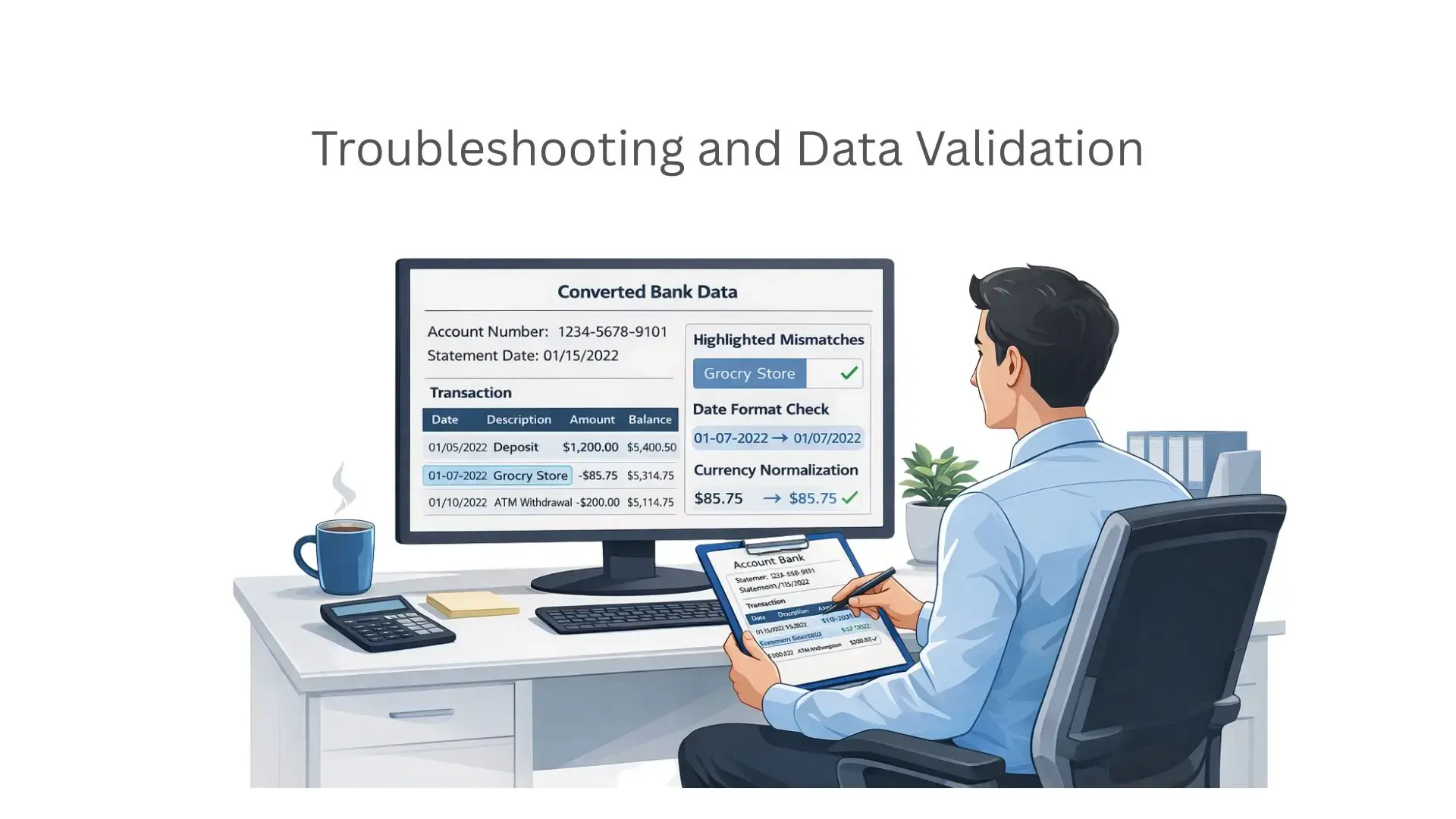
When your converter fails, don't panic. Here is a breakdown of the most common glitches and how to solve them.
Issue 1: Missing Transactions or Incomplete Data
It is terrifying to realize your transaction lists are short. This usually happens when a converter misidentifies a header or footer as data, or conversely, ignores a row because it looks like page noise.
- Check Page Breaks: Ensure the converter isn't skipping the first or last row of each page.
- Verify Header/Footer Exclusion: Adjust settings to ensure the tool knows where the table actually starts and ends.
- Review "Discarded Lines": Good converters often have a review section showing lines they ignored. Check there first.
Issue 2: Incorrect Formatting, Merged Columns, or Misaligned Data
You open your Excel file, and the description column has eaten the withdrawal amount. This is a classic parsing error.
- Use "Text to Columns": In Excel, use this feature to manually separate data based on fixed widths or delimiters.
- Adjust Grid Lines: If your converter allows manual grid adjustment (like Receipt Bot or DocuClipper), drag the column dividers to the correct position before exporting.
- Check Alignment: Ensure the original PDF wasn't scanned at an angle, which confuses column detection.
Issue 3: Numbers (Amounts) and Dates Are Wrong or Unrecognized
If your accounting systems are rejecting the import, it's often because of data types.
- Regional Settings: Ensure your computer and the converter agree on date formats (DD/MM/YYYY vs MM/DD/YYYY).
- Currency Symbols: Remove "$" or "£" symbols during conversion, as some software reads these as text, not numbers.
- Negative Signs: Watch for how credits are marked. Some banks use parentheses (100.00) , others use a minus sign -100.00 , and some use a separate "CR" column.
Issue 4: Unreadable Text or Garbled Characters (OCR Errors)
If your output looks like alphabet soup, your OCR is struggling. This is common with low-quality scans or crinkled paper.
- Pre-process the Image: Increase the contrast and brightness of the scan before uploading.
- Deskew: Use software to straighten the page image.
- Manual Validation: There is no shortcut here. You must go line-by-line to correct characters, especially in the "Amount" column.
Issue 5: Difficulty with Multi-Page, Bulk Transactions, or Recurring Statements
Handling one statement is easy; handling 50 is a project. Bulk transactions across multiple files can lead to version control issues.
- Batch Processing: Use tools designed for Bank Statement Conversion that support batch uploads.
- Standardize filenames: Rename all files with the date and account number before conversion to keep track of PDF files.
- Watch for "Running Balances": Ensure the starting balance of Page 2 matches the ending balance of Page 1.
Issue 6: Security and Privacy Concerns
Uploading bank accounts details to an online tool requires caution. You are dealing with sensitive financial data .
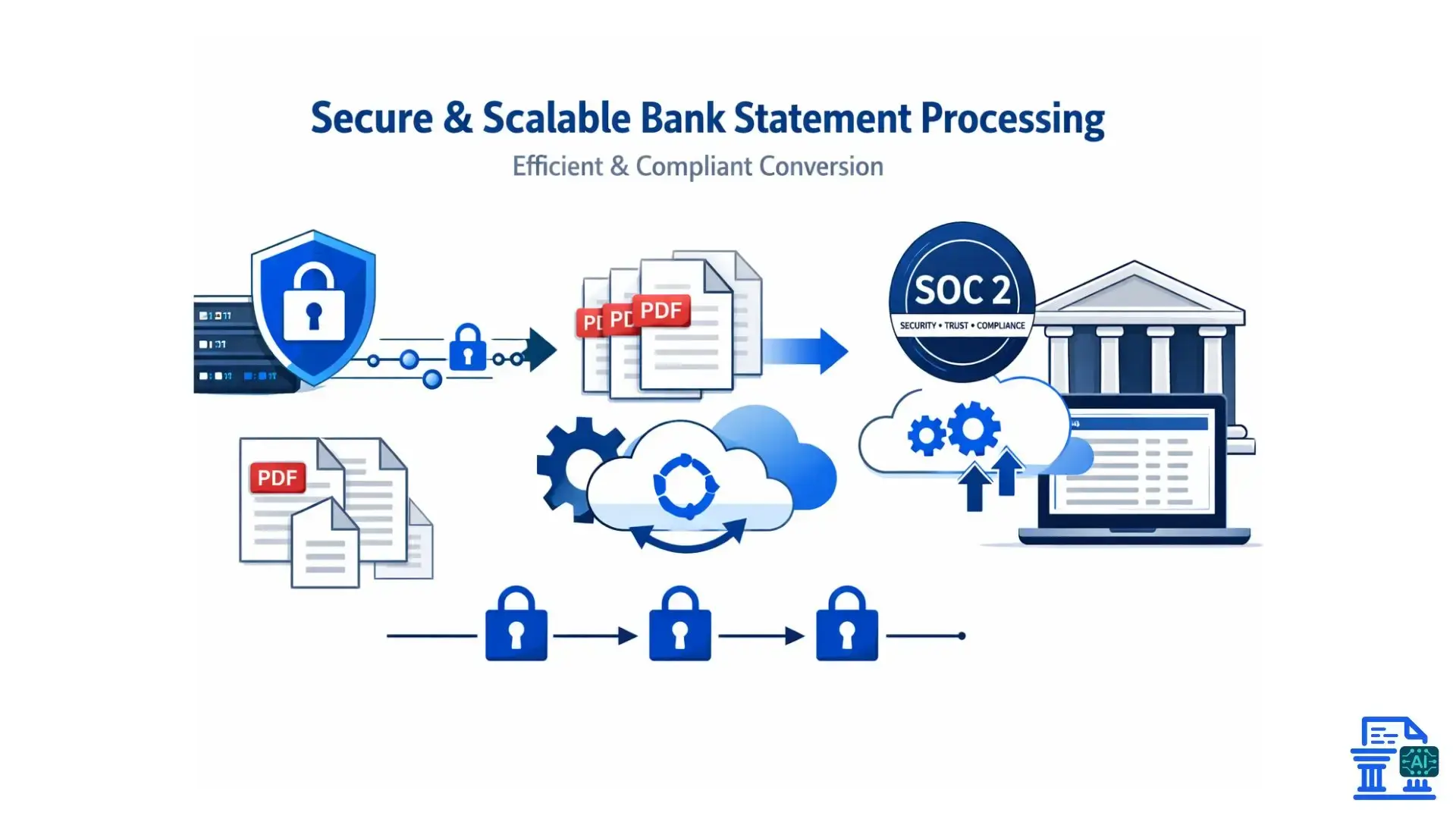
- Encryption: Only use converters that offer AES-256 encryption and are SOC2 compliant.
- Data Deletion: Check the policy on data retention. The best tools delete your files automatically after a set period.
- Redaction: If possible, redact the Bank name and Account holder name if you are testing a new, unverified tool.
How Do I Choose the Right Converter?
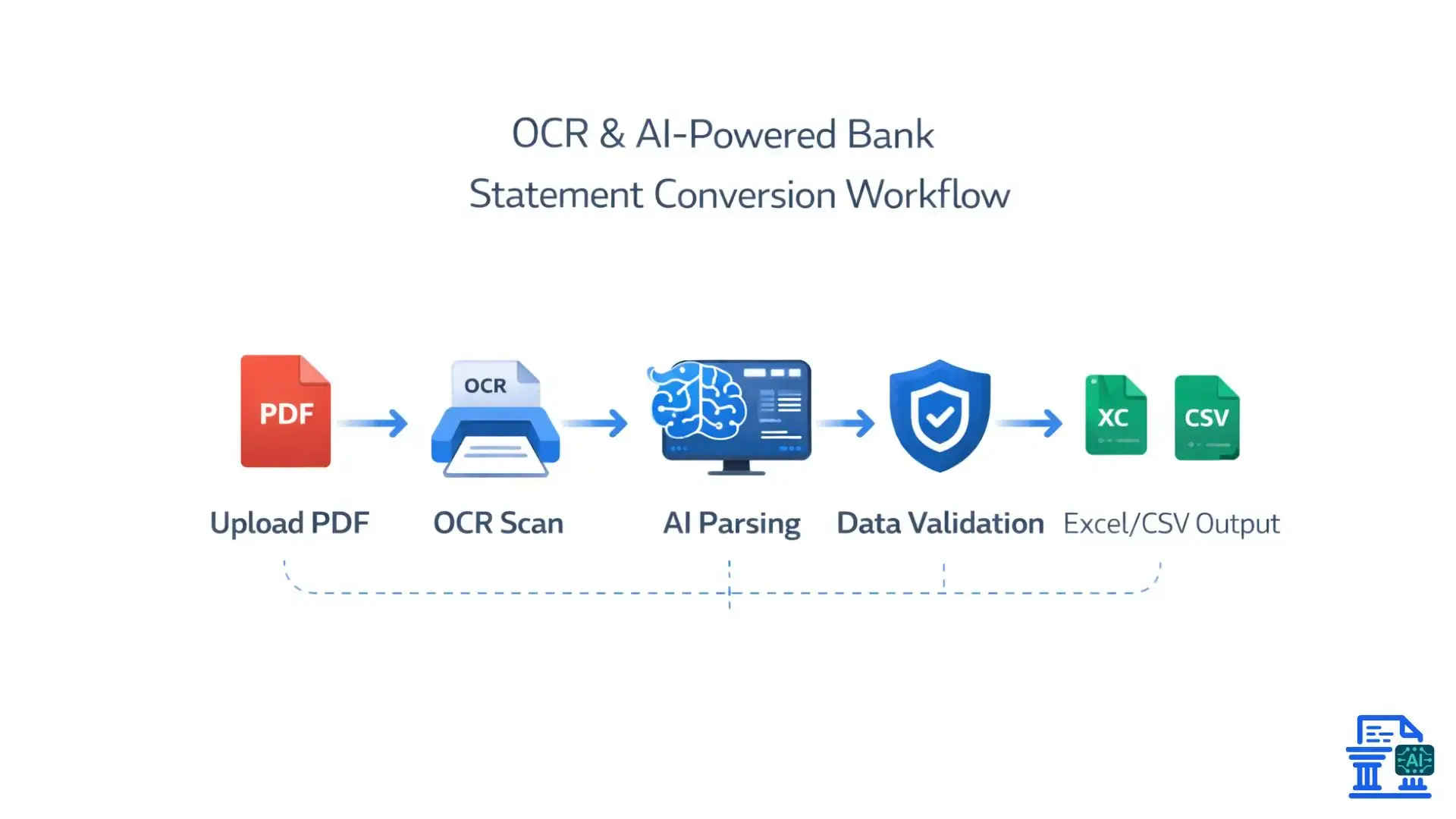
The "best" method depends entirely on volume and file quality. Here is a quick guide to selecting the right tool for your specific scenario.
Manual Conversion Methods
For a one-off statement with clean text, you might not need paid software. You can copy/paste data from the PDF into Excel Spreadsheets or Google Sheets. From there, use Text to Columns or Power Query to clean it up. It’s free, but slow and prone to human error.
Dedicated OCR Software
If you are dealing with paper archives, general OCR tools like Adobe Acrobat Pro or ABBYY FineReader are industry standards. They excel at turning images into text but may require significant manual reformatting to get the columns to line up for accounting software.
Specialized Online/Desktop Bank Statement Converters
For regular finance teams, specialized tools (like MoneyThumb, AutoEntry, or ProperSoft) are the gold standard. They are trained specifically on bank transactions and layouts. They handle transaction dates, outstanding checks, and unauthorized withdrawals logic much better than generic OCR.
Custom Scripting
If you have thousands of native PDFs from the same bank, a Python script using libraries like pdfplumber or camelot is the ultimate solution. This allows for PDF Extraction with near-zero errors once the script is perfected, enabling true financial automation.
Pro Tips:
The best way to fix a conversion error is to prevent it from happening in the first place. Adopting these habits will save you hours of cleanup time.
- Obtain High-Quality Native PDFs: Always download the original PDF statement directly from the bank platform. Avoid printing and scanning them back in whenever possible.
- Understand Your Bank's Layout: Take five minutes to look at the transaction rows. Does the bank wrap long text to a second line? Knowing this helps you spot errors faster.
- Regular Data Validation: Don't just import and pray. Perform a quick sum of the "Amount" column in your Excel file and compare it to the ending balance on the PDF.
- Consistency is Key: Stick to one process. If you use automated data capture for one month, don't switch to manual entry the next. Consistency helps machine learning algorithms in your software get smarter over time.
Integrating Converted Data with Your Accounting Workflow
Once your data is clean, the real magic happens.
- Seamless Reconciliation: Import your clean CSV or QBO files for Bank Reconciliation . This makes transaction matching nearly instant.
- Enhancing Financial Analysis: Use clean data for cash flow analysis. You can track spending trends or prepare for loan applications with confidence.
- Software Integration: Whether you use QuickBooks , Xero , or Sage , direct imports reduce manual data entry keying errors.
- Workflow Efficiency: Accurate conversions feed into automated analysis , freeing up your team to focus on strategy rather than data entry.
Conclusion
Solving Bank Statement Converter Issues isn’t just about fixing spreadsheets, it’s about reclaiming time by understanding PDF and OCR limitations and choosing the right tools for your needs.
Whether you’re a small business owner or a CFO, moving away from manual entry toward clean, automated data is the foundation of better financial decisions.
FAQs
1. What are the most common bank statement converter issues?
Common issues include OCR errors, missing transactions, misaligned columns, and incorrect dates or amounts. These usually occur due to scanned PDFs, poor formatting, or incompatible tools.
2. How can I convert a PDF bank statement to Excel without messing up formatting?
Use a specialized bank statement converter instead of a generic PDF tool. AI-based converters trained on bank layouts preserve columns, dates, and debit/credit structure more accurately.
3. Why do PDF to Excel conversions fail or miss transactions?
Failures often happen with low-quality scans, page breaks, or hybrid PDFs. Tools designed for financial data handling can process multi-page statements and OCR challenges better than basic converters.
4. How accurate are AI-based bank statement converters?
Accuracy depends on PDF quality and layout consistency. Modern AI tools can reach very high accuracy, especially when using platforms designed specifically for financial data.
5. What is the best way to convert hundreds of bank statement PDFs into Excel or CSV?
Batch processing with a dedicated converter is the most efficient approach. Using a tool like mybankstatementconverter.ai saves hours while maintaining data accuracy and consistency.

Leave a comment
Your email address will not be published. Required fields are marked *